
For most GCC businesses, the VAT return is a quarterly scramble. Someone exports invoices into a spreadsheet, adds up boxes by hand and hopes the numbers match the ledger. Odoo 19 removes most of that work. If your taxes are mapped correctly, every invoice, bill and credit note lands in the right return box as it is posted, and the return is close to ready on the last day of the quarter. This guide walks through a practical setup for an invented UAE distributor, Al Noor Building Supplies LLC, which files quarterly. The same approach works for Saudi Arabia, Oman and Bahrain with each country's localization.
Step 1: Confirm your fiscal localization and tax settings
Open Accounting › Configuration › Settings and check the Fiscal Localization package for your country. The localization installs the chart of accounts, the standard VAT taxes and the country's tax report, which is the template for your return. In the Taxes section, set the default sales and purchase taxes so new products start correctly. Then set the Tax Return Periodicity to monthly or quarterly, matching your registration, along with the reminder and the journal used for the closing entry. Choose Round Globally as the rounding method so invoice VAT totals match how the tax authority calculates them. Leave cash basis off unless your registration specifically requires it.
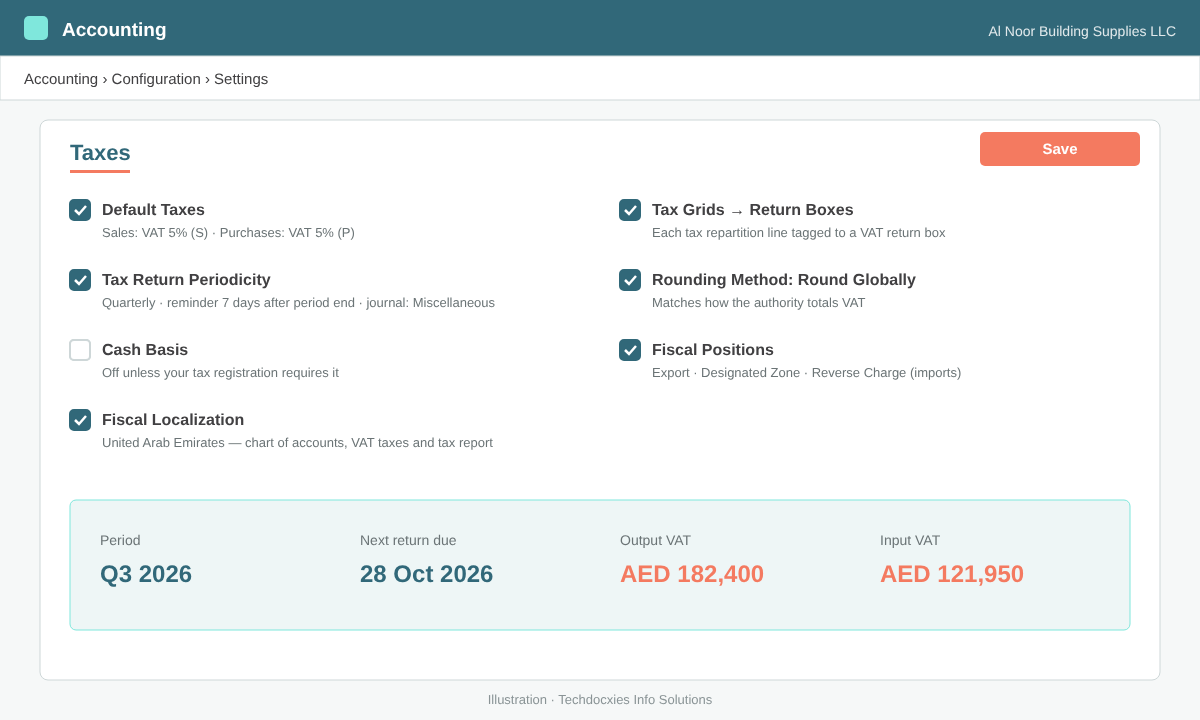
The Taxes section of Accounting settings drives defaults, periodicity and rounding for every return.
Step 2: Review your VAT taxes and tax grids
Go to Accounting › Configuration › Taxes. Each tax has repartition lines for invoices and refunds, and each line carries tax grids, which are the tags that send the base amount and the VAT amount to specific boxes on the return. Most return errors come from a tax created later by copying the wrong one, with missing or wrong grids. Review every active tax against the table below and archive the ones you don't use.
| Tax | Typical use | Return treatment (UAE example) |
|---|---|---|
| VAT 5% sales (per emirate) | Local taxable sales | Base and VAT to Box 1, split by emirate |
| Zero-rated 0% | Exports, qualifying supplies | Base to Box 4, no VAT |
| Exempt | Specific exempt supplies | Base to Box 5 |
| VAT 5% purchases | Local taxable expenses | Base and recoverable VAT to Box 9 |
| Reverse charge 5% | Imported goods and services | Output in Box 3, input in Box 10, net zero if fully recoverable |
| Out of scope | Salaries, fines, non-business items | No grid, kept off the return |
Step 3: Set up fiscal positions for special cases
Fiscal positions swap taxes automatically based on the customer or vendor. In Accounting › Configuration › Fiscal Positions, create or review positions for exports outside the GCC, designated-zone customers where relevant, and foreign vendors whose purchases need reverse charge. Map each domestic tax to its replacement, then set the fiscal position on the contact, or let Odoo detect it automatically by country. Sales staff then never have to remember which tax to pick.
Pro tip: Make the VAT registration number mandatory for business customers in your process, and print it on invoices. A missing or wrong TRN is one of the first things an auditor checks, and it is far easier to enforce when the contact is created than to fix during an audit.
Step 4: Capture VAT correctly in daily transactions
The return is only as good as the documents behind it. Make sure customer invoices and credit notes always carry the correct tax and that credit notes are linked to the original invoice. Vendor bills should be posted with the supplier's actual invoice date and reference, because input VAT generally belongs in the period in which you hold a valid tax invoice. For imports, record customs VAT either through the reverse charge tax or as a separate bill from the customs authority or clearing agent, depending on how it was paid. Employee expenses with VAT receipts should use the purchase tax, not be booked gross.
Watch out: Manual journal entries that touch VAT accounts without tax grids will change your ledger balance but not your return. If the tax report and the VAT accounts in the trial balance don't agree, untagged manual entries are usually the reason. Restrict who can post to VAT accounts directly.
Step 5: Run and review the tax report
At period end, open Accounting › Reporting › Tax Return and select the quarter. The report shows each return box with its base and VAT amounts, and you can click any line to see the journal items behind it. Review it in three passes: compare the totals with the output and input VAT account balances in the trial balance; check large or unusual lines, such as a zero-rated sale to a local customer; and confirm that every bill dated in the period has been posted. Export the report to Excel as a working paper for your file.
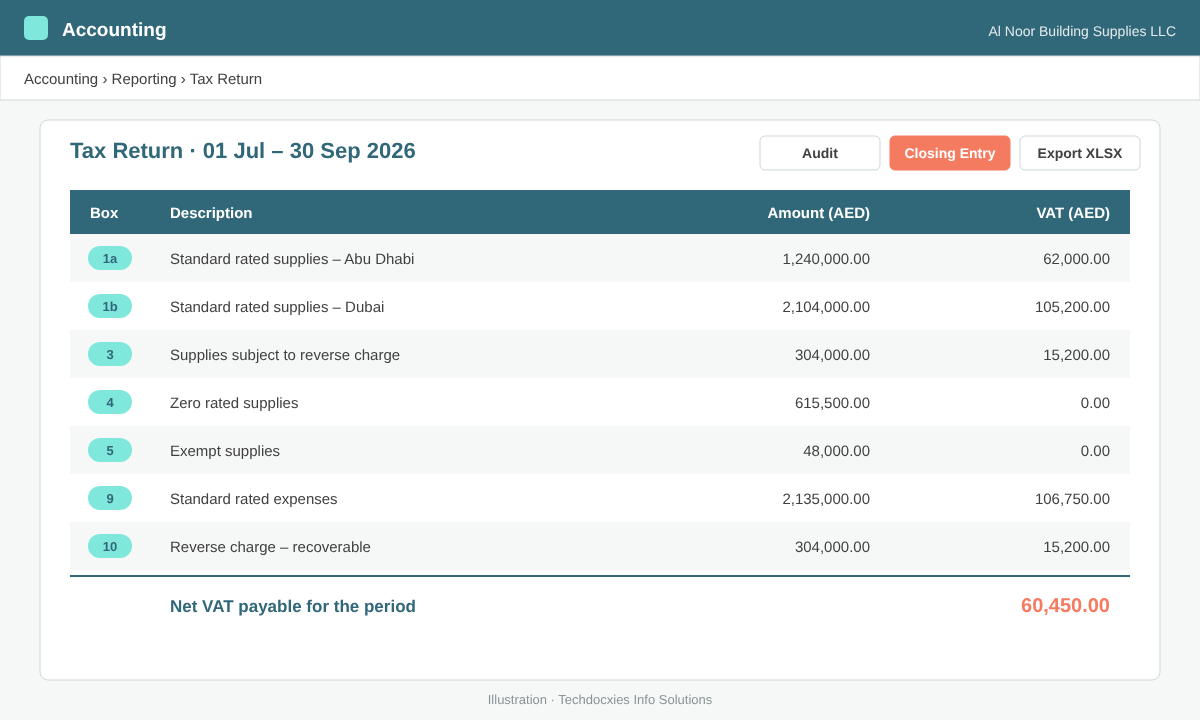
The tax report groups every posted line into return boxes and calculates net VAT payable.
Step 6: Post the closing entry and lock the period
Once the figures are approved, generate the tax closing entry from the tax report. This entry clears the output and input VAT accounts for the period and moves the net amount to a VAT payable or receivable account, so the next quarter starts clean. Then set the tax lock date in Odoo's lock date settings to the last day of the period. After that, nobody can post or change an entry that would alter a filed return; corrections go into the next open period, as most GCC tax authorities expect.
Step 7: File with the authority and record the payment
Odoo prepares the figures; the filing itself is done on your tax authority's portal, such as EmaraTax in the UAE or ZATCA in Saudi Arabia. Copy the box values from the report, submit, and save the acknowledgement in Odoo Documents or as an attachment on the closing entry. When you pay, register the payment against the VAT payable account so the balance returns to zero.
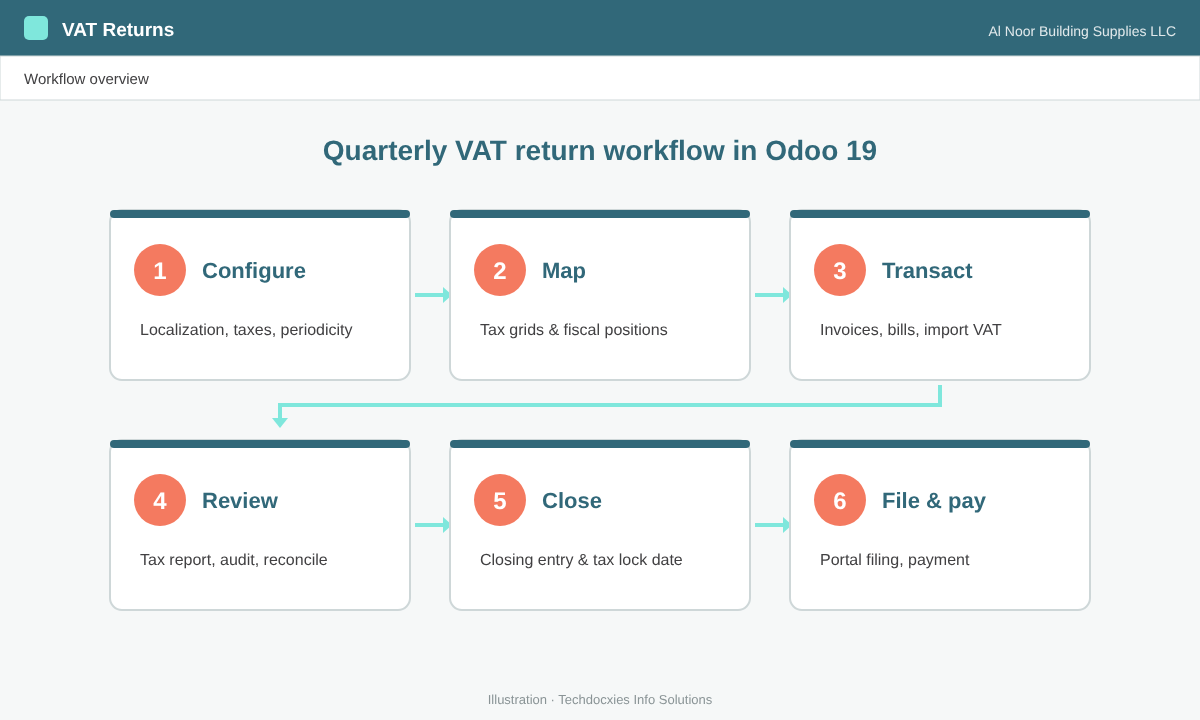
From configuration to filing: the full quarterly VAT cycle in Odoo 19.
VAT return checklist
- ☐ Fiscal localization, default taxes and return periodicity confirmed
- ☐ Every active tax checked for correct tax grids; unused taxes archived
- ☐ Fiscal positions set for exports, designated zones and reverse charge
- ☐ All bills for the period posted with supplier invoice dates
- ☐ Tax report reconciled to VAT accounts in the trial balance
- ☐ Closing entry posted and tax lock date set
- ☐ Return filed, acknowledgement attached and payment recorded
OUR EXPERTISE
How Techdocxies Helps with VAT Returns
Techdocxies Info Solutions has delivered 50+ Odoo projects for trading, distribution and service businesses across the GCC and beyond. We don't just switch modules on — we map your real processes first, then configure, customise, migrate, train and back you with 24/7 support.
- Audit your VAT taxes, tax grids and fiscal positions against your country's return format
- Configure reverse charge, zero-rated and designated-zone scenarios correctly from day one
- Reconcile historical VAT balances during migration so your first Odoo return is clean
- Set up period-end controls: review routines, closing entries and tax lock dates
- Train your finance team to prepare, review and file returns with confidence