
For a trading company, a bad shipment that slips into stock is expensive twice: once when you pay the vendor, and again when your customer rejects it. Odoo 19's Quality app lets you stop defective goods at the dock by attaching quality checks directly to incoming receipts. This guide walks through a practical setup — from enabling the feature to handling failed checks and vendor returns — using our example distributor, Gulf Fittings Trading LLC.
Step 1: Enable Quality and multi-step receipts
Go to Inventory › Configuration › Settings. Under Operations, tick Quality; this installs the Quality app (it is part of Odoo Enterprise). Under Warehouse, enable Storage Locations and Multi-Step Routes, then save.
Next open Inventory › Configuration › Warehouses, select your main warehouse and set Incoming Shipments to Receive, quality control, then store (3 steps). Goods now land in an Input location, pass through a Quality Control location, and only then move to Stock. If your warehouse is small, a single-step receipt with checks on the receipt itself also works — the 3-step route simply gives you a physical and system "quarantine" zone.
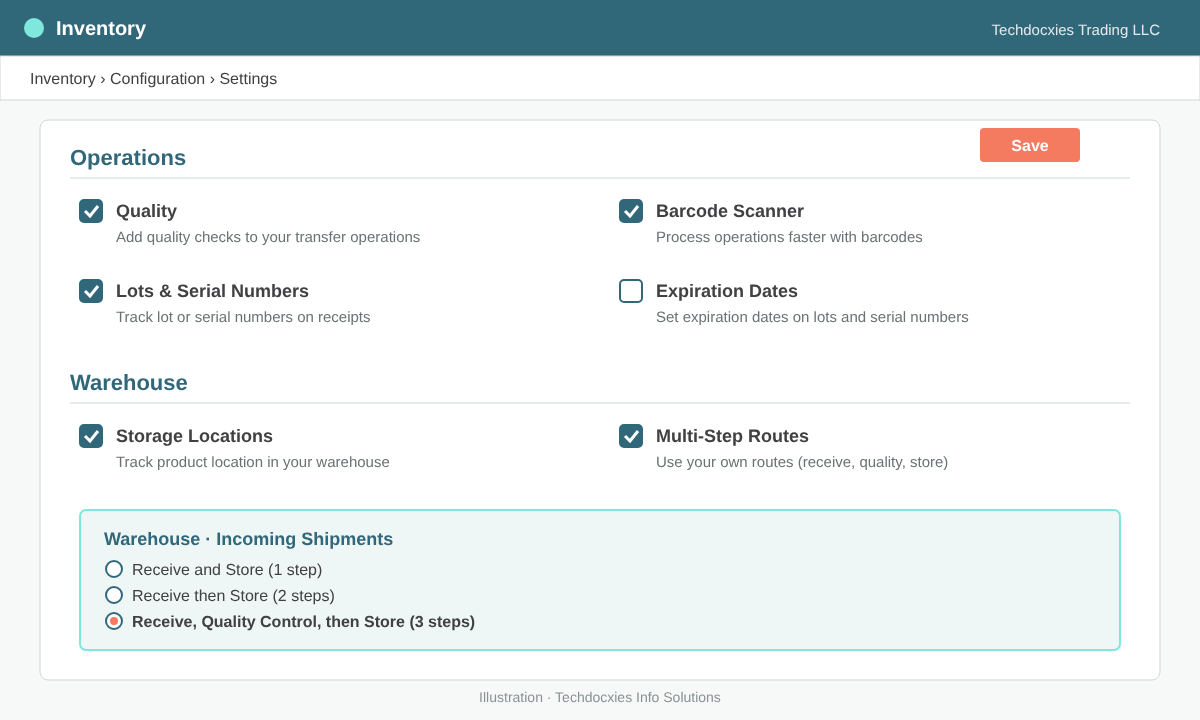
Enabling Quality and a 3-step receipt route in Inventory settings
Step 2: Set up quality teams
Under Quality › Configuration › Quality Teams, create a team such as "Receiving QC". Teams own checks and alerts, and their kanban cards show how many checks and alerts are open. Add the inspectors who will work at the dock so they can follow the team and receive notifications.
Step 3: Create control points for receipts
A control point is the rule that tells Odoo when to generate a check. Open Quality › Quality Control › Control Points and click New. The key fields are:
| Field | What to set for receipts | Gulf Fittings example |
|---|---|---|
| Products / Product Categories | Limit the rule to high-risk items, or leave empty to cover everything | Category "Pipes & Fittings" |
| Operations | The receipt operation type (or the quality step of a 3-step route) | Main Warehouse: Receipts |
| Control Per | Operation (one check per receipt), Product, or Quantity | Product |
| Control Frequency | All, Randomly (a % of receipts) or Periodically | Randomly, 20% |
| Type | Instructions, Take a Picture, Pass – Fail or Measure (more types such as worksheets are available) | Measure |
| Team / Responsible | Who performs the check | Receiving QC |
For a Measure check, enter the norm and the tolerance range; values outside the range automatically fail. Use the Instructions tab to tell inspectors exactly how to sample, and the Message If Failure tab to say what to do next.
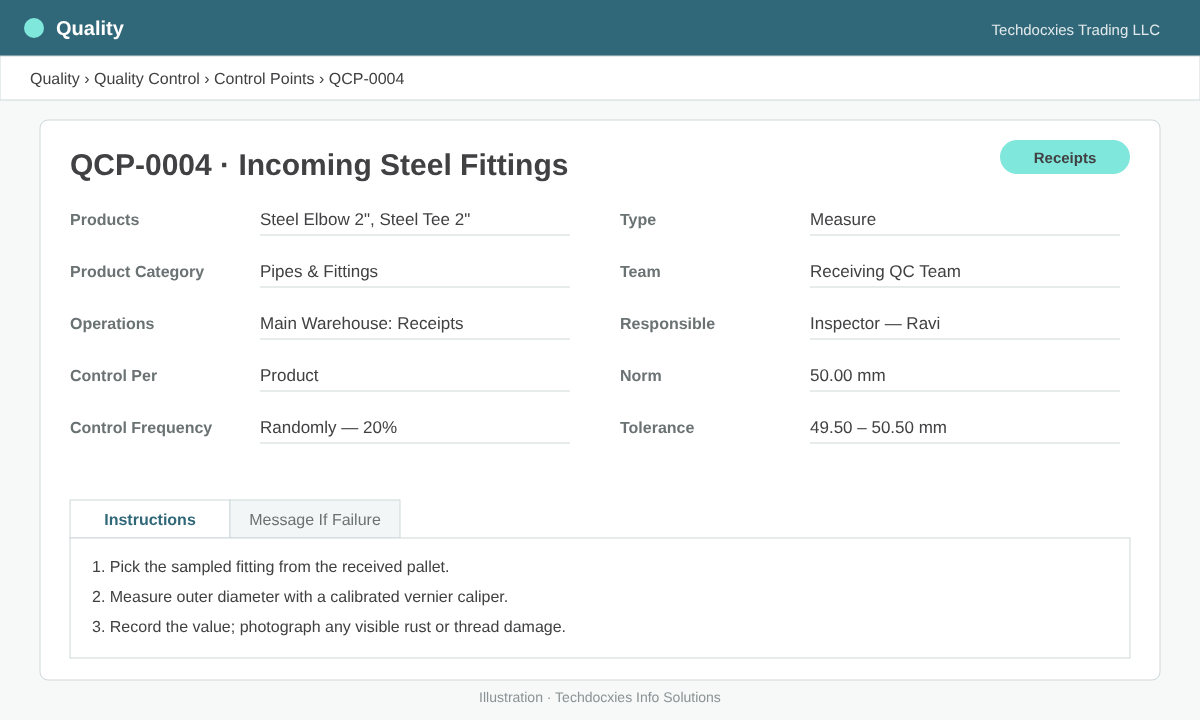
A Measure-type control point applied to the Receipts operation
Pro tip: Don't check everything. Start with "All" only for new vendors and critical items, and use "Randomly" sampling for trusted suppliers. Review failure rates monthly and tighten or relax frequencies per vendor — that keeps your dock moving without losing control.
Step 4: Perform checks on incoming receipts
When a purchase order is confirmed and goods arrive, open the receipt from Inventory › Overview. A Quality Checks button appears on the transfer. Click it to record results: mark Pass or Fail, enter a measured value or attach a photo. Odoo will not let you validate the transfer while required checks are still pending, so nobody can skip the inspection. Inspectors using the Barcode app can complete the same checks on a handheld scanner.
All checks are also listed under Quality › Quality Control › Quality Checks, where you can group by product, vendor or status to see what is waiting.
Step 5: Handle failures with quality alerts
When a check fails, create a quality alert from the check (or from Quality › Quality Control › Quality Alerts). Record the product, lot, vendor, root cause, priority and corrective action, and assign it to the team. Alerts move through kanban stages such as New, Confirmed, Action Proposed and Solved, giving management a live view of supplier issues.
For the physical goods, keep failed items in the Quality Control location (or move them to a dedicated quarantine location) and use the Return button on the validated receipt to send them back to the vendor. In Accounting, issue a vendor credit note or adjust the bill so you only pay for accepted quantities.
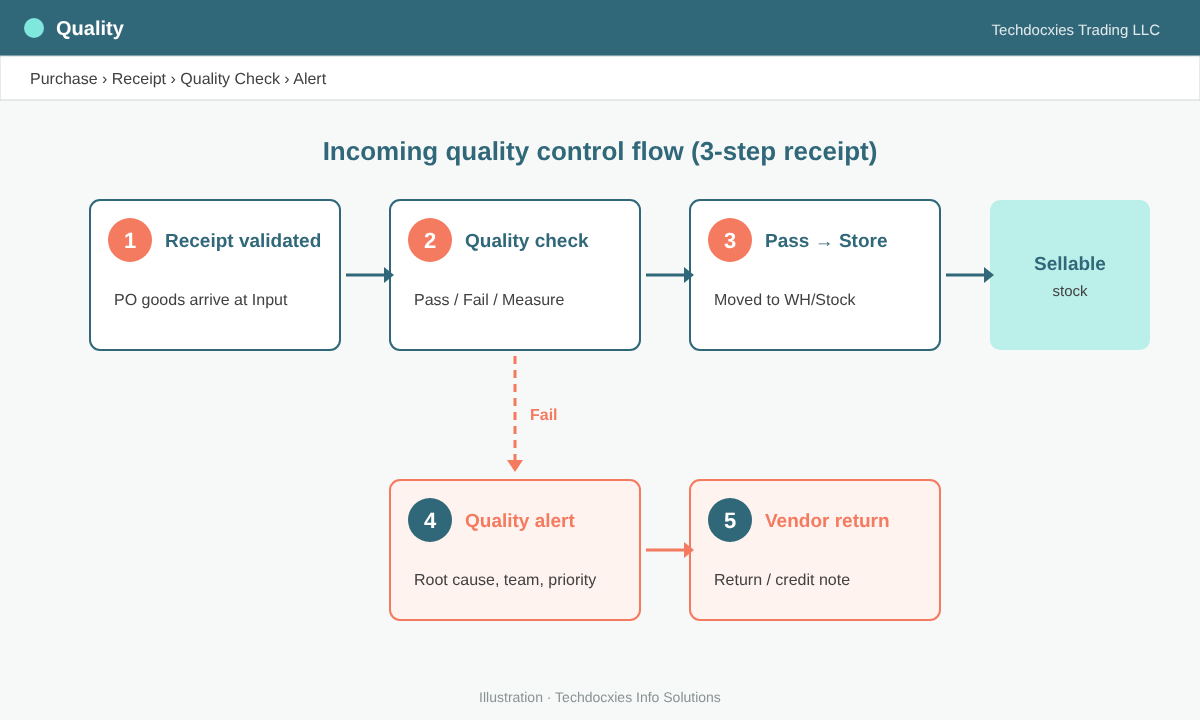
Pass and fail paths for incoming goods
Watch out: If your purchase bills are controlled on received quantities, rejected goods that were already validated as received still count until you process the return. Make sure the return is recorded before the vendor bill is posted, or you'll pay for stock you sent back.
Step 6: Monitor vendor quality
Use the reporting views under Quality › Reporting to analyse checks and alerts by product, team and result. Combined with purchase reporting, this shows which vendors generate the most failures — useful evidence when negotiating terms or deciding on a second source.
Go-live checklist
- Quality enabled and warehouse receipt route chosen (1, 2 or 3 steps)
- Quality Control and quarantine locations clearly labelled on the warehouse floor
- Quality teams created and inspectors trained on the Barcode app
- Control points defined for high-risk categories, with norms and tolerances
- Failure messages written so inspectors know the next action
- Return and credit-note process agreed with Purchase and Accounts
- Monthly review of failure rates per vendor scheduled
OUR EXPERTISE
How Techdocxies Helps with Quality Checks on Receipts
Techdocxies Info Solutions has delivered 50+ Odoo projects for trading, distribution and service businesses across the GCC and beyond. We don't just switch modules on — we map your real processes first, then configure, customise, migrate, train and back you with 24/7 support.
- Design receipt routes and quarantine locations that match your warehouse layout
- Build control points, sampling frequencies and tolerances per product and vendor
- Set up the Barcode app so inspectors complete checks on handheld devices
- Connect failed checks to vendor returns, credit notes and three-way matching
- Create vendor quality dashboards for purchasing and management reviews