
A trading company that sells safety boots in four sizes and three colours doesn't stock one product. It stocks twelve, and each one needs its own price, stock level and barcode. In this guide we set up product variants and barcodes in Odoo 19 so your sales team picks the right item, your warehouse scans instead of typing, and your stock report means what it says.
We'll use an invented distributor, Gulf Shield Safety Supplies, which sells PPE to contractors from a warehouse in Sharjah. Its best seller, the "Desert Pro Safety Boot", comes in sizes 40–43 and in black, tan and brown.
Step 1: Switch on Variants and Barcode Scanning
Go to Sales › Configuration › Settings and, under Product Catalog, tick Variants. If you buy in cartons and sell in pieces, turn on Units of Measure in the same place. Then open Inventory › Configuration › Settings, go to the Barcode section, and enable Barcode Scanner. This installs the Barcode app so warehouse staff can scan with a handheld device or a phone camera.
In the same section you can choose the Barcode Nomenclature. Default Nomenclature works for plain EAN-13/UPC codes. Choose GS1 Nomenclature if your suppliers print GS1-128 labels that hold the GTIN, lot number and expiry date together.
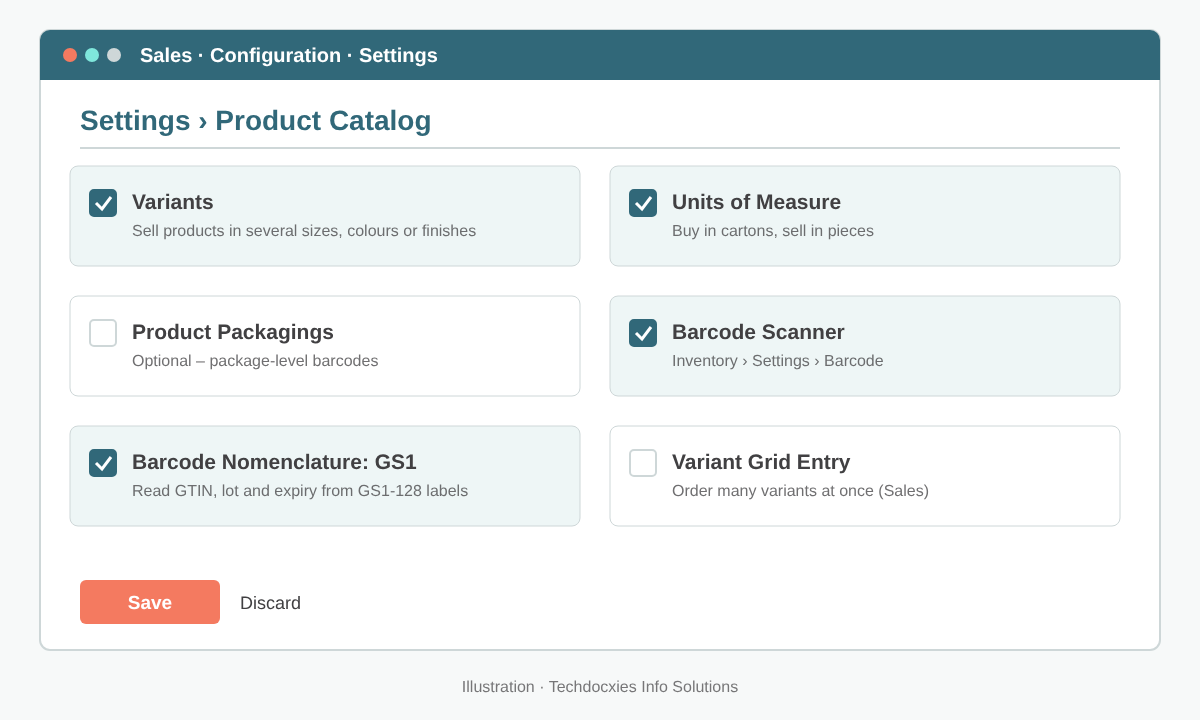
Enabling Variants, Units of Measure and the Barcode Scanner in Odoo 19 settings (illustrative)
Step 2: Define Your Attributes and Values
Attributes are the dimensions a product varies on. Create them at Sales › Configuration › Attributes (the same list appears under Inventory configuration). For each attribute, set:
- Display Type: how customers and salespeople pick a value on quotations and the eCommerce shop (radio buttons, pills, a dropdown, colour swatches and so on). Use the colour type for colours so you can set a swatch for each value.
- Variant Creation: Instantly creates every combination as soon as you save the product. Dynamically creates a variant only when someone orders it. Never keeps the attribute as a description option and creates no extra stock items.
- Values: the list of options, such as 40, 41, 42, 43.
Gulf Shield created three attributes: Size and Colour (both set to Instantly, because each combination is stocked) and Toe Cap (also Instantly, so steel- and composite-toe boots can be added later).
Pro tip: Only use variants for things that change stock, cost or barcode. A free-text option like "embroider company logo" belongs in a Never attribute or a custom value, not in a stocked variant. If every option becomes a stocked item, your variant list multiplies quickly and no one can find anything.
Step 3: Build the Product Template
Open Inventory › Products › Products and create the product. Fill in the general information once: product type, sales and purchase taxes, category, vendor and route. Then open the Attributes & Variants tab and add one line per attribute with the values that apply to this product.
When you save, Odoo generates the combinations: 4 sizes × 3 colours × 1 toe cap = 12 variants. A Variants smart button at the top of the form opens them. If a combination doesn't exist (say, size 43 isn't made in tan), use the attribute value's Configure option to exclude it, or archive that variant.
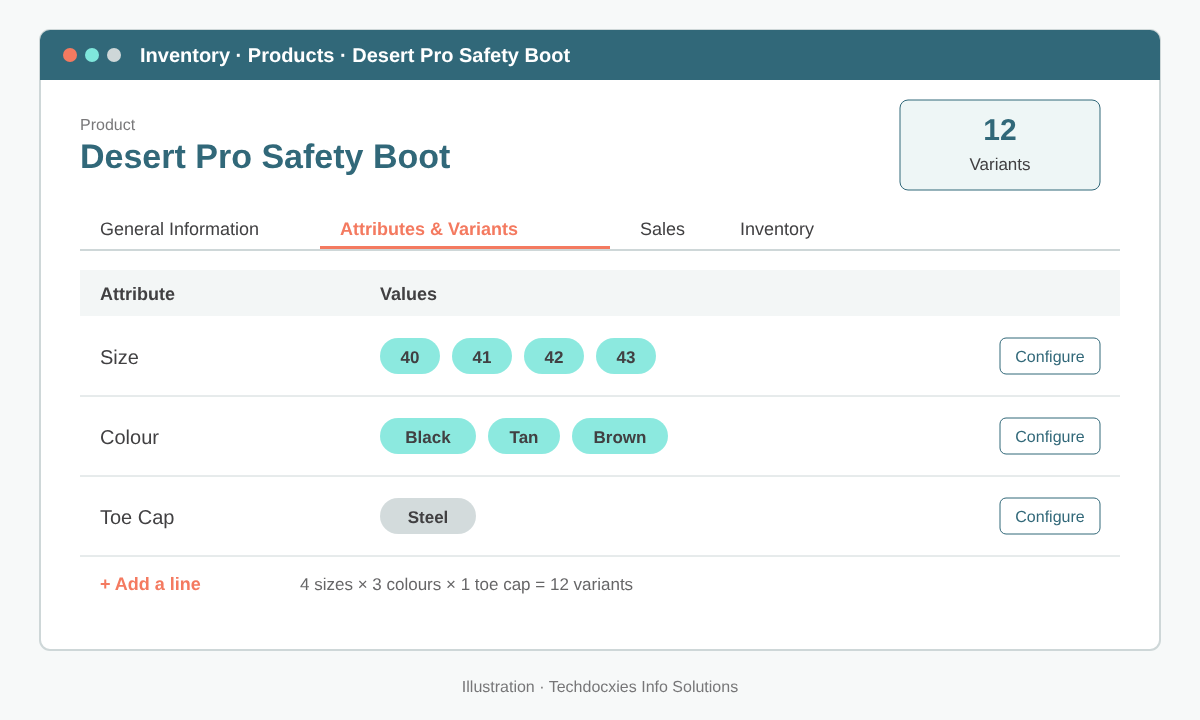
The product template's Attributes & Variants tab generates every size and colour combination
Step 4: Set Prices and Costs per Variant
Most variants share a base price. Where one costs more, for example a composite toe cap, open Configure on the attribute line and enter a Value Price Extra. Odoo adds that amount to the base price on quotations. For customer-specific or quantity-based pricing, use pricelists (Sales › Products › Pricelists). Pricelist rules can target an individual variant as well as the whole template.
Costs are tracked per variant too, so if your valuation method is average cost, the black and tan boots each carry their own average cost based on what you paid for them.
Step 5: Assign Internal References and Barcodes
Open the Variants smart button (or Inventory › Products › Product Variants) and give each variant:
- an Internal Reference that's easy to read, e.g.
DPB-41-BLK - a unique Barcode, either the manufacturer's EAN-13/GTIN or a code from your own GS1 company prefix
Switch the variant list to editable mode or use Export/Import to fill hundreds of barcodes in one go from your supplier's spreadsheet. Odoo rejects duplicate barcodes, which catches copy-paste mistakes before they reach the warehouse floor. If you buy or ship in cartons, you can also give packages their own barcodes, so one scan of a box receives a whole carton.
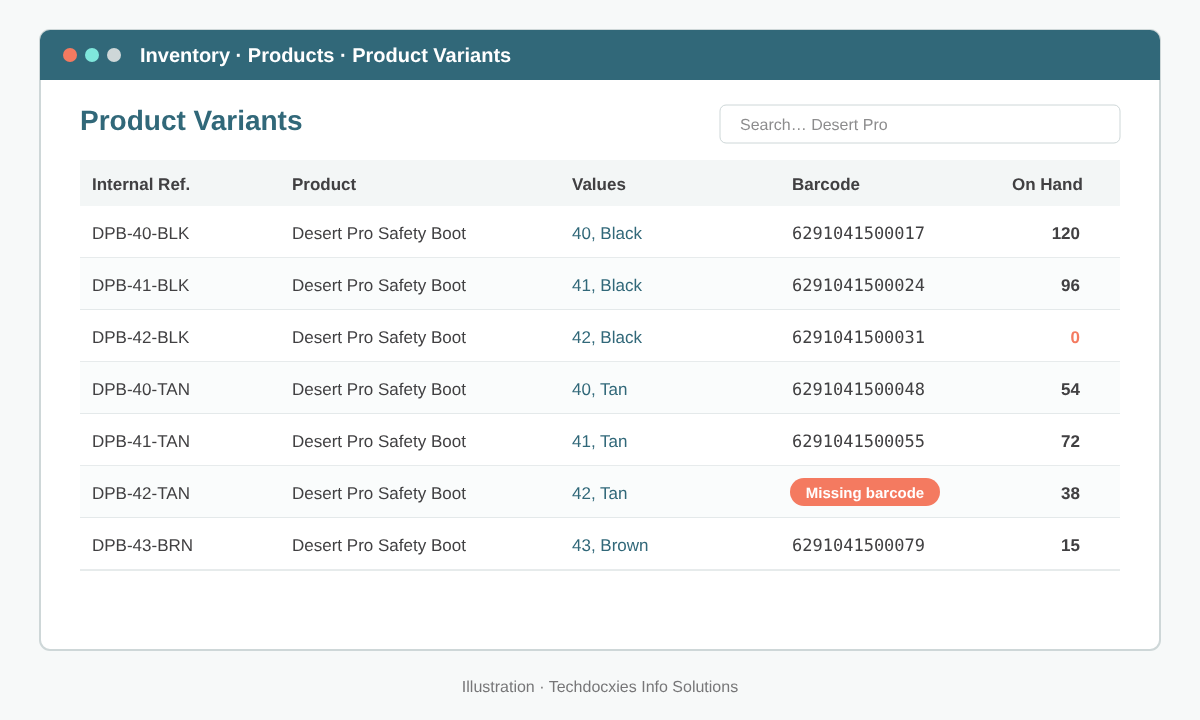
Product variant list with internal references and barcodes, highlighting a variant still missing its code
Watch out: Changing a product's attribute lines after you've recorded stock moves or sales can archive existing variants and create new ones, and their history stays on the old records. Agree on your attributes before go-live. If you must change them, test on a duplicate database first.
Step 6: Print Labels and Scan in Daily Operations
From the variant list, select records and use Print › Product Labels to print barcode labels in your preferred layout, including ZPL labels for Zebra printers. In the Barcode app, warehouse staff open a receipt, delivery or internal transfer and scan items. Odoo matches each scan to the right variant, adds the quantity, and flags anything that isn't on the document. Inventory counts work the same way: scan the location, then the products.
On the sales side, the product configurator lets a salesperson pick the template, then the size and colour. If you sell through Odoo Point of Sale, scanning the barcode at the till rings up the exact variant.
Go-Live Checklist
| Check | Where in Odoo 19 | Done when |
|---|---|---|
| Variants and Barcode Scanner enabled | Sales › Configuration › Settings; Inventory › Configuration › Settings | Both settings saved |
| Attributes defined with the right creation mode | Sales › Configuration › Attributes | No "description only" option creates stocked variants |
| Invalid combinations excluded | Product › Attributes & Variants › Configure | Variant count matches the supplier catalogue |
| Every variant has a reference and barcode | Inventory › Products › Product Variants | Filter "Barcode is not set" returns nothing |
| Labels print and scan correctly | Print › Product Labels; Barcode app | Test receipt scanned end-to-end |
| Opening stock loaded per variant | Inventory › Operations › Physical Inventory | Stock report matches the physical count |
With variants and barcodes set up properly, Gulf Shield cut picking errors on footwear orders almost to zero and finished its quarterly stock count in a single shift. Your results will depend on your range and warehouse, but the principle is the same everywhere: one clean record per stocked item and one scan per movement.
OUR EXPERTISE
How Techdocxies Helps with Product Variants & Barcodes
Techdocxies Info Solutions has delivered 50+ Odoo projects for trading, distribution and service businesses across the GCC and beyond. We don't just switch modules on — we map your real processes first, then configure, customise, migrate, train and back you with 24/7 support.
- Designing an attribute structure that fits your catalogue without variant explosion
- Bulk-importing variants, references and supplier barcodes from your existing spreadsheets or legacy ERP
- GS1 barcode planning, label templates and Zebra printer setup
- Rolling out the Barcode app for receipts, picking, transfers and cycle counts
- Training sales, warehouse and POS teams to work with variants day to day