
For a trading business with a showroom, cash-and-carry counter or chain of retail outlets, the till is where stock, cash and customers meet. Odoo 19 Point of Sale runs in a browser or tablet, works offline, and posts every sale straight into Inventory and Accounting — so the numbers your warehouse and finance teams see are the same numbers your cashiers rang up. This guide walks through a practical setup for a GCC retail-trading operation.
Step 1: Install Point of Sale and create your shops
Install the Point of Sale app from Apps. Odoo creates a default shop; rename it and add one shop (POS configuration) per outlet or counter under Point of Sale › Configuration › Point of Sales. Each shop has its own settings, payment methods, receipt header and operation type, so a wholesale counter and a retail showroom can behave differently while sharing one product catalogue.
For our example, Al Noor Mart Trading LLC runs three outlets — Deira, Al Barsha and Sharjah — each linked to its own warehouse so stock is deducted from the right location.
Step 2: Configure shop settings
Open Point of Sale › Configuration › Settings and pick the shop at the top of the page. The settings that matter most for retail trading are:
- Log in with Employees — cashiers unlock the register with their PIN or badge, so every order is traceable to a person.
- Pricelists — offer retail, wholesale and member prices from the same till, including quantity breaks.
- Cash Rounding — round cash totals to the smallest coin in circulation.
- Price control — restrict price changes and manual discounts to managers.
- Receipt header/footer — add your trade name, TRN/VAT number and return policy.
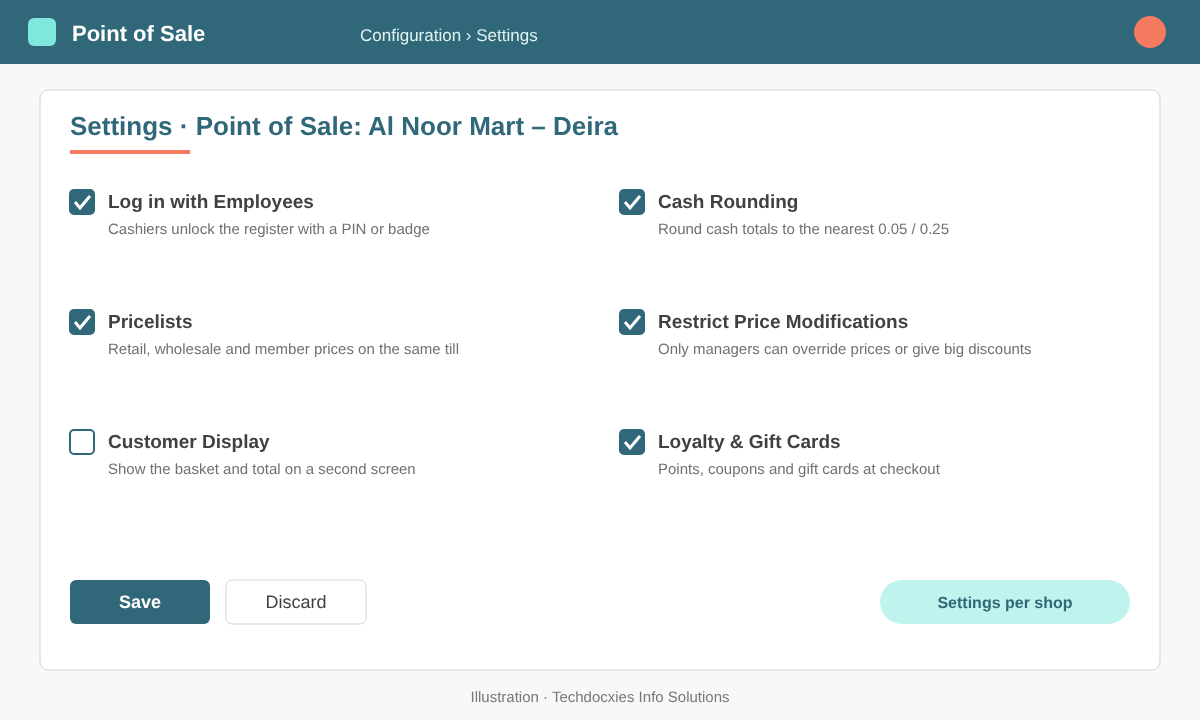
Shop-level settings decide who can sell, which prices apply and how cash is rounded.
Step 3: Prepare products for the till
Only products flagged Available in POS (on the product form's Sales tab) appear on the register. Group them with POS product categories (Point of Sale › Configuration › PoS Product Categories) so cashiers can browse quickly, and make sure every item has a barcode — scanning is faster and avoids picking the wrong variant. Check that each product carries the correct sales tax (for example 5% VAT in the UAE or 15% in Saudi Arabia) and that prices are set tax-included if that is how you display them on the shelf.
Step 4: Set up payment methods
Create payment methods under Point of Sale › Configuration › Payment Methods and attach them to each shop. A typical retail mix:
| Payment method | Journal type | Notes |
|---|---|---|
| Cash | Cash journal (one per shop) | Counted at opening and closing; differences posted automatically |
| Card (terminal) | Bank | Use a supported terminal integration where available, or record manually |
| Customer Account | None (receivable) | For trusted B2B customers buying on credit; requires a selected customer |
| Gift card / voucher | Via Loyalty programs | Configured in Discount & Loyalty, redeemed at checkout |
Pro tip: Give every shop its own cash journal. When the Sharjah till is short by AED 20, you will see it on Sharjah's journal — not buried in a single company-wide cash account that nobody can reconcile.
Step 5: Run the daily session
From the Point of Sale dashboard, the cashier opens a session and counts the opening float. During the day they scan items, apply pricelists or loyalty rewards, select a customer when an invoice is needed, and take split payments (part cash, part card). Returns are handled from the register by refunding the original order, which returns stock and reverses VAT correctly.
At the end of the shift, the cashier closes the session and counts the cash. Odoo shows the expected versus counted amount and, on validation, posts the sales, taxes, payments and stock moves in one go.
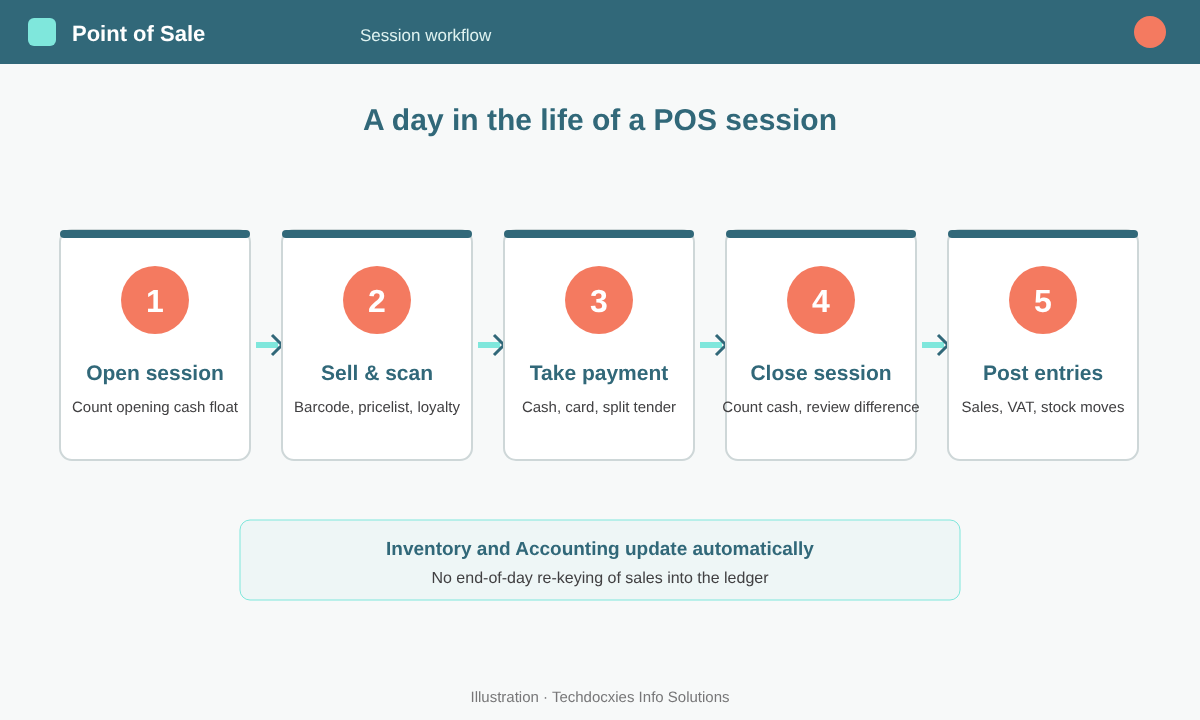
From opening float to posted journal entries: one session, five steps.
Watch out: Sessions left open for days create large, hard-to-check closing entries and delay stock valuation. Make "close every session every day" a store rule, and set a manager-approval threshold for cash differences rather than letting cashiers close silently with a gap.
Step 6: Connect hardware
Odoo POS works with barcode scanners (which act as keyboards), receipt printers, cash drawers, scales and customer displays. Network receipt printers can connect directly to supported models; other devices typically go through an IoT Box. Test printing, drawer opening and scanning on every till before go-live — and test what happens when the internet drops, because the register keeps selling offline and syncs orders when the connection returns.
Step 7: Monitor sales and reconcile
Track sessions under Point of Sale › Orders › Sessions and analyse sales under Point of Sale › Reporting by shop, cashier, product category or hour. Finance can reconcile card settlements against the bank feed in Accounting, while the warehouse sees outlet stock levels and replenishment needs in Inventory.
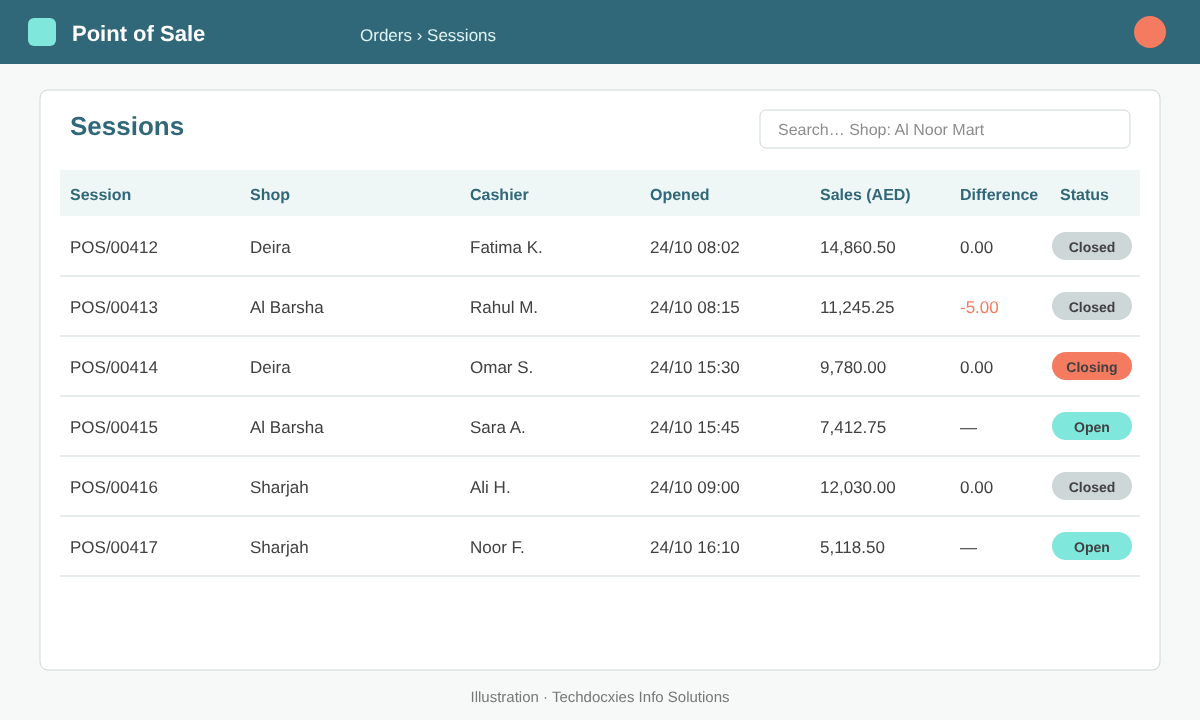
A sessions list makes cash differences and still-open tills visible at a glance.
Go-live checklist
- ☐ One shop per outlet, linked to the right warehouse
- ☐ All sellable products marked Available in POS, with barcodes and correct VAT
- ☐ Pricelists tested for retail, wholesale and member customers
- ☐ Cash, card and customer-account payment methods per shop
- ☐ Cashier PINs and manager price-override rights configured
- ☐ Receipt shows trade name, VAT number and return policy
- ☐ Hardware and offline mode tested on every till
- ☐ A full open–sell–refund–close session rehearsed with real staff
OUR EXPERTISE
How Techdocxies Helps with Odoo Point of Sale
Techdocxies Info Solutions has delivered 50+ Odoo projects for trading, distribution and service businesses across the GCC and beyond. We don't just switch modules on — we map your real processes first, then configure, customise, migrate, train and back you with 24/7 support.
- Multi-outlet POS design linked to warehouses, pricelists and VAT-compliant receipts
- Product catalogue clean-up, barcode labelling and bulk import from your legacy POS
- Hardware selection and setup — scanners, printers, cash drawers, scales and terminals
- Cash control, cashier permissions and daily reconciliation procedures for finance
- Hands-on cashier and store-manager training, plus go-live support on your first trading days