
Shift rosters still live in spreadsheets and WhatsApp groups at many GCC retailers, warehouses and service companies. Someone copies last week's grid, juggles leave requests by memory, and sends a screenshot the night before. Odoo 19 Planning replaces that with one live schedule linked to your employees, their working hours, time off and attendance. This guide walks through a practical setup using an example company, Gulf Mart Trading LLC, which runs three shops and a central warehouse in Muscat.
Step 1: Install Planning and review the settings
Install the Planning app from Apps. It works on top of Employees, so your employee records, departments and working schedules are reused. Then open Planning › Configuration › Settings and decide how much freedom staff get. You can let employees unassign themselves from shifts they can no longer cover, and set how far ahead that is allowed, so nobody drops a Friday evening shift an hour before it starts.
Before planning anything, check each employee's working schedule on the employee form (Employees › Employees, Work Information tab). Planning uses these hours to calculate allocated time and to flag people who are booked beyond their contract. A cashier on a 48-hour, six-day schedule and a storekeeper on 45 hours should not share the same calendar.
Step 2: Create roles
Roles describe the job someone does on a shift, not their HR job title. Go to Planning › Configuration › Roles and create roles such as Cashier, Picker, Driver and Shift Supervisor, each with its own colour so the Gantt chart is readable at a glance. Then assign roles to employees on their employee form; a person can hold several roles and have a default one. At Gulf Mart, warehouse staff hold both Picker and Driver so supervisors can move them when deliveries peak.
Step 3: Build shift templates
Templates turn your standard shifts into one-click entries. In Planning › Configuration › Shift Templates, define start time, duration and the role for each pattern. Gulf Mart uses three:
| Template | Hours | Role | Used for |
|---|---|---|---|
| Morning | 07:00–15:00 | Cashier | Shop opening, deliveries received |
| Evening | 15:00–23:00 | Cashier | Peak footfall, closing and cash count |
| Day shift | 08:00–17:00 | Picker / Storekeeper | Warehouse picking and dispatch |
| Ramadan short shift | Reduced hours | Any | Shorter legal working day during Ramadan |
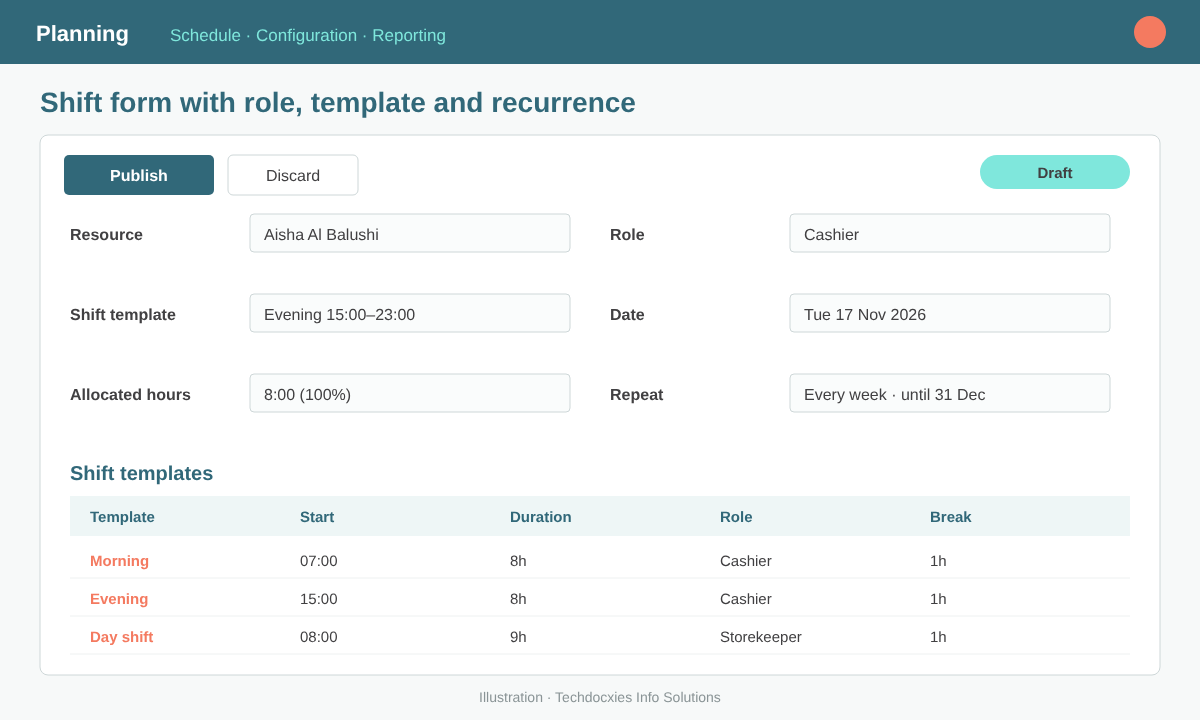
A shift with resource, role, template and weekly recurrence
Step 4: Plan the week on the Gantt chart
Open Planning › Schedule › By Resource (or By Role when you think in coverage rather than people). Click a cell to create a shift, pick a template, then drag and resize shifts as needed. Useful tools on this screen:
- Copy previous week to start from last week's roster instead of a blank grid.
- Recurring shifts for fixed patterns, such as a storekeeper who works the same day shift every week.
- Auto Plan, which assigns unstaffed shifts to available employees with the matching role, taking working hours and approved time off into account.
- Shifts without an employee stay as open shifts that qualified staff can claim.
Conflicts show up visually: overlapping shifts, employees on leave, or people planned above their contract hours are highlighted, so supervisors fix them before publishing.
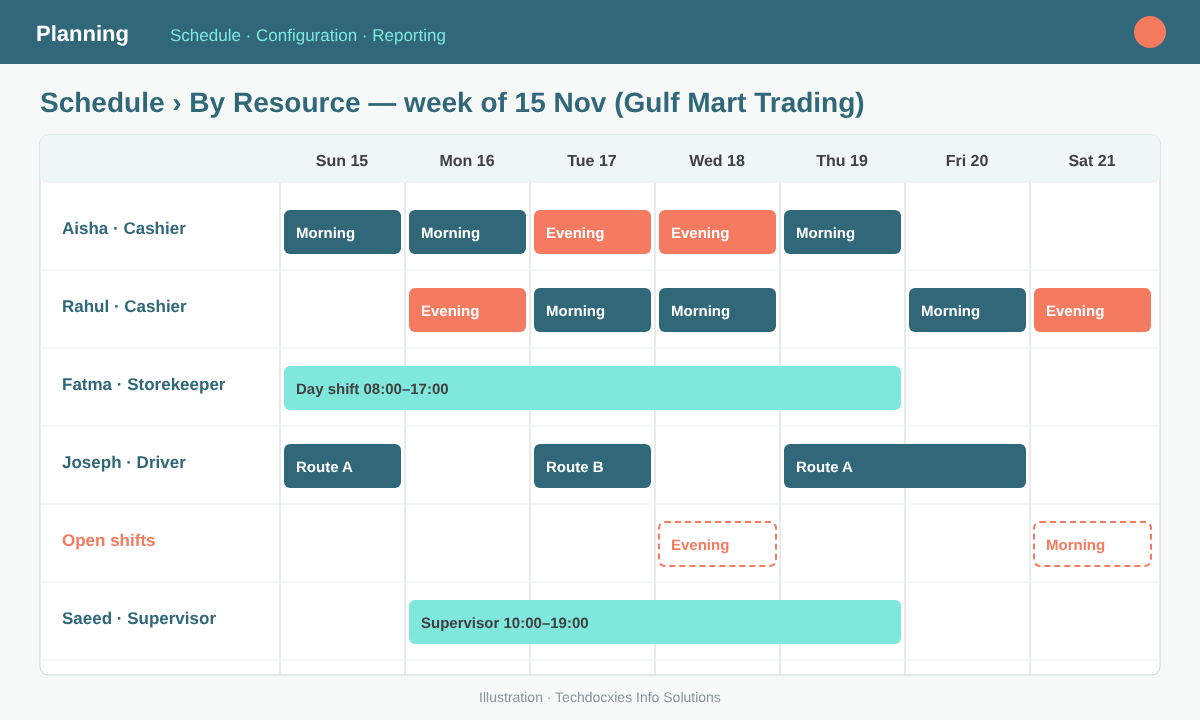
The By Resource view: shifts per employee, colour-coded, with open shifts waiting to be claimed
Pro tip: Plan by role first, by person second. Create the coverage you need (for example, two cashiers per shop every evening) as unassigned shifts, then run Auto Plan. You see coverage gaps immediately, and supervisors only make the final adjustments instead of building the roster from scratch.
Step 5: Publish and let staff swap or claim shifts
Nothing reaches employees until you click Publish. Odoo then emails each employee their schedule, and staff can see their upcoming shifts from the portal or the Odoo mobile app. If you allow it in settings, employees can unassign themselves within your time limit, ask colleagues to take over a shift, or pick up an open shift that matches their role. Changes made after publishing are shown so you can republish and notify only the people affected.
Watch out: Planning is a schedule, not a legal record of hours worked. Overtime, weekly rest days and Ramadan working hours under Omani, UAE or Saudi labour law must be checked against actual attendance. Don't pay overtime from planned shifts; use Attendance check-ins and approved extra hours for payroll.
Step 6: Compare planned vs actual hours
Once the week is done, use Planning › Reporting › Planning Analysis to group allocated hours by role, department or employee. If you also run Attendance or Timesheets, compare planned hours with what was actually checked in or logged, and you'll spot recurring late starts, understaffed evenings and employees who regularly exceed their contract. That data feeds back into next week's templates and headcount decisions.
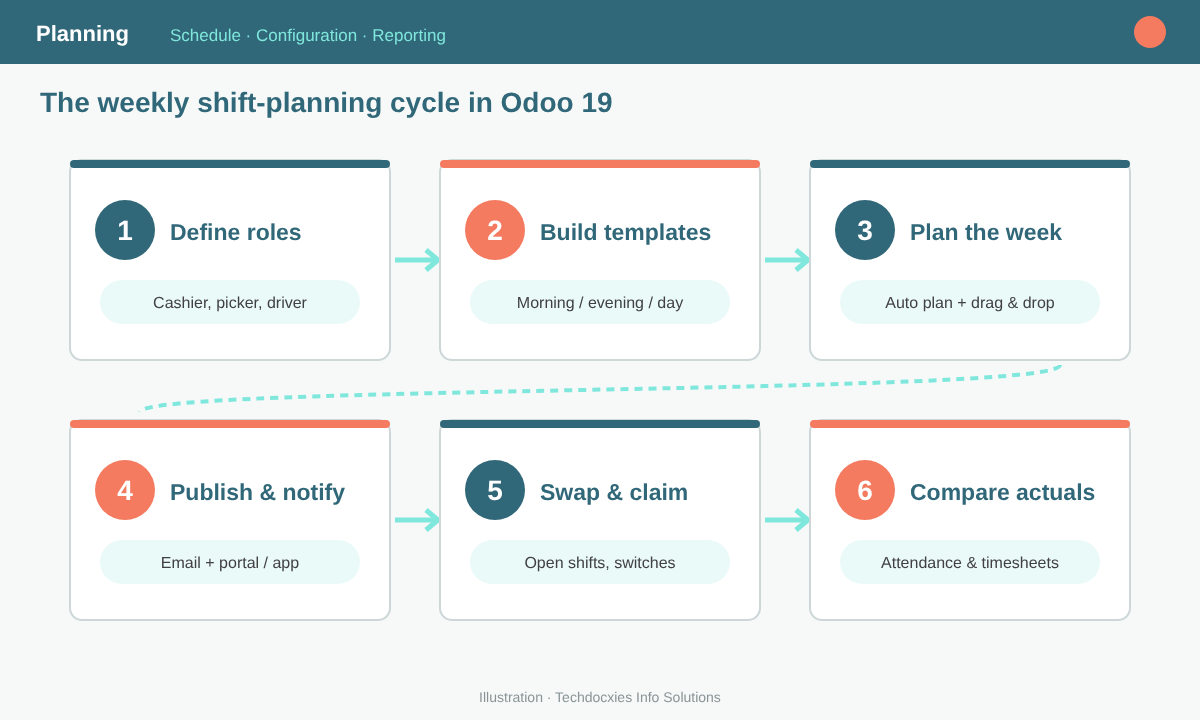
The weekly planning cycle: roles, templates, planning, publishing, swaps and actuals
Go-live checklist
- Working schedules are correct for every employee, including Ramadan schedules.
- Approved time off and public holidays are recorded in Time Off.
- Roles are assigned to every employee who appears on the roster.
- Shift templates cover at least 90% of your standard shifts.
- Self-unassign and switching rules are agreed with supervisors.
- Employees have portal or mobile app access and know where to see shifts.
- The first two weeks run in parallel with the old roster before you retire it.
OUR EXPERTISE
How Techdocxies Helps with Odoo Planning & Shifts
Techdocxies Info Solutions has delivered 50+ Odoo projects for trading, distribution and service businesses across the GCC and beyond. We don't just switch modules on — we map your real processes first, then configure, customise, migrate, train and back you with 24/7 support.
- Design roles, shift templates and recurring patterns around your shops, warehouses and service teams.
- Set up working schedules for GCC labour rules, including weekly rest days and Ramadan hours.
- Connect Planning with Time Off, Attendance, biometric devices and Payroll.
- Roll out the portal and mobile app so staff see shifts and claim open ones themselves.
- Build planned-vs-actual dashboards for supervisors and HR.