
Many GCC trading groups run more than one legal entity — a mainland company in Dubai, a free-zone entity in Jebel Ali, a sister company in Muscat or Doha. Goods and services move between them every week, and every movement has to be recorded twice: a sale in one company and a purchase in the other. Done by hand, that means duplicate data entry, mismatched amounts and inter-company balances that never quite agree at month-end. Odoo 19's multi-company and inter-company features let one transaction create its mirror document automatically. This guide walks through the setup, using an invented group, Gulf Star Trading, with companies in the UAE, Oman and Qatar.
Step 1: Set up every legal entity as a company
Each legal entity needs its own company record, with its own currency, chart of accounts, tax setup and fiscal localisation. Go to Settings › Users & Companies › Companies and create one record per entity — for example Gulf Star Trading LLC (UAE), Gulf Star Trading SPC (Oman) and Gulf Star Trading WLL (Qatar). Set the correct country on each so Odoo loads the right fiscal package (UAE VAT, Oman VAT and so on), and fill in the tax registration number, address and logo for documents.
Odoo automatically creates a contact for each company. Those contacts are what the other companies will buy from and sell to, so keep their names and addresses clean — they will appear on every inter-company invoice.
Step 2: Give users access to the right companies
Open Settings › Users & Companies › Users and, on each user, set Allowed Companies and a Default Company. Group finance and procurement staff usually need access to all entities; branch warehouse staff only need their own. Users with several companies switch between them with the company selector in the top bar, and can tick more than one company to see combined lists.
Step 3: Decide what is shared and what is company-specific
Before turning on automation, agree on master data rules. Products, contacts and pricelists can be shared across companies (leave the Company field empty) or restricted to one company. For inter-company trading, shared products are almost always the right choice: the same internal reference and barcode mean the purchase order in one company and the sales order in the other refer to the same item.
| Master data | Recommended | Why |
|---|---|---|
| Products | Shared | Same SKU on both sides of the transaction |
| Product cost & valuation | Per company (automatic) | Each entity keeps its own stock value |
| Company contacts | Shared | Needed as customer/vendor in sister companies |
| Transfer pricelist | Per selling company | Controls the agreed inter-company price |
| Chart of accounts & taxes | Per company | Each entity files its own VAT return |
| Warehouses | Per company | Stock belongs to a single legal entity |
Step 4: Switch on inter-company transactions
Inter-company rules are part of Odoo Enterprise. Go to Settings › General Settings, find the Companies section and enable Inter-Company Transactions. Then open each company in Settings › Users & Companies › Companies and review its inter-company options. In general you can choose to:
- Synchronise invoices and bills — a customer invoice to a sister company creates the matching vendor bill in that company.
- Generate sales orders from purchase orders, and/or purchase orders from sales orders, so the full order-to-cash and procure-to-pay chain is mirrored.
- Decide whether generated documents are created as drafts or validated straight away, which user they are created under, and which warehouse/receipt type the buying company uses.
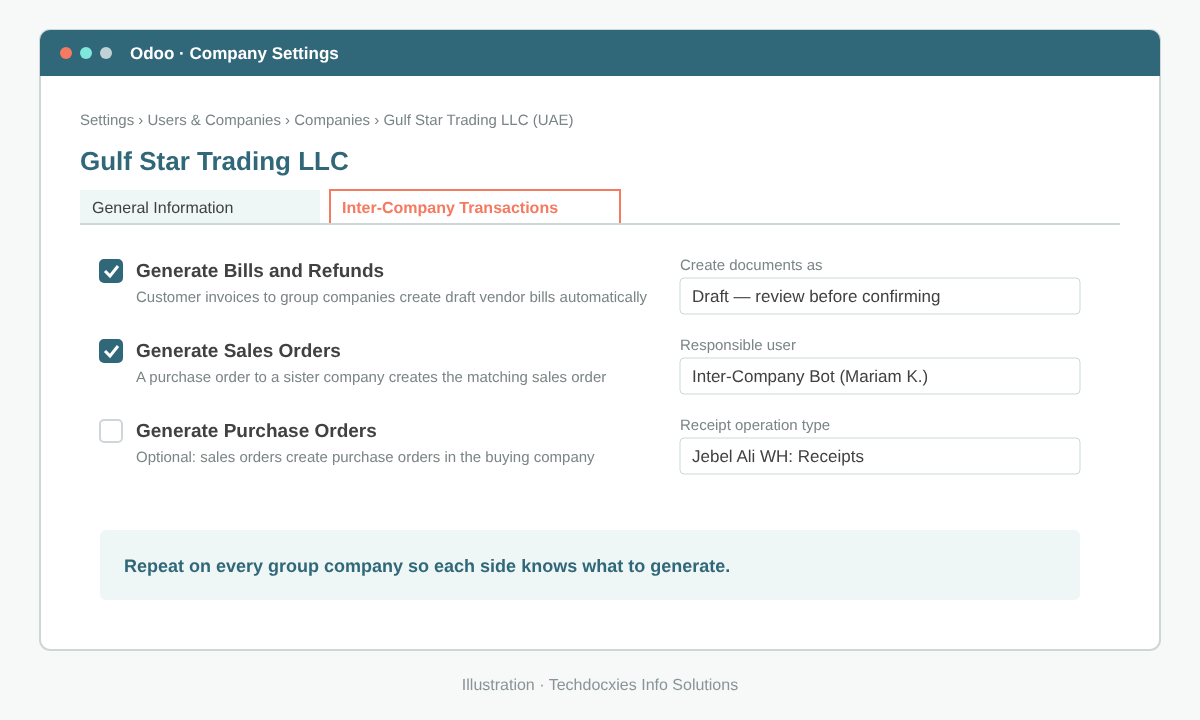
Inter-company options configured on the UAE company record
Pro tip: Start with generated documents in draft for the first month. Your team can compare each mirrored order or bill with the source document, fix master data gaps, and only switch to automatic validation once a full month closes with no corrections.
Step 5: Set transfer prices with pricelists
Inter-company prices are rarely the same as customer prices. Enable pricelists in Sales › Configuration › Settings, then create an "Inter-Company – Cost +8%" pricelist in each selling company under Sales › Products › Pricelists and assign it to the sister-company contacts. Because the buying company's purchase order is generated from (or generates) the seller's sales order, both sides carry the same agreed price. Document your transfer pricing policy — GCC tax authorities increasingly expect to see it.
Step 6: Run a test transaction end to end
In the UAE company, create a purchase order in Purchase › Orders › Purchase Orders to Gulf Star Trading SPC (Oman) for 500 pumps and confirm it. Switch to the Oman company: a sales order referencing the UAE PO should be waiting. Confirm it, validate the delivery, and invoice it. Back in the UAE company, receive the goods against the original PO and check that a vendor bill has been drafted with the same lines and amounts.
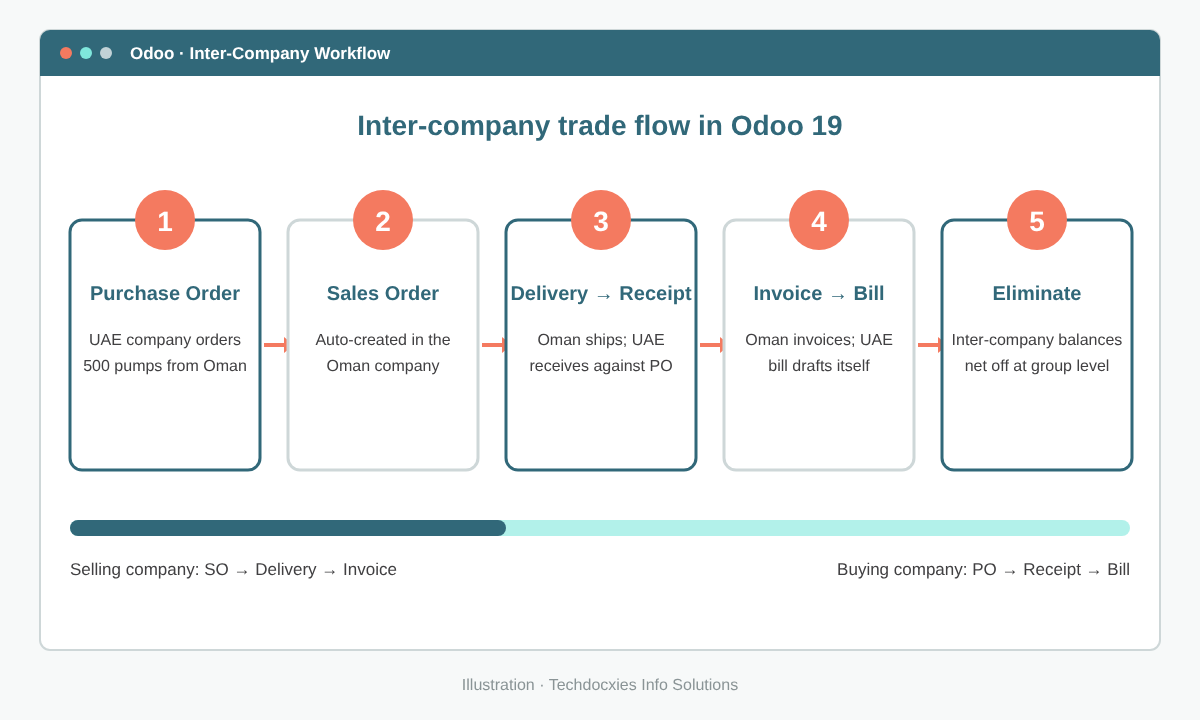
The mirrored flow: one purchase order drives documents in both companies
Step 7: Reconcile and eliminate at month-end
Inter-company receivables and payables should always net to zero across the group. Use dedicated receivable/payable accounts (or partner filters on the company contacts) so you can list inter-company items quickly in Accounting › Vendors › Bills and Accounting › Customers › Invoices. Settle balances with real or netting payments, and reconcile them like any other invoice. For group reporting, select all companies in the company switcher and run the consolidated reports, posting elimination entries for inter-company sales, purchases and unrealised margin in stock as your auditors require.
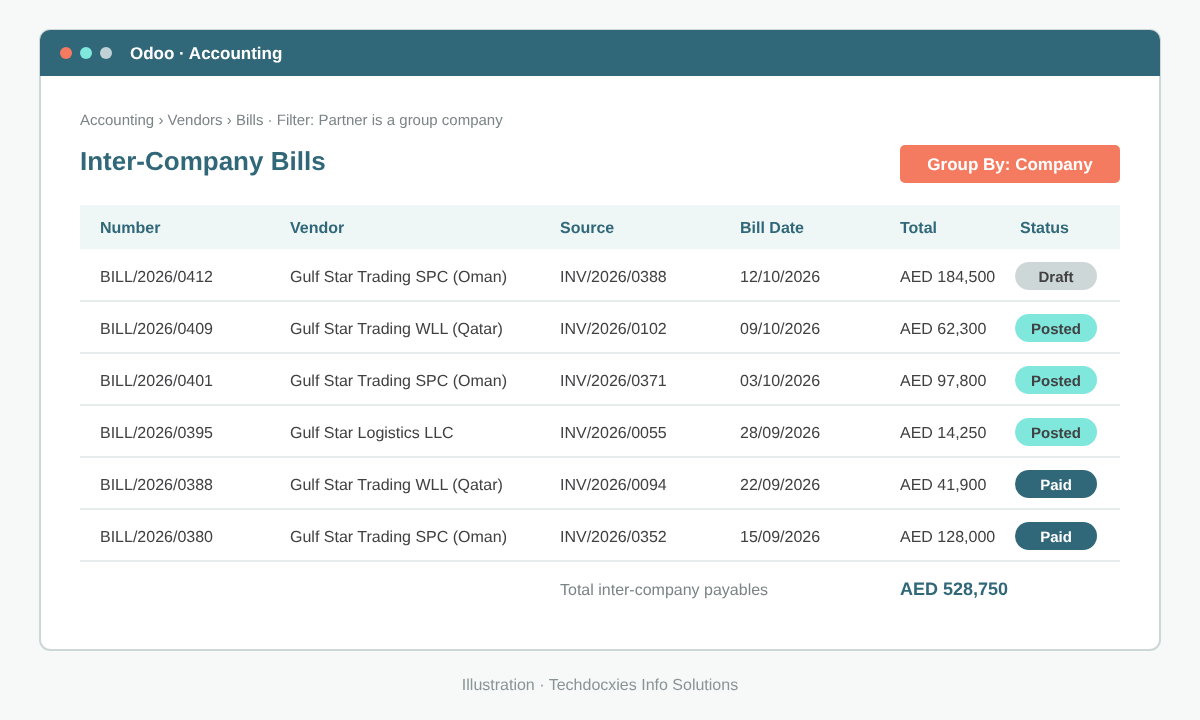
Filtering vendor bills by group-company partners makes month-end checks fast
Watch out: Taxes and fiscal positions must be right in both companies. A cross-border sale from the UAE to Oman is normally an export (zero-rated) for the seller and an import for the buyer, while a sale between two UAE entities may carry 5% VAT unless they are in the same VAT group. Map fiscal positions on each company contact before you go live, and confirm treatment with your tax advisor.
Go-live checklist
- ☐ One company per legal entity, with correct country, currency and tax ID
- ☐ User access and default companies reviewed
- ☐ Shared products with consistent internal references and barcodes
- ☐ Inter-company options set on every company, starting in draft mode
- ☐ Transfer pricelists assigned to sister-company contacts
- ☐ Fiscal positions mapped for domestic and cross-border flows
- ☐ Test PO → SO → delivery → receipt → invoice → bill completed
- ☐ Month-end reconciliation and elimination procedure documented
OUR EXPERTISE
How Techdocxies Helps with Inter-Company Trading
Techdocxies Info Solutions has delivered 50+ Odoo projects for trading, distribution and service businesses across the GCC and beyond. We don't just switch modules on — we map your real processes first, then configure, customise, migrate, train and back you with 24/7 support.
- Multi-company design for mainland, free-zone and cross-border GCC entities
- Inter-company rules for orders, deliveries, invoices and bills
- Transfer pricing pricelists and VAT/fiscal position mapping per entity
- Month-end reconciliation, netting and consolidation procedures
- User training for group finance, procurement and warehouse teams