
Most Odoo projects that struggle don't fail because of the software. The usual causes are vague scope, missing key users, late data and training that starts a week before go-live. A clear implementation roadmap fixes most of that. This guide sets out a practical, phase-by-phase plan for rolling out Odoo 19 in a GCC trading, distribution or service business. It covers the decisions to make, the deliverables to sign off, and how to run the project inside Odoo itself.
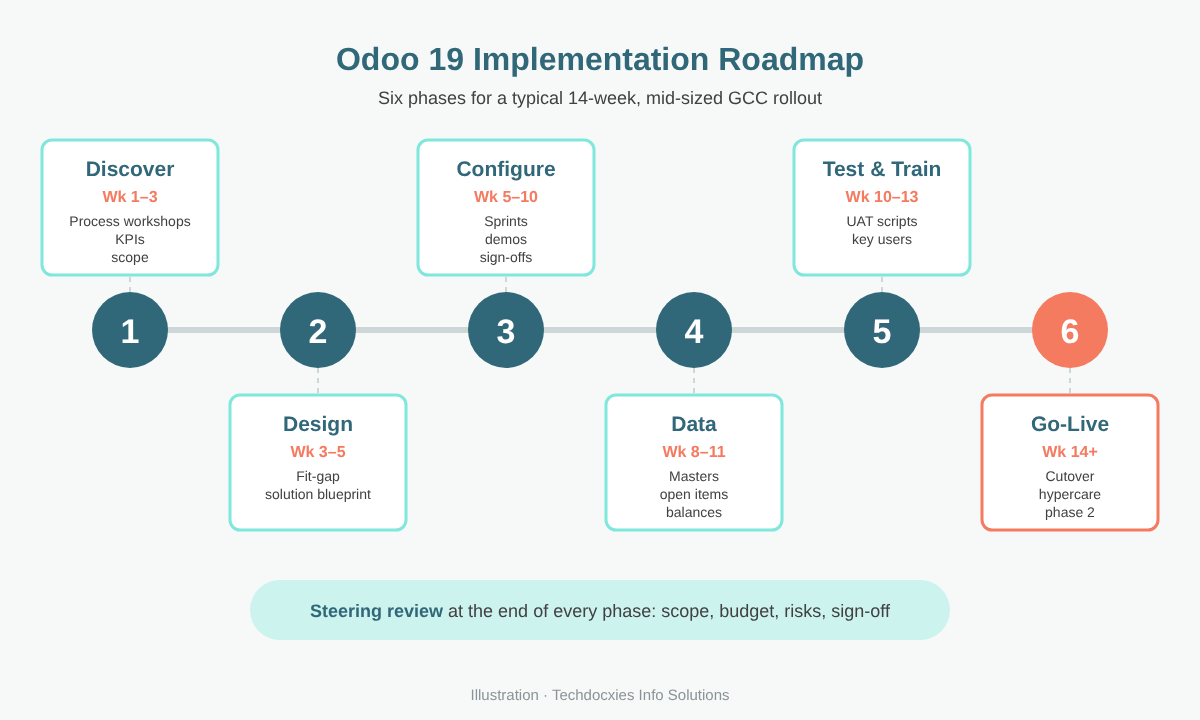
A typical 14-week roadmap for a mid-sized company, with a steering review closing each phase.
Step 1: Set Goals and Build the Project Team
Write down three to five measurable outcomes before anyone opens Odoo. Good examples: "month-end close in 5 working days instead of 12", "real-time stock by warehouse", "VAT return produced directly from the ledger". These goals become your scope test. Any requirement that doesn't support one of them goes onto a later-phase list.
Next, name the team. You need an executive sponsor who can settle disputes, an internal project manager with real time set aside, and one key user per department (sales, purchase, warehouse, finance, HR). Key users carry the knowledge of how the business actually runs. Plan for them to spend 20–30% of their week on the project during the build and test phases.
Step 2: Run Discovery Workshops
Hold one workshop per process area. Walk through real documents end to end: a quotation becoming a delivery and an invoice, a purchase request becoming a receipt and a vendor bill, and payroll running into a bank transfer. Capture volumes (orders per day, SKUs, warehouses, companies, currencies), approval rules and country-specific needs such as VAT, Arabic invoices and WPS salary files.
The result is a set of short process maps and a requirements list. Keep each requirement to one line with a business owner attached.
Step 3: Build a Fit-Gap Register and Phase the Scope
Classify every requirement as Fit (standard Odoo), Config (standard, but needs settings, approval rules or reports) or Gap (needs a custom module, an integration or a process change). Odoo 19 covers far more out of the box than most teams expect, so challenge every gap. Ask whether the business could adopt the standard flow instead.
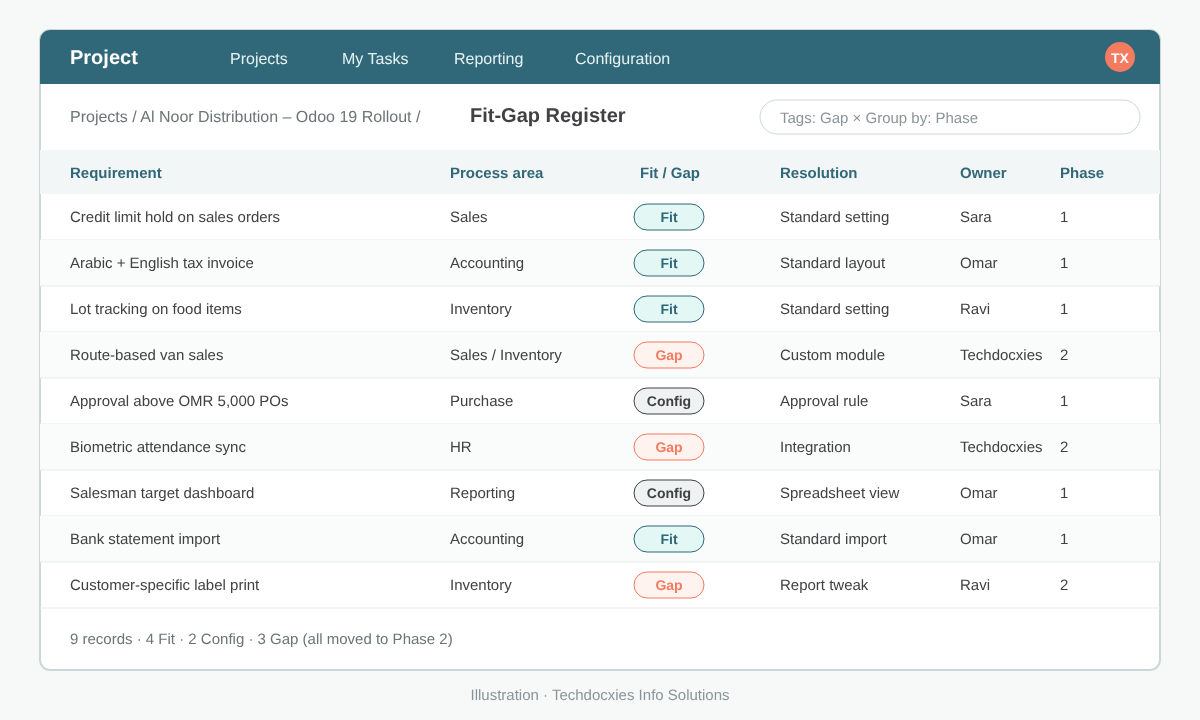
A fit-gap register kept as tagged tasks in Odoo Project, grouped by phase.
Then split the scope into phases. Phase 1 should run the core money and stock flow: sales, purchase, inventory, invoicing and accounting. Add-ons such as eCommerce, field service, advanced manufacturing or integrations usually belong in phase 2, once users trust the basics.
Step 4: Run the Project Inside Odoo Project
Manage the implementation in the system you're implementing. Go to Project › Configuration › Settings and enable Milestones, Task Dependencies and Recurring Tasks. Enable Project Stages if you run several projects at once. Create one project for the rollout, with task stages such as Backlog, In Progress, Client Review and Done.
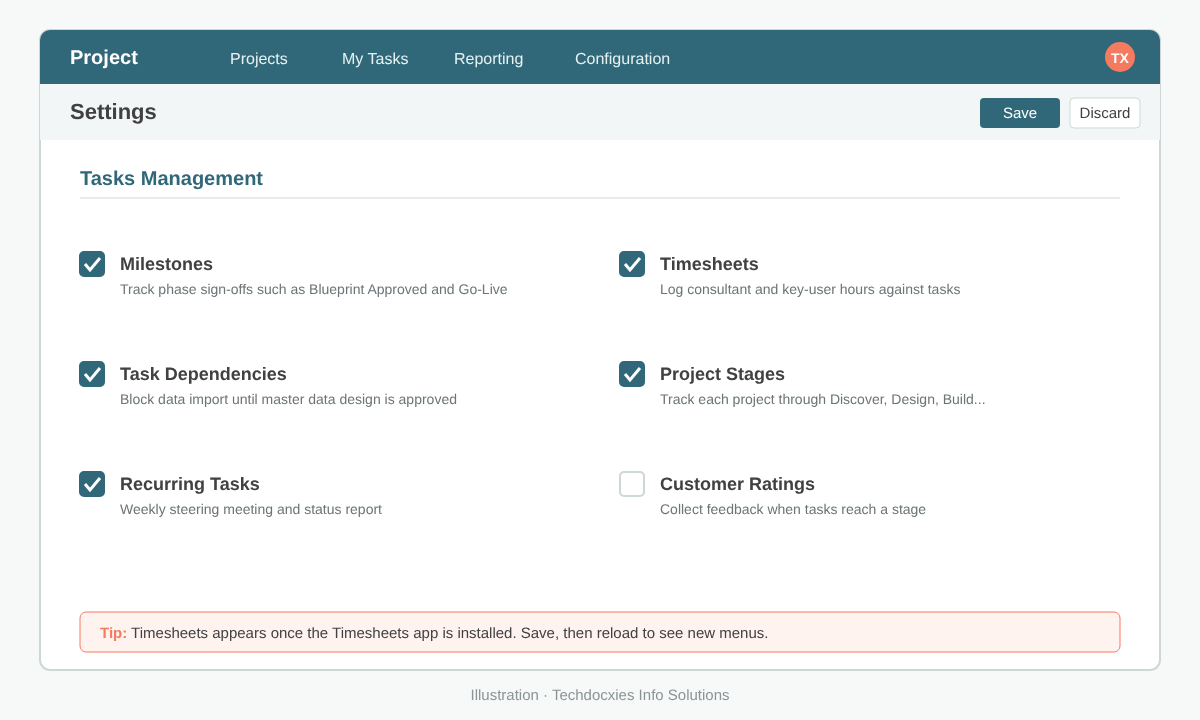
Project settings that turn Odoo Project into an implementation control centre.
Add milestones for each sign-off (Blueprint Approved, Configuration Complete, UAT Passed, Go-Live). Link tasks with dependencies so data import can't start before the master-data design is approved. A recurring weekly task keeps the steering meeting and status report on schedule. If you bill or track effort, log timesheets against tasks.
Pro tip: Give key users access to the implementation project from day one. Assigning them review tasks on the screens they'll use every day builds familiarity with Odoo weeks before formal training starts.
Step 5: Configure in Short Sprints
Configure in two-week sprints, one process area at a time, and end each sprint with a live demo to key users. Begin with the foundations under Settings › Users & Companies › Companies and the fiscal localization in Accounting › Configuration › Settings. Then move on to warehouses, product categories, pricelists, payment terms and approval rules, for example purchase order approval in Purchase › Configuration › Settings. Record every decision in the matching task so the configuration stays documented.
Step 6: Prepare and Load Your Data
Data is the most underestimated workstream. Start cleansing in the design phase, not the week before go-live. Load in order: chart of accounts and taxes, then partners, products, opening stock with costs, open sales and purchase orders, unpaid invoices and bills, and finally opening balances. Use Odoo's standard import from list views with templates. Run at least two trial loads in a test database and reconcile the totals each time.
Watch out: Don't migrate years of closed transactions "just in case". Bring in open items and balances at a clean cut-off date, and keep the old system as a read-only archive. Full-history migrations add weeks, cost and reconciliation risk, and they rarely pay off.
Step 7: Test with Real Scenarios and Train by Role
Write user acceptance test (UAT) scripts from the discovery process maps, such as "credit-limit customer orders 200 units from two warehouses". Key users run them in a copy of the configured database. Log defects as tasks, fix them, and retest until every script passes. Then train end users by role, using their own data. Short, hands-on sessions work better than one long demo.
Step 8: Go Live, Stabilise and Plan Phase 2
Choose a cutover date just after a month-end close, freeze the old system, load final balances and go live. For the first few weeks, hold a daily 15-minute issue review and keep consultants on call. Watch the first month-end close closely. New requests go into the phase-2 backlog, not into hurried customisation.
Phase Deliverables Checklist
| Phase | Key deliverable | Signed off by |
|---|---|---|
| Discover | Goals, process maps, requirements list | Sponsor |
| Design | Fit-gap register, phased scope, solution blueprint | Sponsor + key users |
| Configure | Configured database, sprint demo notes | Key users |
| Data | Reconciled trial loads (stock, AR, AP, GL) | Finance lead |
| Test & Train | Passed UAT scripts, trained users | Project manager |
| Go-Live | Cutover checklist, first close, phase-2 backlog | Sponsor |
For example, Al Noor Distribution, a fictional FMCG distributor with three warehouses in Oman and the UAE, followed this plan. It went live on sales, purchase, inventory and accounting in week 14. Van sales and biometric attendance were added in phase 2, after the first two closes ran cleanly.
OUR EXPERTISE
How Techdocxies Helps with Your Odoo Implementation Roadmap
Techdocxies Info Solutions has delivered 50+ Odoo projects for trading, distribution and service businesses across the GCC and beyond. We don't just switch modules on — we map your real processes first, then configure, customise, migrate, train and back you with 24/7 support.
- Structured discovery workshops and process maps for every department
- Fit-gap analysis that challenges customisation and phases scope realistically
- Sprint-based configuration with demos and sign-offs tracked in Odoo Project
- Data cleansing, trial loads and reconciled opening balances
- UAT scripts, role-based training, go-live support and a clear phase-2 plan