
Time is the inventory of every service team. Whether you run installation crews, after-sales technicians, consultants or an in-house projects team, untracked hours mean unbilled revenue and projects you can't price properly. Odoo Timesheets links every hour to an employee, a project and — when billable — a customer invoice.
In the final Part 3 of our Odoo HRMS series, we configure Odoo Timesheets: settings and reminders, employee costs, projects, timesheet entry, approvals, invoicing and profitability.
Step 1: Configure Timesheets settings
Go to Timesheets › Configuration › Settings:
- Time Encoding – log in hours or days.
- Reminders – automatic emails to employees who haven't logged their time, and to managers who have timesheets waiting for validation.
- Minimum duration and rounding – e.g. minimum 15 minutes, rounded up to the next 15, so timer entries are clean and billable.
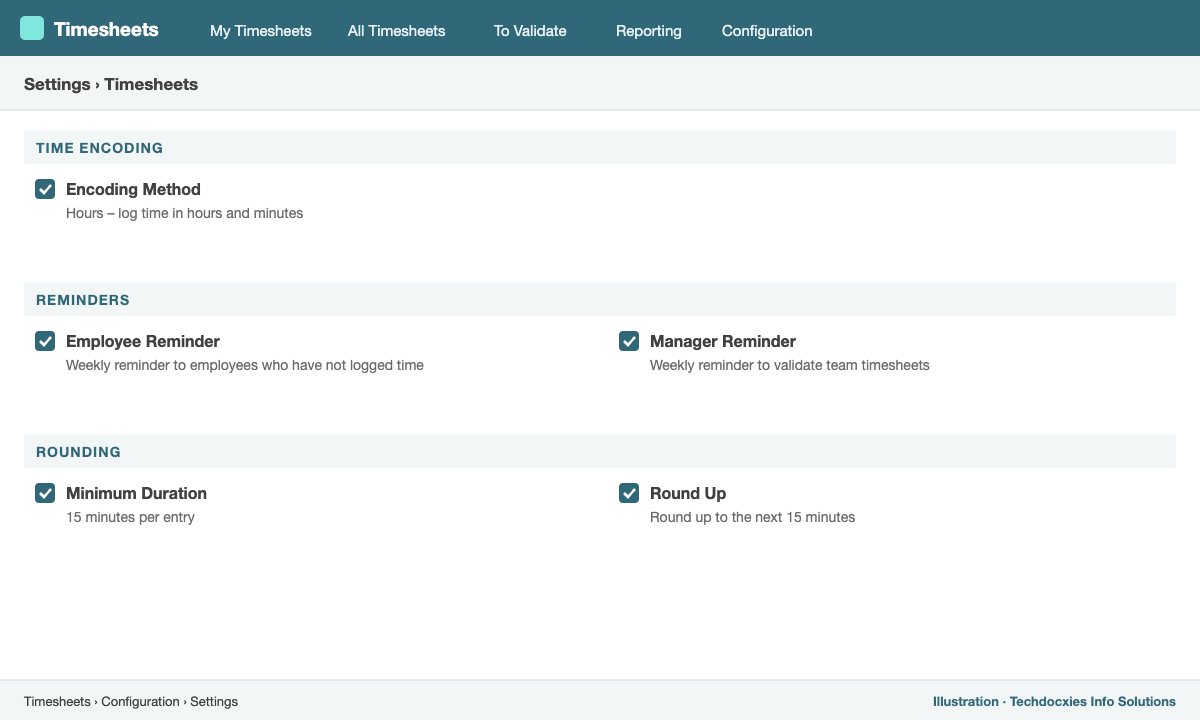
Timesheets › Configuration › Settings – encoding, reminders and rounding
Step 2: Set the hourly cost on each employee
Open each employee and, on the Settings (HR Settings) tab, enter the Hourly Cost — salary plus overheads per hour. Odoo multiplies logged hours by this cost to calculate the real cost of each project, which is what makes profitability reports meaningful.
Step 3: Create projects and tasks
In the Project app, create a project for each engagement or internal activity and make sure Timesheets is enabled on it. Break work into tasks with assignees and allocated hours. For internal time (training, meetings, admin), Odoo provides an Internal project so all hours are captured, not only billable ones.
Step 4: Log time — the way your team prefers
- Grid view – Timesheets › My Timesheets shows a weekly grid; type hours against each project and task.
- Timer – start a timer on a task and stop it when done; Odoo applies your rounding rules.
- From the task – log time directly in the Timesheets tab of a task.
- Mobile app – technicians log hours on site, even offline.
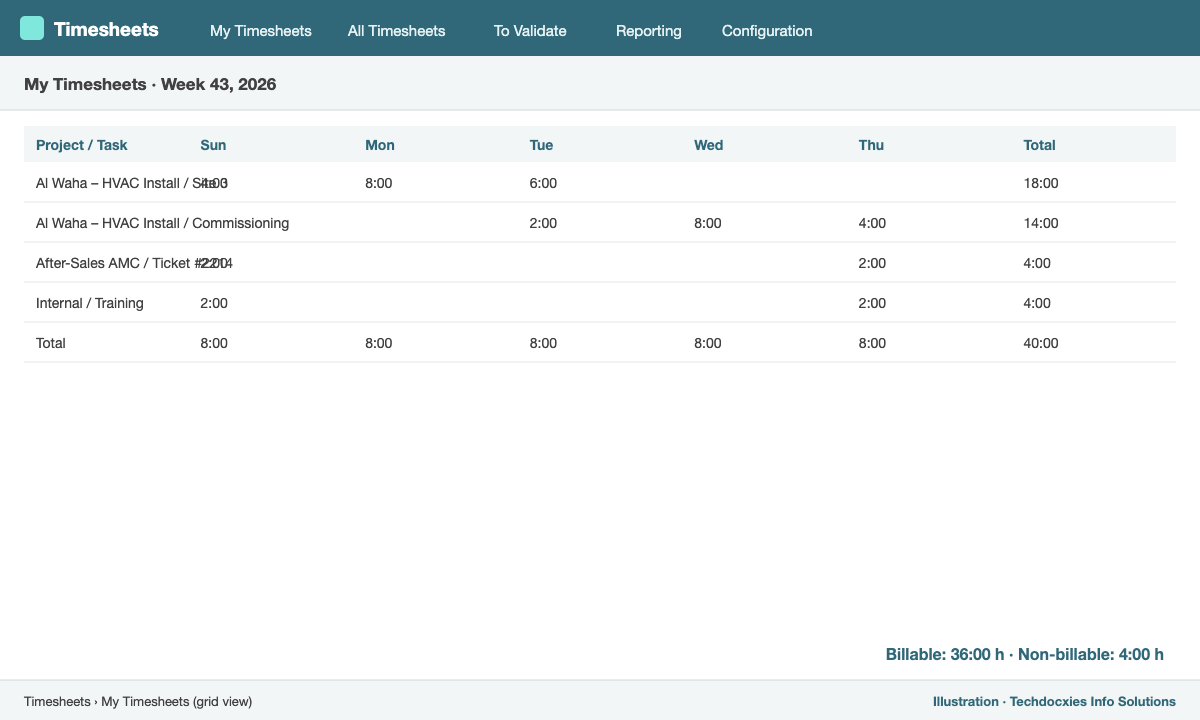
The weekly grid: hours per project and task, with billable work linked to sales orders
Step 5: Validate timesheets
Managers review submitted time in Timesheets › To Validate, filter by week or team, correct entries if needed and click Validate. Validated timesheets are locked for employees, giving you a reliable basis for invoicing and payroll.
Step 6: Bill customers from timesheets
To invoice time automatically, create a service product (e.g. Installation Labour – per hour) and set:
- Invoicing Policy: Based on Timesheets (or Based on Milestones / Prepaid / Fixed Price for other contract types).
- Create on Order: Project & Task or Task in an existing project.
When you confirm a sales order containing this product, Odoo creates the project or task automatically. Every hour logged against it updates the delivered quantity on the sales order, and you invoice only validated hours — no copying from spreadsheets.
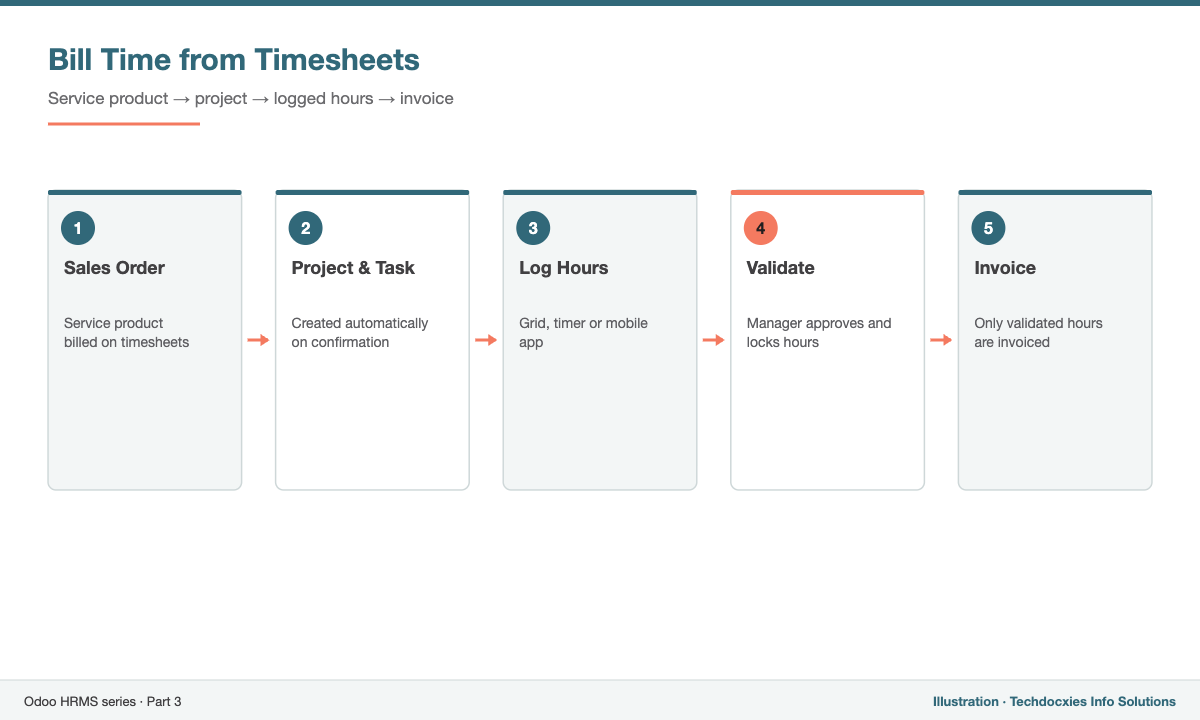
From sales order to invoice: how timesheets drive billing
Step 7: Measure profitability
Open any project and check its Profitability panel in the project dashboard: revenue invoiced and to invoice, timesheet costs, other costs (purchases, expenses) and margin. Timesheets › Reporting shows billable versus non-billable time per employee and project, helping you spot under-utilised resources or under-priced contracts.
Up next: our Finance & Accounting series – starting with setting up Odoo Accounting from scratch.
Our Expertise
How Techdocxies Helps with Odoo Timesheets & Projects
Techdocxies Info Solutions has delivered 50+ Odoo projects for trading, distribution and service businesses across the GCC and beyond. We don't just switch modules on — we map your real processes first, then configure, customise, migrate, train and back you with 24/7 support.
- Project templates, service products and billing policies matched to your contracts
- Employee cost modelling for accurate project profitability
- Field-service and mobile timesheet rollout for technicians
- Timesheet-to-payroll integration for overtime
- Utilisation and profitability dashboards for management