
A trading company is only as good as its warehouse. Stock you can't find, goods shipped from the wrong lot, or a picker walking the whole building for one order — these cost money every day. Odoo Inventory turns your warehouse into a set of clear, trackable steps.
In Part 4 of our Odoo Trading series, we configure warehouse operations: locations, multi-step receipts and deliveries, putaway rules, removal strategies, batch picking and barcode scanning.
Step 1: Structure warehouses and locations
With Storage Locations enabled (see Part 1), go to Inventory › Configuration › Warehouses to create each physical warehouse (e.g. Main WH – Muscat, Sohar Branch). Then create sub-locations under Inventory › Configuration › Locations that mirror your layout: zones, aisles, racks and bins, e.g. WH/Stock/A/01/03. Print location barcodes and stick them on each rack.
Step 2: Choose 1, 2 or 3-step receipts and deliveries
Enable Multi-Step Routes in Inventory › Configuration › Settings, then open your warehouse and choose:
| Option | Incoming | Outgoing | When to use |
|---|---|---|---|
| 1 step | Receive directly into stock | Deliver directly from stock | Small warehouses, few SKUs |
| 2 steps | Input → Stock | Pick → Ship | Separate receiving dock or dispatch area |
| 3 steps | Input → Quality → Stock | Pick → Pack → Ship | Quality checks, packing, high volumes |
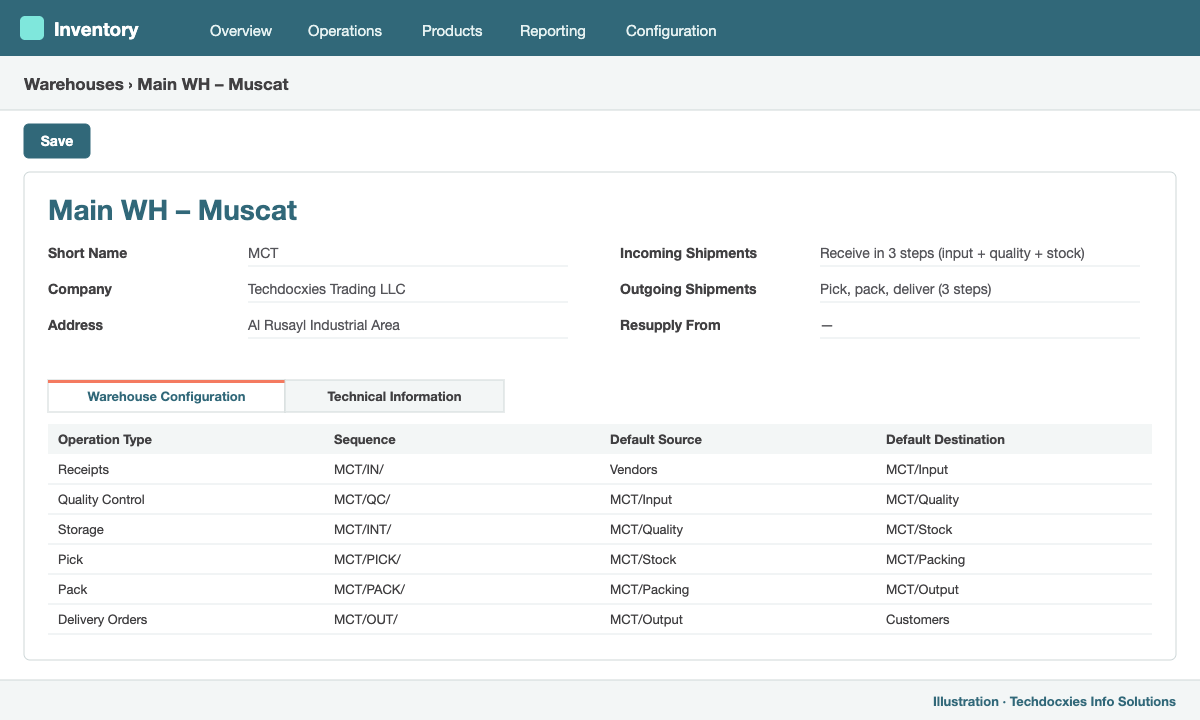
The warehouse form: choose how many steps for incoming and outgoing shipments
Odoo then creates the routes and operation types for you. For a 3-step delivery, confirming a sales order creates a Pick, which when validated triggers a Pack, then a Delivery Order. Each team sees only its own queue in the Inventory overview.
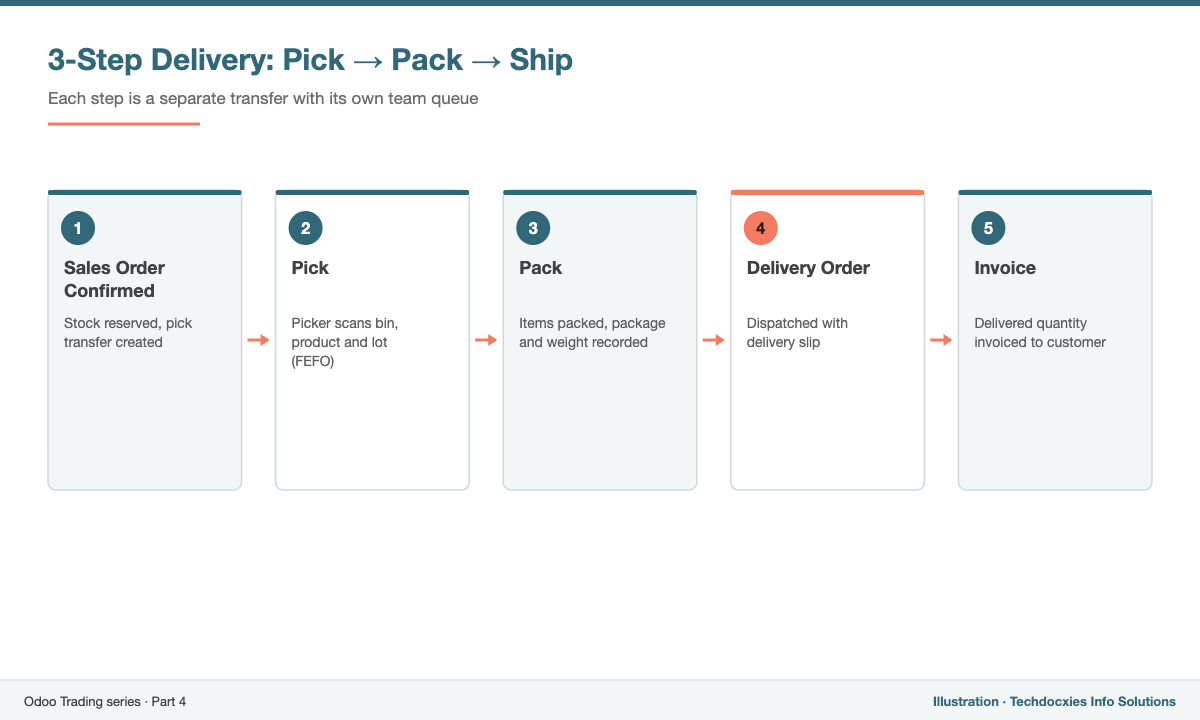
How a confirmed sales order moves through a 3-step delivery
Step 3: Automate where stock goes with putaway rules
Putaway rules tell Odoo where incoming goods should be stored, so receivers don't have to decide. Go to Inventory › Configuration › Putaway Rules and create rules by product or product category, for example: all Cement goes to WH/Stock/Yard, all Electrical goes to WH/Stock/B. With storage categories you can also limit capacity per location (e.g. max 2 pallets per bin), and Odoo will suggest the next free bin.
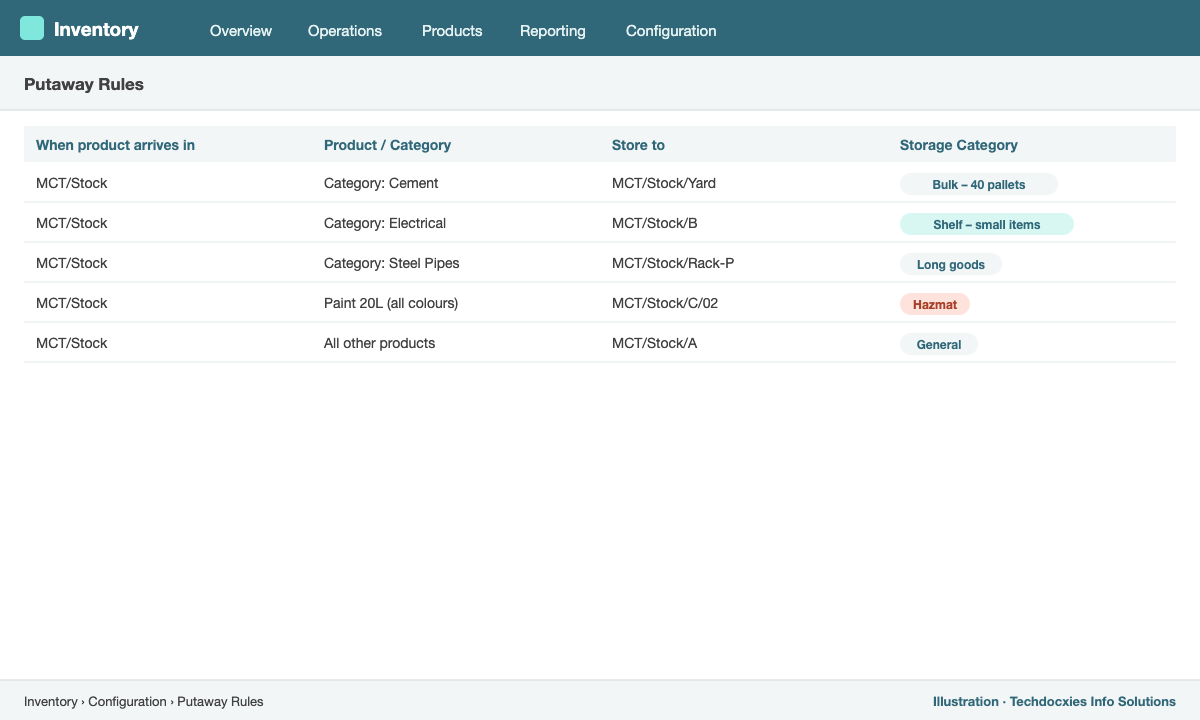
Putaway rules route incoming goods to the right zone automatically
Step 4: Pick the right stock with removal strategies
On the product category (or on a location), set the Force Removal Strategy:
- FIFO – oldest stock leaves first (general goods).
- FEFO – first expiring leaves first (food, chemicals, pharma — requires Expiration Dates).
- LIFO or Closest Location – for specific layouts or bulk items.
Step 5: Batch picking and barcode scanning
For many small orders, enable Batch Transfers or Wave Transfers to group picks so one picker collects items for several orders in a single walk. Then install the Barcode app: pickers scan the location, product and lot with a handheld scanner or phone, and Odoo validates quantities in real time. Mistakes drop sharply and you no longer need paper pick lists.
Step 6: Keep stock accurate with cycle counts
Instead of closing the warehouse for an annual count, schedule counts per location in Inventory › Operations › Physical Inventory. Set a count frequency on each location (e.g. every 30 days for fast movers) and Odoo will plan the counts. Differences are posted with full traceability and, with automated valuation, the accounting adjustment is booked immediately.
Next in the series: Part 5 – Import & export trading: landed costs, multi-currency and dropshipping.
Our Expertise
How Techdocxies Helps with Odoo Warehouse Management
Techdocxies Info Solutions has delivered 50+ Odoo projects for trading, distribution and service businesses across the GCC and beyond. We don't just switch modules on — we map your real processes first, then configure, customise, migrate, train and back you with 24/7 support.
- Warehouse and location design based on a walk-through of your actual site
- Route configuration for multi-warehouse, inter-branch transfers and quality checks
- Barcode hardware selection, label design and printer setup
- Data migration of stock by location, lot and expiry
- On-floor training for receivers, pickers and supervisors