
In wholesale and distribution, every customer seems to have a different price, a different payment term and a different credit risk. Managing that in spreadsheets leads to wrong quotes, missed margin and overdue receivables. Odoo Sales handles all of it inside one flow — from the first quotation to the invoice.
In Part 3 of our Odoo Trading series, we configure Odoo Sales for a trading business: pricelists and price rules, quotation templates, margins, credit limits and the right invoicing policy.
Step 1: Enable the key Sales settings
Go to Sales › Configuration › Settings and enable:
- Pricelists – different prices per customer group, quantity break or currency.
- Discounts – a discount column on order lines (control who can use it with access rights).
- Quotation Templates – reusable product bundles, terms and validity.
- Margins – shows cost and margin per line and per order, so sales reps see profitability before they confirm.
- Customer Addresses – separate invoice and delivery addresses for customers with multiple sites.
- Invoicing Policy – choose Invoice what is delivered for most trading flows, so customers are invoiced only for shipped quantities.
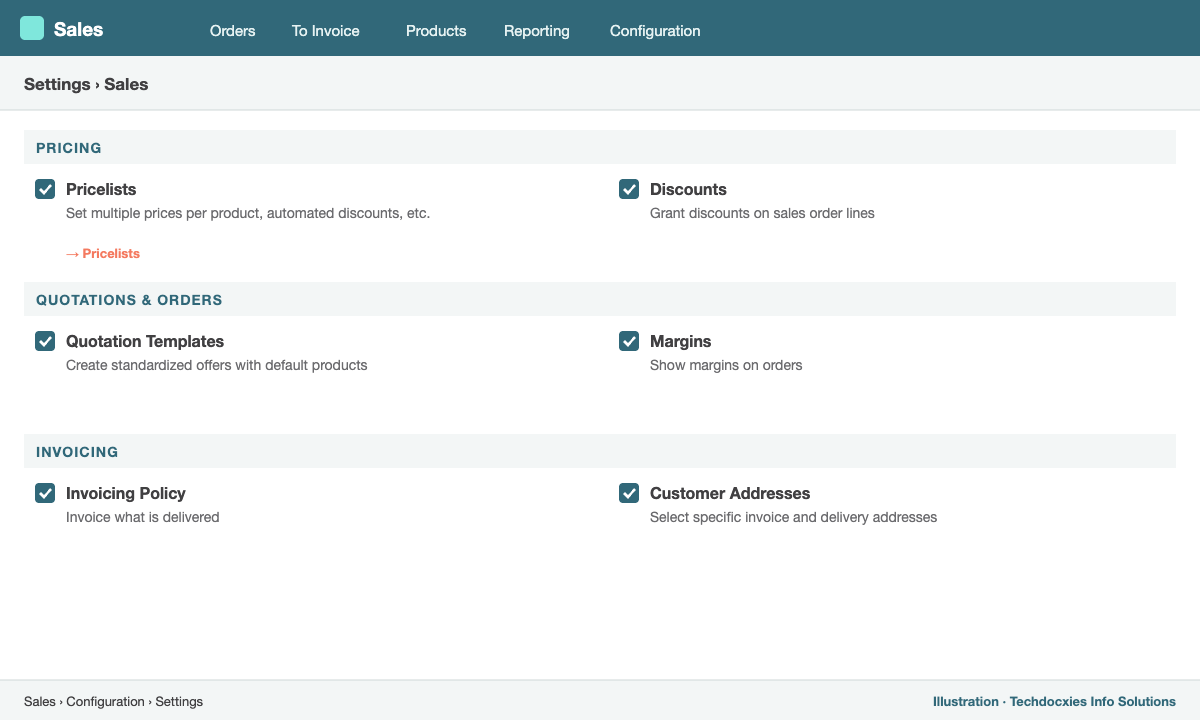
Sales › Configuration › Settings – the options trading companies rely on
Step 2: Build pricelists that reflect your price policy
Open Sales › Products › Pricelists and create one per customer segment, for example Retail, Wholesale, Project Contractors and Export (USD). Inside each pricelist, add price rules:
- Fixed price – a negotiated price for a specific product.
- Discount – e.g. 8% off all Electrical items for wholesale customers.
- Formula – e.g. cost + 18% margin, rounded to the nearest 0.050, so prices follow your landed cost automatically.
- Minimum quantity – quantity breaks such as 5% off from 100 units and 10% off from 500.
- Validity dates – for promotions or annual contracts.
Assign the pricelist on the customer's contact (Sales & Purchase tab). Every quotation for that customer then uses the right prices automatically.
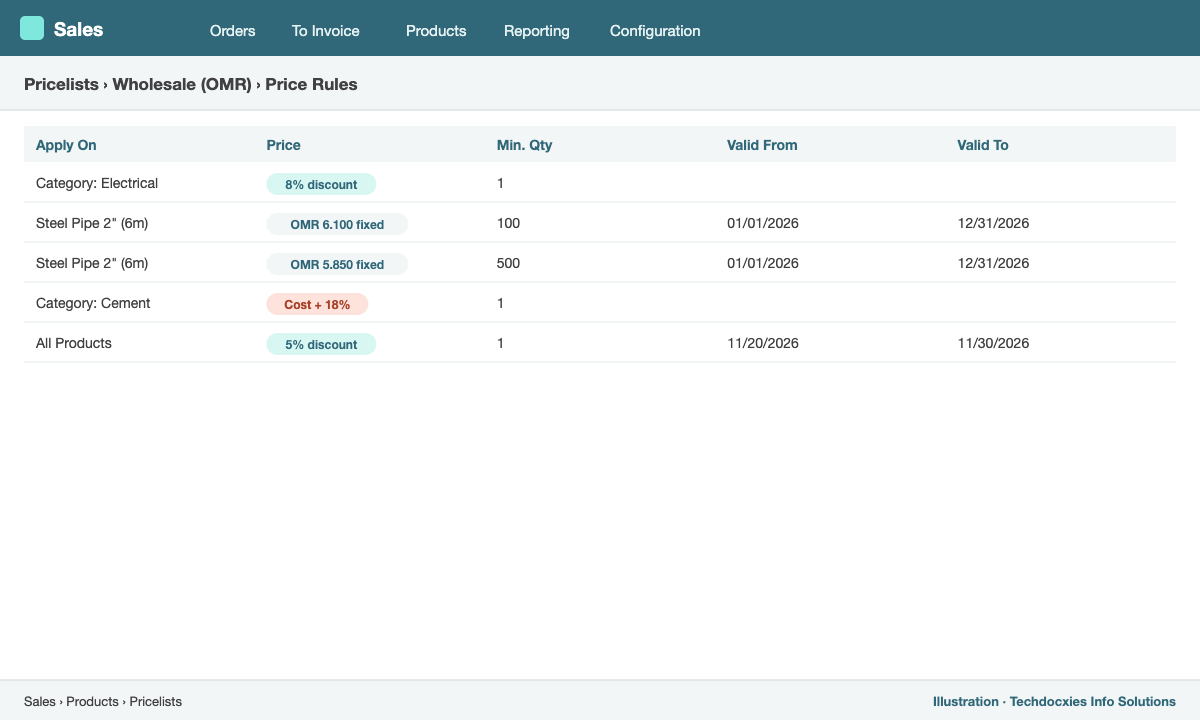
A wholesale pricelist with category discounts, quantity breaks and a cost-plus formula
Step 3: Set credit limits and payment terms
Credit control protects your cash flow. Enable Sales Credit Limit in Accounting › Configuration › Settings, then set a credit limit on each customer. When a salesperson creates a quotation that would push the customer's outstanding balance over the limit, Odoo shows a warning on the order. Combine this with payment terms on the customer (e.g. 30 days, or 50% advance and 50% on delivery) so due dates are calculated on every invoice.
Step 4: Create and confirm a quotation
- Go to Sales › Orders › Quotations › New, select the customer; the pricelist, payment terms and addresses are filled in.
- Add products, or choose a Quotation Template to load a standard bundle.
- Check the Margin shown at the bottom of the order.
- Click Send by Email. The customer can accept and sign online through the customer portal.
- Click Confirm. Odoo reserves stock and creates the delivery order in Inventory.
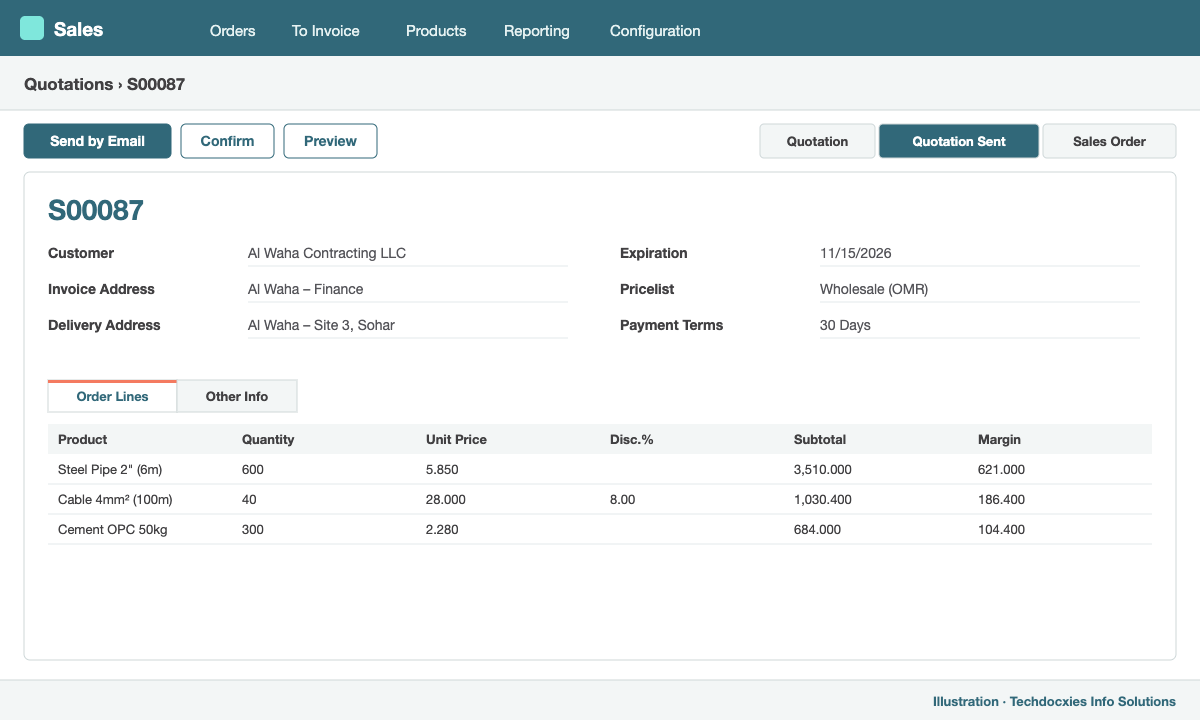
A quotation showing the wholesale pricelist, payment terms and margin before confirmation
Step 5: Deliver and invoice
Once the warehouse validates the delivery, the order's invoice status changes to To Invoice. Use Sales › To Invoice › Orders to Invoice to invoice in bulk at the end of the day. Because the policy is invoice what is delivered, partial deliveries are invoiced correctly and backorders are invoiced when they ship.
Step 6: Track sales performance
Sales › Reporting › Sales gives you revenue and margin by customer, product, salesperson and period. Add the margin measure to see which customers and product lines are really profitable.
Next in the series: Part 4 – Warehouse management: multi-step routes, putaway rules and barcode operations.
Our Expertise
How Techdocxies Helps with Odoo Sales
Techdocxies Info Solutions has delivered 50+ Odoo projects for trading, distribution and service businesses across the GCC and beyond. We don't just switch modules on — we map your real processes first, then configure, customise, migrate, train and back you with 24/7 support.
- Pricelist design and bulk import of customer-specific prices
- Credit control with approval workflows for over-limit orders
- Branded quotation, pro-forma and tax invoice templates (including bilingual Arabic/English layouts)
- Sales team, commission and target dashboards
- Customer portal and e-commerce integration for B2B ordering