
Margins in trading are won or lost at the buying stage. Paying the wrong price, accepting short shipments or paying bills for goods that never arrived quietly erodes profit. Odoo Purchase gives you the controls to stop that — if you configure them properly.
In Part 2 of our Odoo Trading series, we set up Odoo Purchase for a trading company: approvals, vendor pricelists, purchase agreements, automatic replenishment and three-way matching between orders, receipts and vendor bills.
Step 1: Configure Purchase settings
Open Purchase › Configuration › Settings and review these options:
- Purchase Order Approval – require a manager's approval above a set amount (e.g. OMR 5,000). Orders above the limit wait in To Approve until a Purchase Administrator confirms them.
- Lock Confirmed Orders – prevents edits to a confirmed PO, protecting the agreed price and quantity.
- Purchase Agreements – enables blanket orders (pre-agreed prices for a period) and calls for tenders to compare several vendors.
- Bill Control – choose Received quantities so vendors can only be billed for what you actually received.
- 3-way matching – flags bills that don't match the PO and receipt, so accounts payable only pays verified bills.
- Warnings – show a warning (or block) when buying from a specific vendor or product.
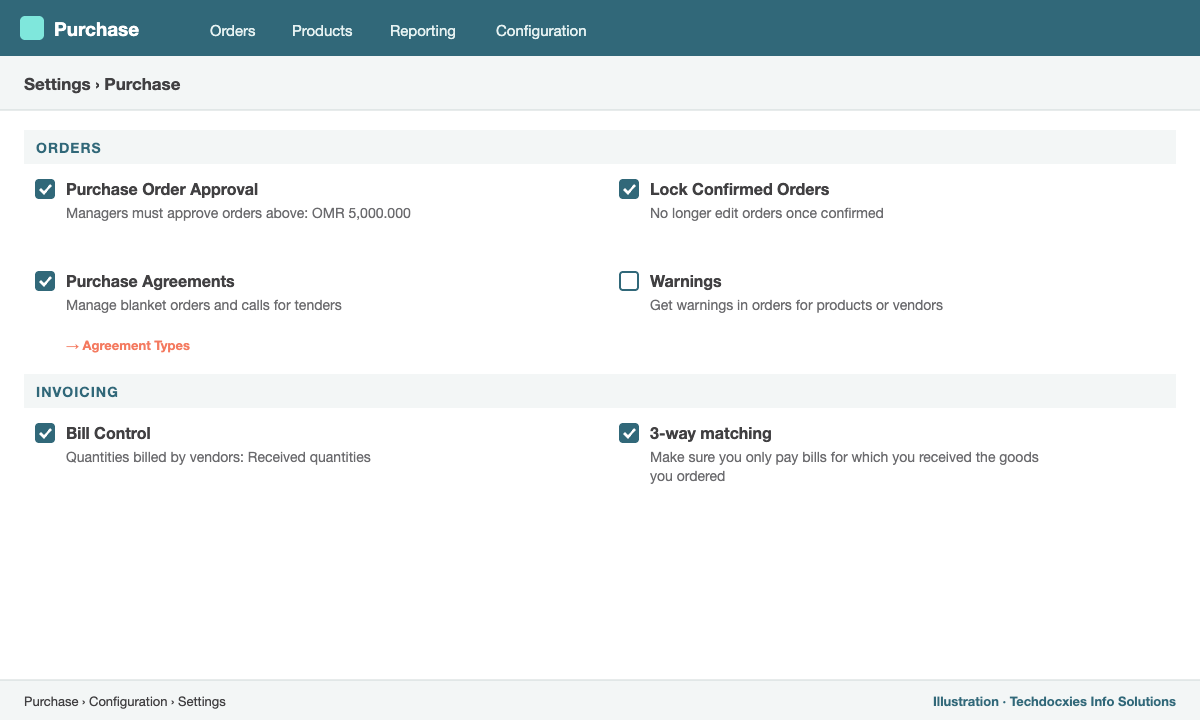
Purchase › Configuration › Settings – approvals, agreements and bill control
Step 2: Set up vendors properly
Each vendor is a contact. On the Sales & Purchase tab of the contact, set the vendor payment terms (e.g. 60 days), fiscal position (to handle imports or VAT-exempt suppliers automatically), and the vendor's default currency if you buy in USD or EUR. Add the vendor's bank account on the Accounting tab so payments can be prepared without re-typing details.
Then attach vendors to products. In the product's Purchase tab, list each vendor with their price, minimum quantity, currency and delivery lead time. When you create an RFQ, Odoo picks the right vendor price automatically based on quantity and date.
Step 3: From RFQ to Purchase Order
- Go to Purchase › Orders › Requests for Quotation › New.
- Select the vendor, add product lines and quantities; prices fill in from the vendor pricelist.
- Click Send by Email to share the RFQ. When the vendor responds, update prices and the Expected Arrival date.
- For bigger buys, use the Alternatives tab to create RFQs to other vendors and compare prices and lead times side by side, then keep the best and cancel the rest.
- Click Confirm Order. The RFQ becomes a Purchase Order and Odoo creates the incoming receipt in Inventory.
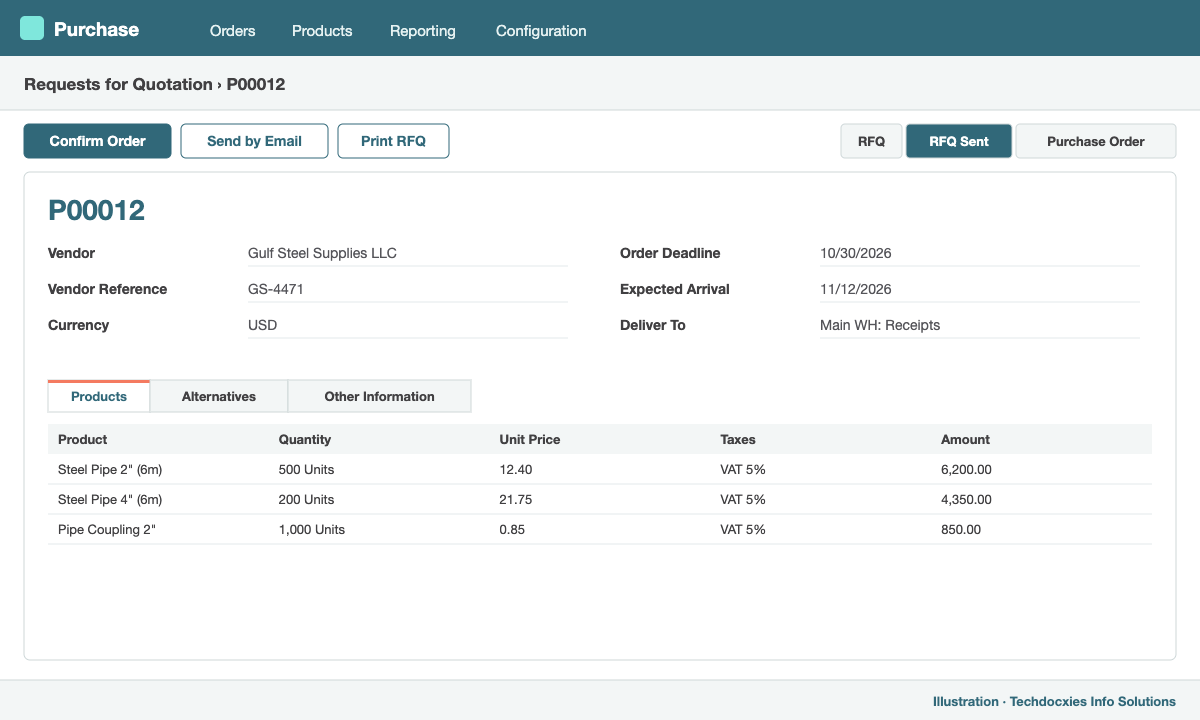
An RFQ with vendor pricing pulled automatically and the Alternatives tab for comparing vendors
Step 4: Automate replenishment with reordering rules
Instead of buyers checking stock in spreadsheets, let Odoo propose purchases. Go to Inventory › Operations › Replenishment and create reordering rules per product and warehouse with a Min and Max quantity. When forecasted stock drops below the minimum, Odoo creates (or adds lines to) an RFQ to bring it back up to the maximum, using the vendor and lead time from the product.
The forecast considers confirmed sales orders and incoming receipts, so you reorder based on what you will actually need, not just what is on the shelf today.
Step 5: Receive goods and control bills
When the truck arrives, the storekeeper opens the receipt, checks quantities, records lot or serial numbers and clicks Validate. If only part of the order arrives, Odoo offers to create a backorder for the rest.
Accounts then clicks Create Bill on the PO (or uploads the vendor's PDF and lets Odoo's OCR digitise it). With bill control on received quantities, the bill only includes what was received; with 3-way matching, any mismatch is flagged before payment.
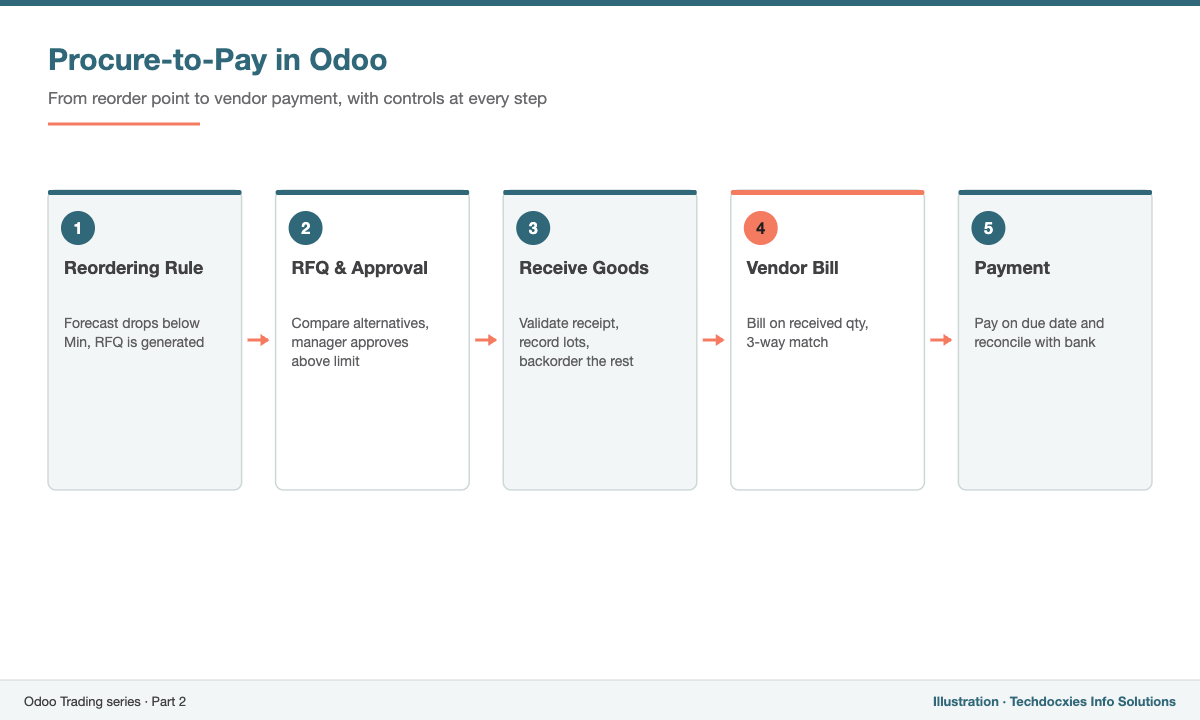
The complete procure-to-pay cycle in Odoo
Step 6: Monitor purchasing performance
Use Purchase › Reporting › Purchase to analyse spend by vendor, product and period, average price trends and on-time delivery. Combined with vendor lead times, this gives your buyers real data for negotiations.
Next in the series: Part 3 – Sales management: pricelists, quotation templates, credit limits and margins.
Our Expertise
How Techdocxies Helps with Odoo Purchase
Techdocxies Info Solutions has delivered 50+ Odoo projects for trading, distribution and service businesses across the GCC and beyond. We don't just switch modules on — we map your real processes first, then configure, customise, migrate, train and back you with 24/7 support.
- Approval matrices designed around your delegation of authority
- Vendor price list import and reordering rule calculation from your sales history
- OCR bill digitisation and 3-way matching rollout for accounts payable
- Custom purchase reports, landed cost and vendor scorecards
- Training buyers and storekeepers on day-to-day procurement in Odoo