
For a trading company, the product master is the foundation of everything: purchase prices, selling margins, stock valuation and even your VAT returns all trace back to how each product is configured. Get it right on day one and Odoo runs smoothly; get it wrong and you spend months fixing costs and journal entries.
This is Part 1 of our Odoo Trading series. We walk through the exact setup we use for distributors, wholesalers and import/export traders: the Inventory settings to enable, how to structure product categories and costing, and how to create a product that is ready to buy, stock and sell.
Step 1: Switch on the right Inventory settings
Go to Inventory › Configuration › Settings. Out of the box, Odoo keeps things minimal. Traders almost always need the following:
- Variants – if you sell the same item in sizes, colours or grades.
- Units of Measure & Packagings – buy by the carton or pallet, sell by the piece.
- Lots & Serial Numbers – mandatory for electronics, spare parts, FMCG and pharma traceability.
- Expiration Dates – for food, chemicals and anything with a shelf life (enables FEFO removal).
- Storage Locations and Multi-Step Routes – to manage racks, zones and two- or three-step receipts and deliveries (covered in Part 4).
- Landed Costs – to add freight, customs and clearing charges to product cost (covered in Part 5).
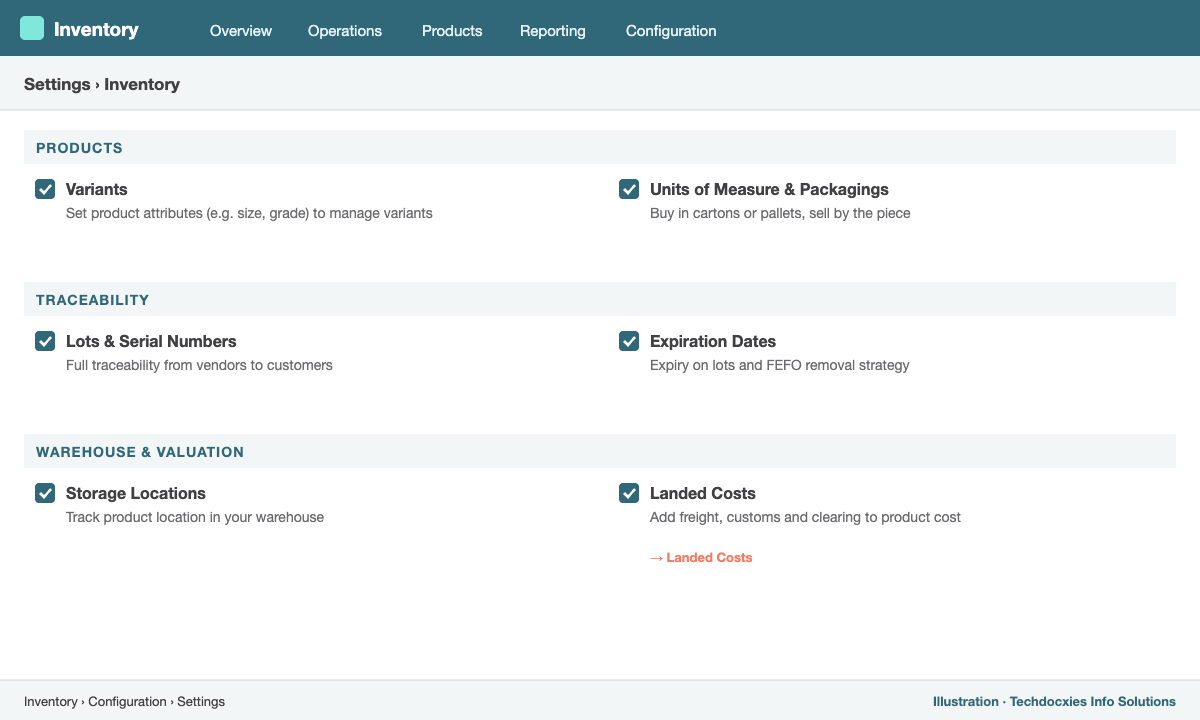
Inventory › Configuration › Settings – the features most trading companies enable
Step 2: Design product categories around costing, not just catalogue
Product categories in Odoo do more than group items for reports — they carry the costing method, the inventory valuation mode and the stock accounts. Open Inventory › Configuration › Product Categories and create categories that reflect how finance wants to value stock, for example Building Materials, Electrical, Consumables.
| Costing method | How it works | Best for |
|---|---|---|
| Standard Price | Fixed cost you set manually; differences go to a price-difference account. | Stable-cost items, manufacturers |
| Average Cost (AVCO) | Cost is recalculated as a weighted average on every receipt. | Most distributors and wholesalers |
| First In First Out (FIFO) | Each stock layer keeps its own cost; oldest layers are consumed first. | Volatile prices, imported goods, lot-tracked stock |
Then choose the valuation mode. Manual (periodic) valuation leaves stock accounting to period-end adjustments. Automated (perpetual) valuation posts a journal entry on every receipt and delivery, so your balance sheet always shows real stock value and your cost of goods sold is booked as goods leave. For trading companies we recommend AVCO or FIFO with automated valuation, with the stock valuation and interim (input/output) accounts set on each category.
Step 3: Create a trade-ready product
Go to Inventory › Products › Products › New and fill in:
- Product Type: Goods, and tick Track Inventory. Choose tracking By Quantity, By Lots or By Unique Serial Number.
- Sales Price, Cost, Customer Taxes and Vendor Taxes (e.g. VAT 5%).
- Product Category – this pulls in the costing and accounts you defined in Step 2.
- Internal Reference (your SKU) and Barcode for scanning.
- Purchase tab – add one or more vendors with price, minimum quantity and delivery lead time. Odoo uses these lines to pick the vendor and price on RFQs.
- Inventory tab – select the Buy route, set weight and volume (useful for shipping), and customer lead time.
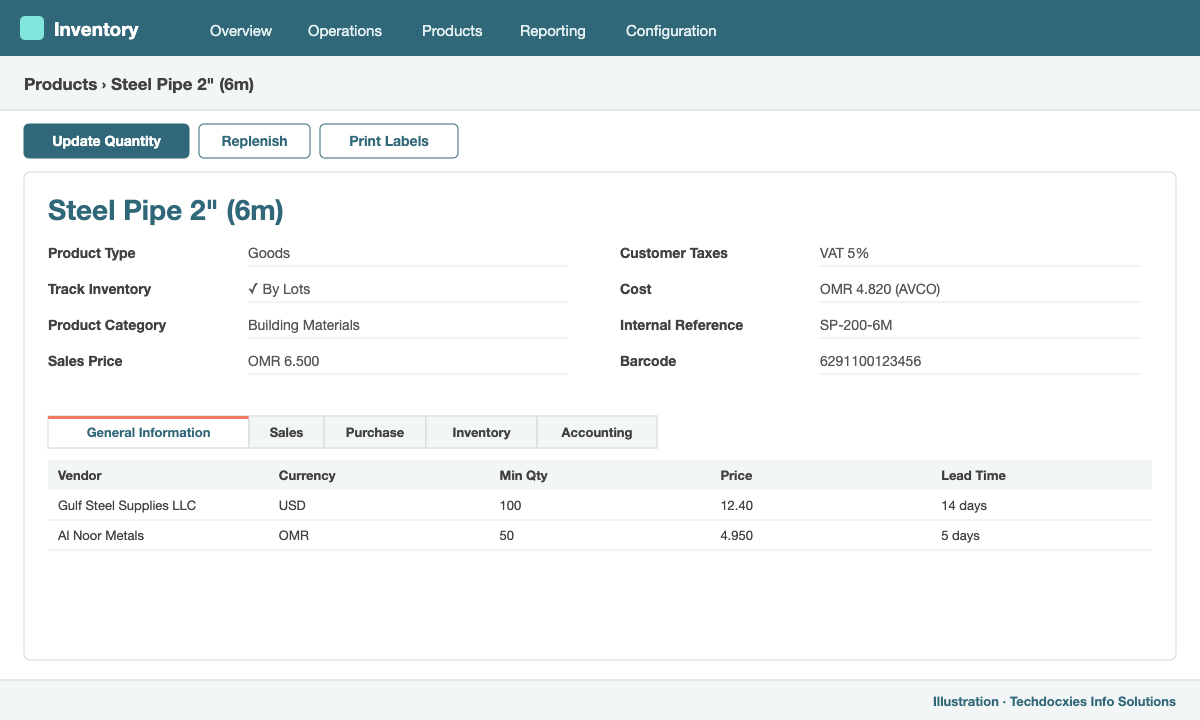
A trade-ready product: Goods type, inventory tracked by lots, taxes and category set
Step 4: Units of measure and packaging
Traders rarely buy and sell in the same unit. A typical example: you buy cement in Pallets of 50 bags and sell it per Bag. Define your base unit on the product (Bag), then set the purchase unit or packaging (Pallet = 50 Bags). Odoo converts automatically, so purchase orders read in pallets while stock and invoices read in bags — and your average cost stays correct per bag.
Step 5: Load products and opening stock
For more than a few dozen items, don't type them in. Use Import records from the gear menu on the product list with a prepared spreadsheet (name, SKU, category, prices, taxes, vendor, barcode). Then post opening quantities and lots through Inventory › Operations › Physical Inventory: enter counted quantities per location and click Apply. With automated valuation, Odoo books the opening stock value in the same step.
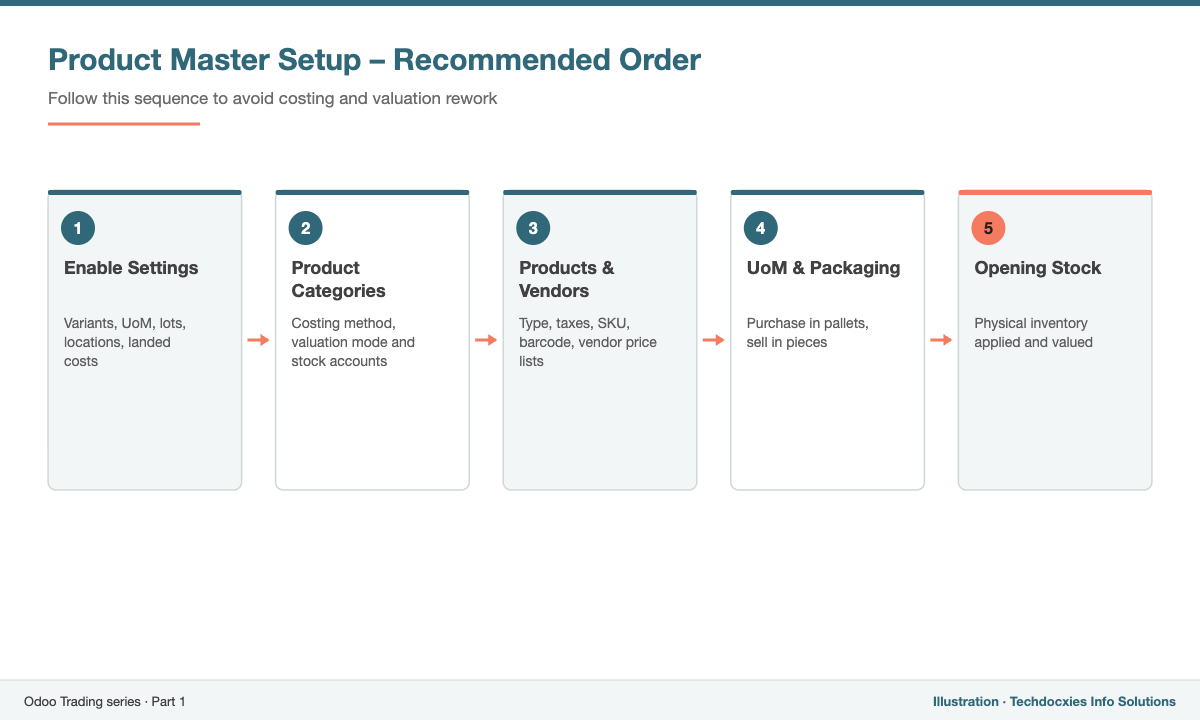
The recommended order for setting up product master data
Quick setup checklist
| Item | Where in Odoo | Done? |
|---|---|---|
| Inventory features enabled | Inventory › Configuration › Settings | ☐ |
| Categories with costing & accounts | Inventory › Configuration › Product Categories | ☐ |
| Products with taxes, vendors, routes | Inventory › Products › Products | ☐ |
| Units of measure / packagings | Product form | ☐ |
| Opening stock applied and valued | Inventory › Operations › Physical Inventory | ☐ |
Next in the series: Part 2 – Purchase management: vendors, RFQs, approvals and three-way matching.
Our Expertise
How Techdocxies Helps with Odoo Product & Inventory Setup
Techdocxies Info Solutions has delivered 50+ Odoo projects for trading, distribution and service businesses across the GCC and beyond. We don't just switch modules on — we map your real processes first, then configure, customise, migrate, train and back you with 24/7 support.
- Product data clean-up and bulk import from Excel, Tally, QuickBooks or legacy ERPs
- Costing method and stock-accounting design agreed with your finance team and auditors
- Opening stock, lot and serial number migration with value reconciliation
- Barcode labels and scanner rollout for your warehouse
- Hands-on training for purchasing, sales and store-keeping staff