
Vehicles, forklifts, racking, laptops and fit-out works often make up a large share of a GCC company's balance sheet — yet many finance teams still track them in a spreadsheet and post depreciation by hand at month end. Odoo 19's Assets feature replaces that with asset models, automatic depreciation boards and proper sale and disposal entries. This guide walks through a practical setup using an invented distributor, Al Noor Logistics Trading LLC in Dubai.
Step 1: Agree your asset policy before you touch Odoo
Odoo will calculate whatever you tell it to, so write the policy down first. For each asset class decide the useful life, depreciation method, salvage value, capitalisation threshold (for example, items below AED 2,000 are expensed) and whether depreciation starts on the purchase date or the in-service date. Align this with your auditors and with the depreciation rules your corporate tax computation will rely on.
| Asset class | Method | Useful life | Asset account |
|---|---|---|---|
| Motor vehicles | Straight Line | 5 years | 1210 Motor Vehicles |
| Furniture & fixtures | Straight Line | 7 years | 1220 Furniture & Fixtures |
| IT equipment | Declining | 3 years | 1230 IT Equipment |
| Warehouse racking | Straight Line | 10 years | 1240 Plant & Equipment |
Step 2: Prepare the chart of accounts and journal
Under Accounting › Configuration › Chart of Accounts, make sure each class has three accounts: the fixed asset (cost) account, an accumulated depreciation account (a contra-asset), and a depreciation expense account. Keep a dedicated miscellaneous journal named "Depreciation" under Accounting › Configuration › Journals so that depreciation entries are easy to filter, review and lock.
Step 3: Create asset models
An asset model is a reusable template for one asset class. Create one per row of your policy table. On each model you set the method (Straight Line, Declining, or Declining then Straight Line), the duration in months or years, the computation basis (constant periods or based on days per period), and the three accounts and journal from Step 2.
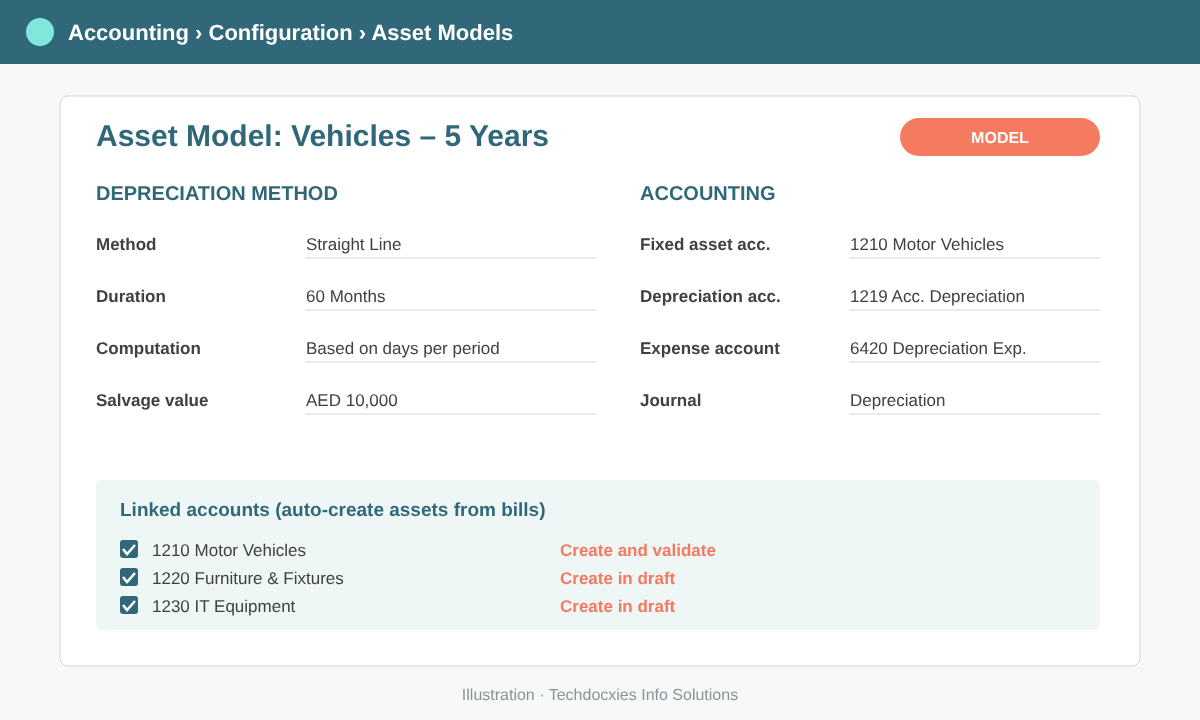
An asset model holds the method, duration and accounts for one asset class.
Then open each fixed asset account in the chart of accounts and link it to its model, choosing how Odoo should react when that account is used on a vendor bill: create the asset in draft for review, create and validate it straight away, or do nothing.
Pro tip: Use "Create in draft" for most classes in the first few months. Your accountant can then check the acquisition date and value on each new asset before it starts depreciating. Switch high-volume, low-risk classes such as laptops to "Create and validate" once the team trusts the setup.
Step 4: Capitalise assets from vendor bills
When Al Noor's purchaser books a bill for a delivery van, the line goes to account 1210. Because the account is linked to the "Vehicles – 5 Years" model, Odoo creates the asset automatically with the bill's untaxed amount as the original value — input VAT stays in your VAT account where it belongs. If one bill covers several units with a quantity above one, you can choose to create a separate asset for each unit so that every van can be tracked and later sold individually.
To add extra costs (registration, branding, fit-out), post them to the same asset account and attach them to the existing asset rather than creating a new one.
Step 5: Load existing assets and opening balances
For assets you owned before going live, create them manually under Accounting › Accounting › Assets. Enter the original value and acquisition date, then fill in the depreciation already booked in your old system before the cut-over date. Odoo uses that figure to continue the board from the right point instead of re-depreciating from day one.
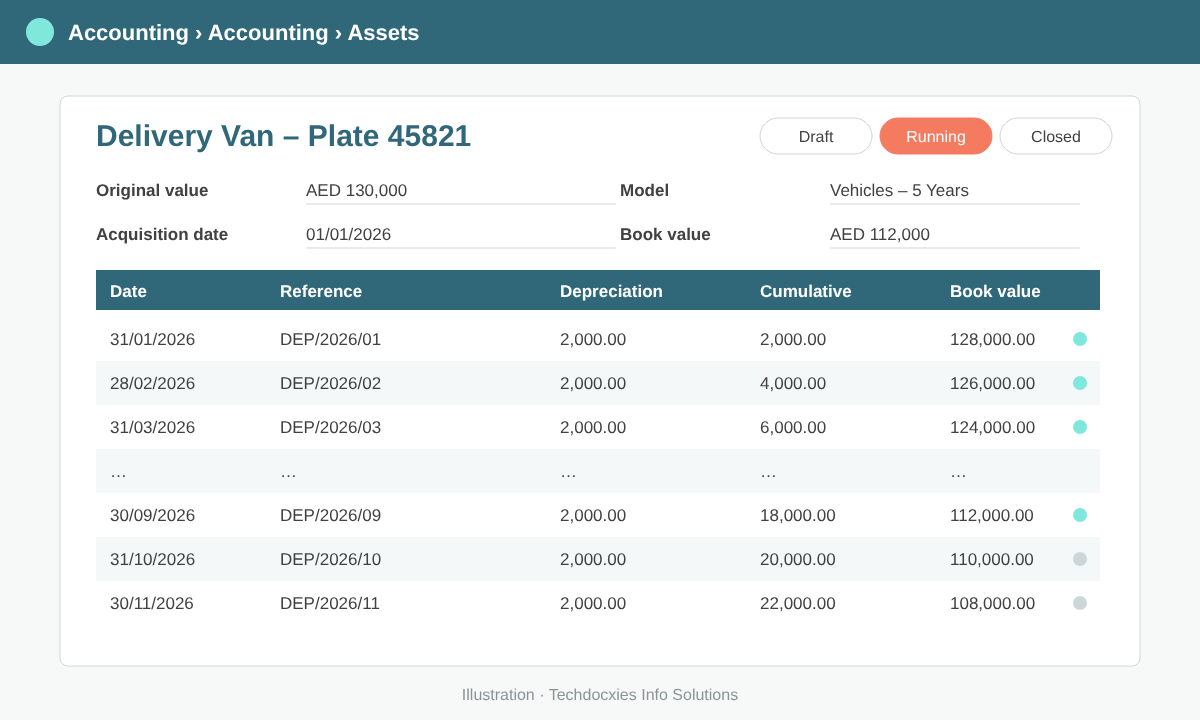
The depreciation board lists every future entry; posted lines are locked, draft lines post on their date.
Watch out: Do not post the accumulated depreciation of migrated assets twice. Your opening balance journal entry already carries the accumulated depreciation, so the figure you enter on the asset is for calculation only. Reconcile the asset register total against the trial balance before you confirm anything.
Step 6: Run monthly depreciation
Once an asset is confirmed, its depreciation board shows every future entry. Entries are created as drafts and post automatically on their date, so month-end depreciation needs no manual journal. Your month-end checklist becomes:
- Review new draft assets created from bills and confirm them.
- Check the Depreciation journal for the period's posted entries.
- Compare the depreciation schedule report under Accounting › Reporting with the general ledger balances.
- Set the lock date once the period is closed so nothing can be back-dated.
Step 7: Handle changes, sales and disposals
Real assets change. From the asset form you can modify an asset to re-evaluate its value or change its remaining life, pause depreciation while it sits idle, and resume it later. Odoo recalculates the remaining board from that date.
When a van is sold, use the sell or dispose action: link the customer invoice line (for a sale) or record a write-off (for scrap). Odoo removes the cost and accumulated depreciation and books the gain or loss to the account you choose.
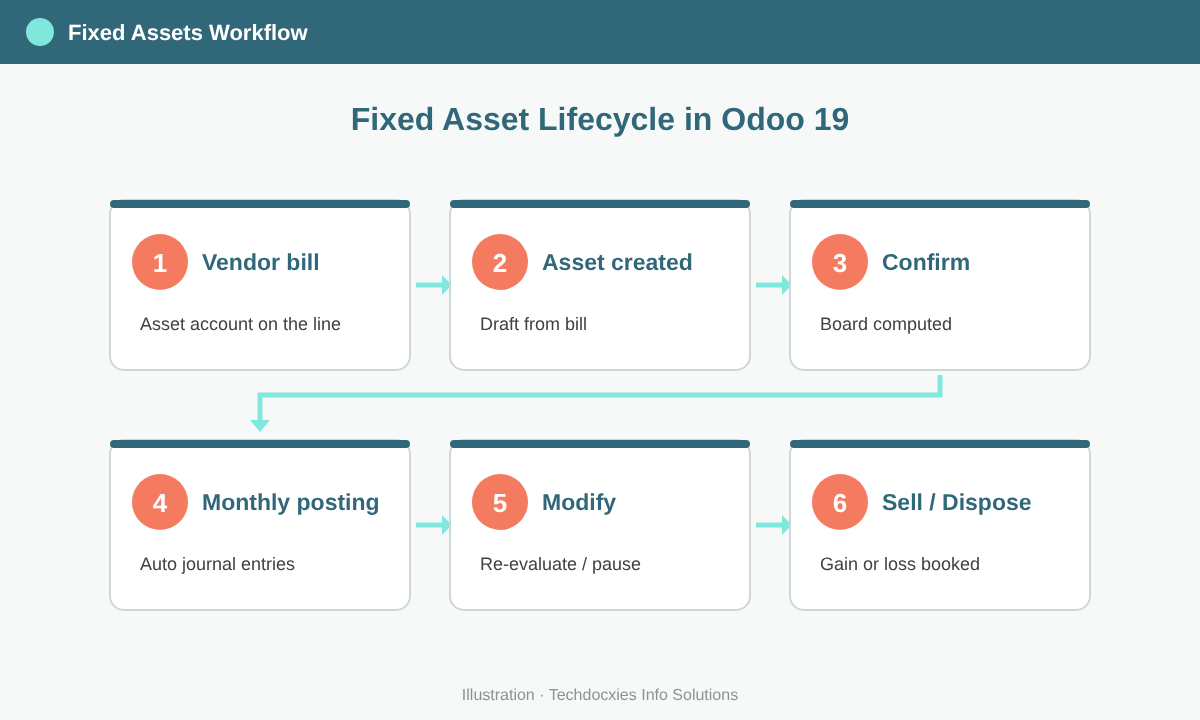
From vendor bill to disposal, every step posts the right entries automatically.
Go-live checklist
- ☐ Asset policy signed off by finance and auditors
- ☐ Asset, accumulated depreciation and expense accounts created per class
- ☐ Depreciation journal created
- ☐ One asset model per class, linked to its fixed asset account
- ☐ Opening assets loaded with depreciation already booked
- ☐ Asset register total reconciled to the trial balance
- ☐ Month-end and disposal procedure documented for the team
OUR EXPERTISE
How Techdocxies Helps with Fixed Assets & Depreciation
Techdocxies Info Solutions has delivered 50+ Odoo projects for trading, distribution and service businesses across the GCC and beyond. We don't just switch modules on — we map your real processes first, then configure, customise, migrate, train and back you with 24/7 support.
- Design asset classes, useful lives and accounts that match your audit and corporate tax needs
- Configure asset models and automatic asset creation from vendor bills
- Migrate your existing asset register with accumulated depreciation, reconciled to the trial balance
- Set up month-end, revaluation, sale and disposal procedures with lock dates
- Build asset tagging, location and custodian tracking where your business needs it