
Once Odoo Accounting is set up, the real value comes from the daily and monthly routine: matching bank transactions, chasing overdue customers and producing reports management can trust. Done well, month-end close shrinks from weeks to days.
In Part 2 of our Odoo Finance & Accounting series, we cover bank reconciliation and reconciliation models, payments, customer follow-ups, financial reports, analytic reporting and a practical month-end checklist.
Step 1: Reconcile bank transactions daily
With bank feeds or statement imports in place (Part 1), each bank journal on the Accounting Dashboard shows the number of transactions to reconcile. Click Reconcile to open the bank reconciliation screen. For each bank line, Odoo suggests matching open invoices, bills or payments based on amount, partner and reference. Accept the match, or search and select the right items, then validate.
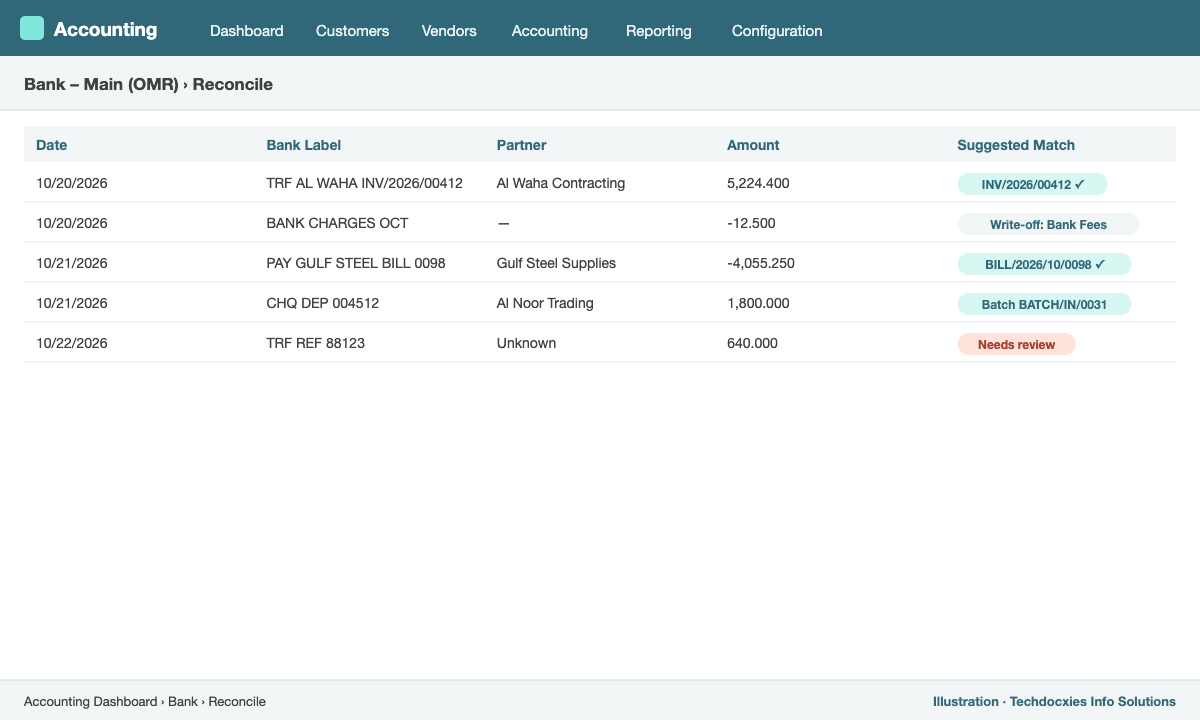
Bank reconciliation: Odoo suggests the matching invoice for each bank line
Step 2: Automate with reconciliation models
Go to Accounting › Configuration › Reconciliation Models to cut manual work:
- Write-off buttons – one click to book bank charges, rounding differences or small exchange differences to the right account.
- Rules to suggest counterparts – match by invoice reference in the bank label, or by partner, with tolerance for small payment differences.
- Rules to match invoices/bills – automatically reconcile lines that match exactly, so only exceptions need a human.
Step 3: Register and batch payments
Register customer payments from the invoice (Pay) or let bank reconciliation create them. For vendor payments, select due bills in Accounting › Vendors › Bills, filter by due date and click Pay to pay several bills at once. Enable Batch Payments to group cheque deposits or vendor transfers into one batch that matches a single bank line.
Step 4: Collect cash faster with follow-ups
Overdue receivables are the biggest cash risk for traders. Go to Accounting › Configuration › Follow-up Levels and define your escalation, for example:
| Level | Days after due date | Action |
|---|---|---|
| Friendly reminder | 3 | Email with statement of account |
| Second reminder | 15 | Email + SMS, assign a call to the salesperson |
| Final notice | 30 | Formal letter, put customer on credit hold |
| Legal | 60 | Manual action by finance manager |
Then use Accounting › Customers › Follow-up Reports to process all customers due for an action in one go. Each customer's history of reminders is kept, and automatic follow-ups can run without anyone clicking.
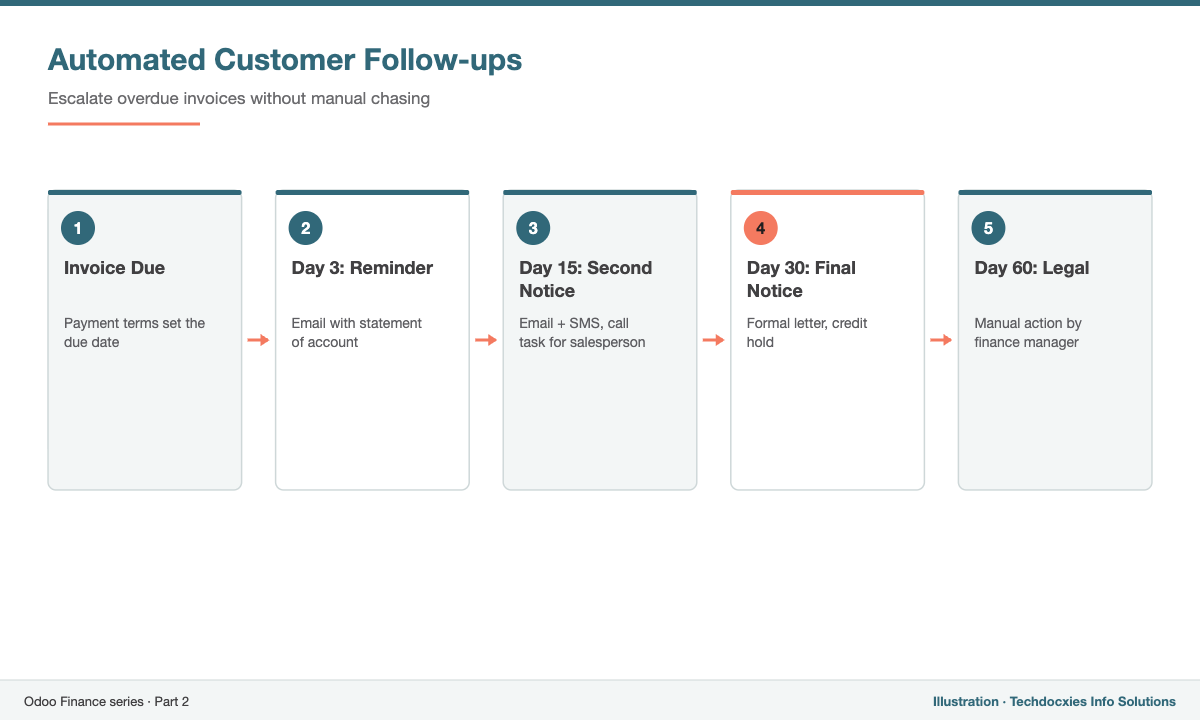
An escalating follow-up plan for overdue customers
Step 5: Financial reports that update in real time
Under Accounting › Reporting, every report is live and can be drilled down to the journal entry:
- Profit and Loss and Balance Sheet – compare periods, add budgets, and filter by analytic account.
- Cash Flow Statement and Executive Summary – key ratios for management.
- Aged Receivable and Aged Payable – by partner and ageing bucket.
- General Ledger, Trial Balance and Partner Ledger – for accountants and auditors.
- Tax Return – built from tax grids, ready for your VAT filing.
All reports export to PDF or Excel, and you can save filtered views as favourites for monthly packs.
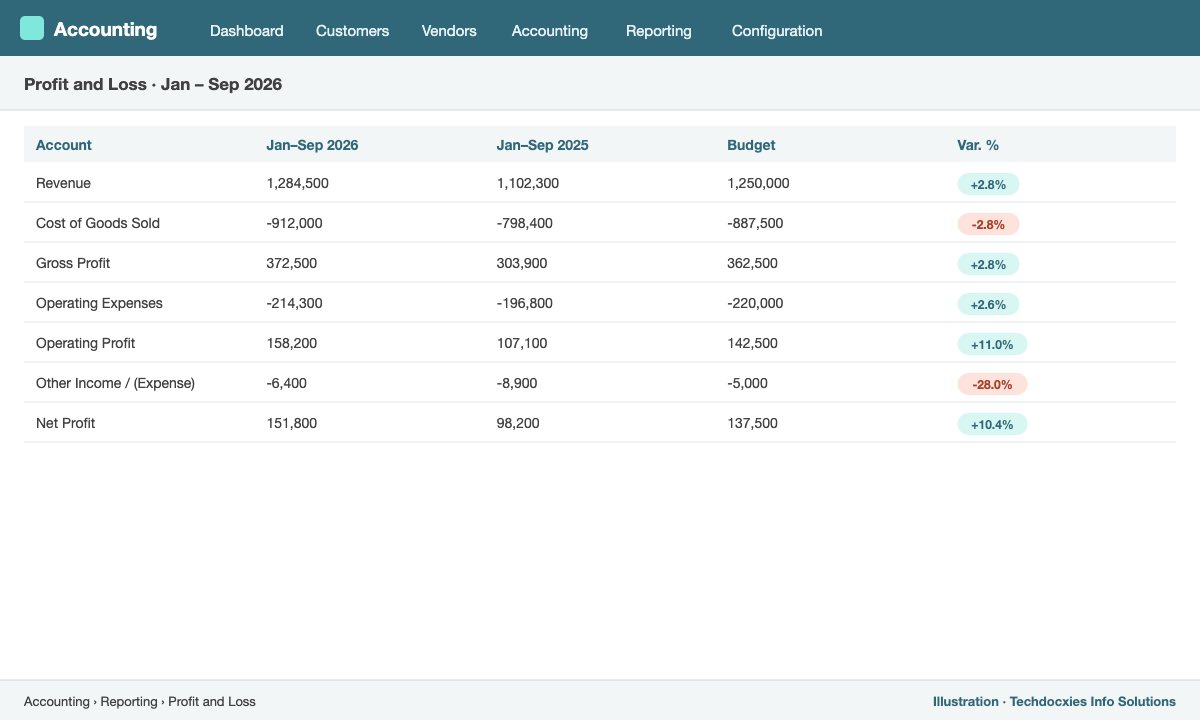
A live Profit & Loss with period comparison and budget
Step 6: Analytic accounting and budgets
Analytic distribution on invoices, bills, payslips and stock moves lets you produce a P&L per branch, department, salesperson or project. Analytic distribution models can apply the right analytic account automatically by product, partner or account. Add Budgets to compare actual results against plan each month.
A practical month-end checklist
- Reconcile all bank and cash journals to statement balances.
- Check that all receipts have bills and all deliveries are invoiced (review Waiting Bills and To Invoice).
- Post landed costs, accruals, prepayments and depreciation (Assets).
- Post payroll and reconcile salary payable.
- Review stock valuation against the stock account balance.
- Review the Tax Return and file VAT.
- Review P&L and Balance Sheet, then set the lock date.
Our Expertise
How Techdocxies Helps with Odoo Finance & Accounting
Techdocxies Info Solutions has delivered 50+ Odoo projects for trading, distribution and service businesses across the GCC and beyond. We don't just switch modules on — we map your real processes first, then configure, customise, migrate, train and back you with 24/7 support.
- Bank feed and reconciliation model setup to automate most of your matching
- Credit control and automated follow-up design with your collections team
- Management reporting packs, budgets and analytic P&L by branch or project
- VAT return review and audit-ready reporting
- Month-end close process design, training and ongoing accounting support