
Accounting is where every other Odoo app lands. Each sales invoice, vendor bill, stock movement and payslip creates a journal entry — so if the accounting foundation is wrong, every report is wrong. A clean setup takes a few days; fixing a bad one can take months.
This is Part 1 of our Odoo Finance & Accounting series. We set up Odoo Accounting from scratch: fiscal localisation, chart of accounts, taxes and fiscal positions, journals and banks, payment terms, opening balances and lock dates.
Step 1: Choose the fiscal localisation
Go to Accounting › Configuration › Settings and, under Fiscal Localization, select the package for your country. The package installs a country-appropriate chart of accounts, default taxes, tax report lines and, where relevant, legal invoice formats. Choose it before posting any transaction — changing it later is not straightforward.
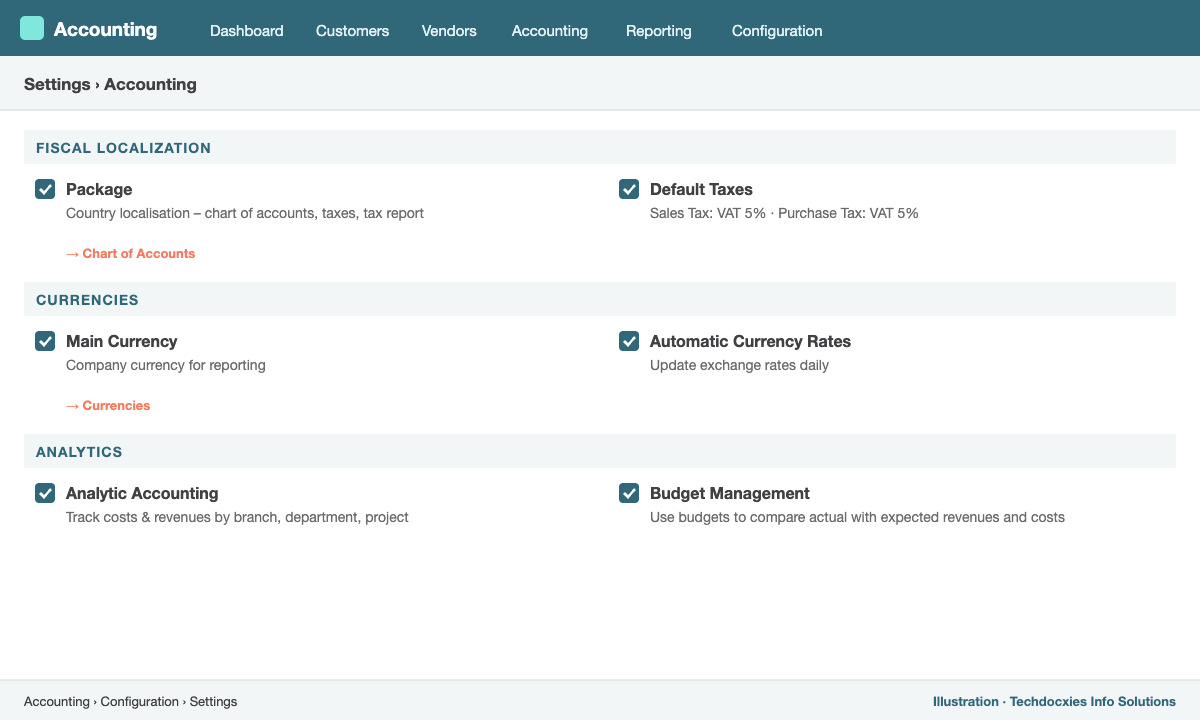
Accounting › Configuration › Settings – the first screen to configure
While you are in settings, also review:
- Main Currency and Automatic Currency Rates for foreign-currency transactions.
- Default Taxes for sales and purchases.
- Analytic Accounting – to track income and costs by branch, department or project.
- Customer Invoices – invoice layout, default terms and conditions, and cash rounding if you deal in cash.
Step 2: Tailor the chart of accounts
Open Accounting › Configuration › Chart of Accounts. The localisation gives you a solid starting point; adapt it to how management wants to read the numbers rather than rebuilding it. Typical additions for a trading company include separate revenue accounts per product line, stock valuation accounts per category (linked to product categories, see our Trading series Part 1), and expense accounts for freight, customs and clearing.
Step 3: Configure taxes and fiscal positions
Under Accounting › Configuration › Taxes, review the taxes the localisation created (e.g. VAT 5% on sales and purchases, zero-rated and exempt). Each tax is linked to tax grids, which feed your VAT return automatically. Then create Fiscal Positions (Accounting › Configuration › Fiscal Positions) to swap taxes automatically for special cases: exports (standard VAT → zero-rated), imports with reverse charge, or VAT-exempt customers. Assign the fiscal position on the customer or vendor once, and every document is taxed correctly.
Step 4: Set up journals and bank accounts
Odoo creates default Sales, Purchase, Miscellaneous, Cash and Bank journals. Add one bank journal per bank account (with its IBAN and currency) under Accounting › Configuration › Journals. Then connect each bank through online bank synchronisation where your bank is supported, or import statements in CSV, OFX or CAMT format. Bank feeds are what make reconciliation fast (Part 2).
Step 5: Payment terms
Under Accounting › Configuration › Payment Terms, define the terms you actually offer and accept: Immediate, 30 Days, 60 Days End of Month, 50% Advance, Balance on Delivery, or early-payment discounts. Set default terms on each customer and vendor so due dates, follow-ups and aged reports work automatically.
Step 6: Load opening balances
Choose a clean cut-off date, typically the first day of a financial year or month. Then:
- Enter general ledger opening balances using the Opening Debit / Opening Credit columns in the chart of accounts (or a miscellaneous journal entry).
- Import open customer invoices and vendor bills individually so aged receivables and payables, due dates and follow-ups are correct from day one.
- Load stock through a physical inventory adjustment so stock value matches your trial balance.
- Reconcile each bank account's opening balance with the bank statement.
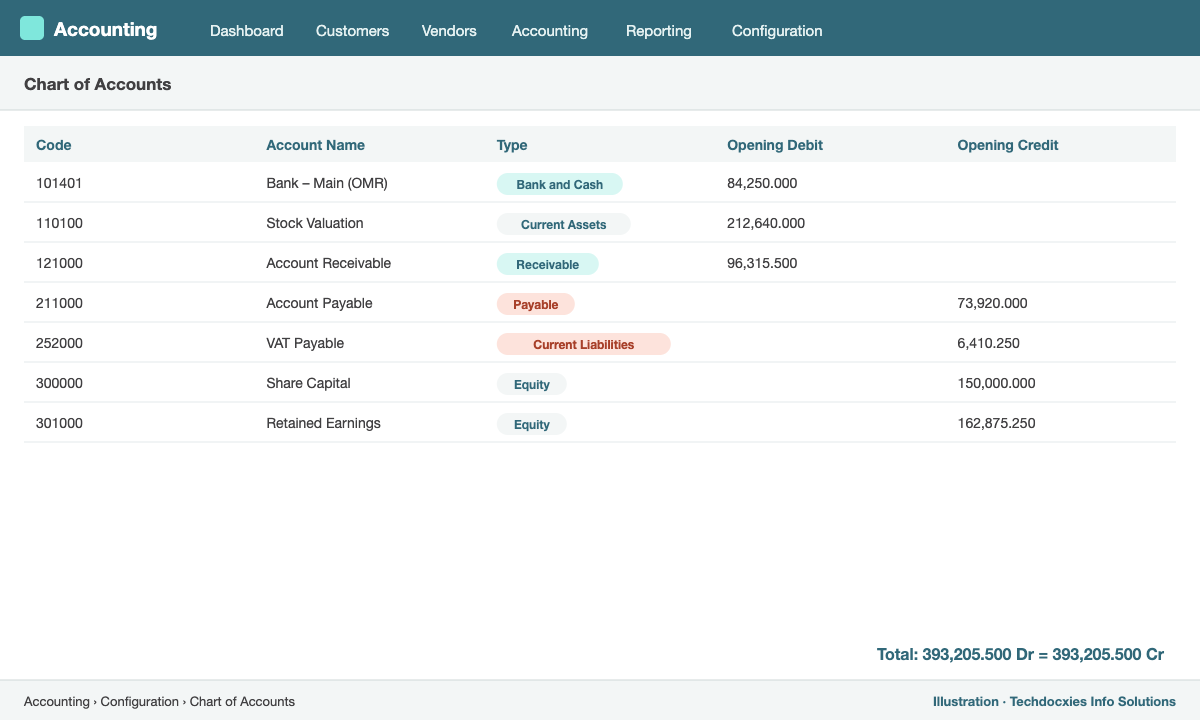
Opening debit and credit entered directly in the chart of accounts
Step 7: Fiscal year and lock dates
Set your fiscal year end in Accounting settings. After each month is reviewed, use Lock Dates to block changes before a given date — for everyone except advisers, or for everyone after the year is audited. This keeps reported figures and filed VAT returns stable.
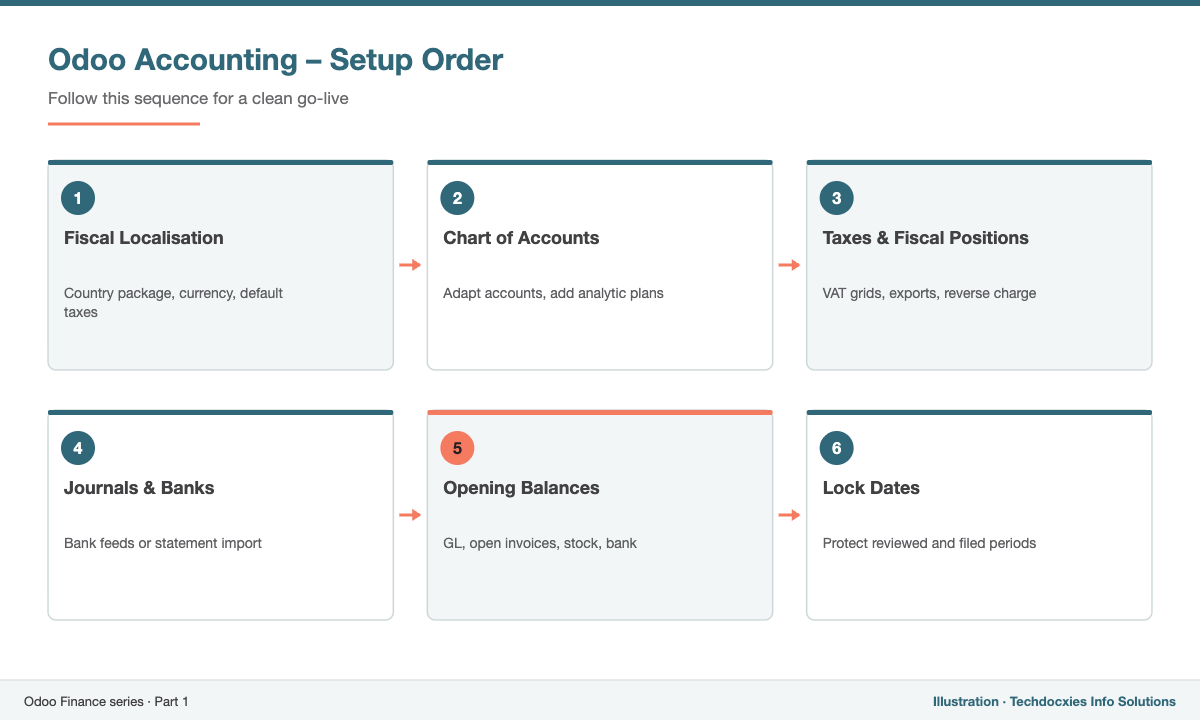
The recommended order for an Odoo Accounting setup
Next in the series: Part 2 – Bank reconciliation, payment follow-ups and financial reporting.
Our Expertise
How Techdocxies Helps with Odoo Accounting Setup
Techdocxies Info Solutions has delivered 50+ Odoo projects for trading, distribution and service businesses across the GCC and beyond. We don't just switch modules on — we map your real processes first, then configure, customise, migrate, train and back you with 24/7 support.
- Chart of accounts design and mapping from Tally, QuickBooks, Sage, SAP B1 or Excel
- VAT configuration, fiscal positions and tax return validation
- Opening balance migration with full sub-ledger reconciliation
- Bank journal, statement import and synchronisation setup
- Finance team training and month-end close procedures