
In most GCC companies, HR teams spend a surprising share of their week answering the same questions: "How many leave days do I have left?", "Has my expense claim been approved?", "Can you send me a salary certificate?" Every one of those questions is a WhatsApp message, an email and a few minutes of someone's time. Odoo 19 lets employees answer them on their own: they request leave, submit expenses, check in, update their details and follow approvals from a laptop or phone, while managers approve in one tap and HR keeps control of the rules.
In this guide we set up employee self-service for an invented company, Falcon Ridge Trading LLC, a Muscat-based building-materials distributor with 180 staff across Oman and the UAE — office teams, salespeople on the road and warehouse workers on shifts.
Step 1: Decide who gets a user account and who uses a kiosk
Self-service starts with access. Employees who use Odoo apps themselves need an internal user linked to their employee record. Create these under Settings › Users & Companies › Users, then link each user on the employee form (Employees › Employees, HR Settings tab, Related User). Give them only the basic "User" level on Time Off, Expenses and Attendances — enough to manage their own records, nothing more.
Not every worker needs a full licence. Falcon Ridge's 70 warehouse staff never log in; they check in at an Attendances kiosk with a badge or PIN, and their supervisor enters leave on their behalf. Office staff and salespeople (110 people) get user accounts.
| Employee group | Access | Self-service they use |
|---|---|---|
| Office & management | Internal user | Time off, expenses, profile, approvals, payslips |
| Sales team (field) | Internal user + mobile app | Expenses with receipt photos, time off, check-in |
| Warehouse & drivers | Kiosk badge / PIN | Check-in / out; leave entered by supervisor |
Step 2: Turn on the right settings
Open Employees › Configuration › Settings and enable the option that allows employees to update their own data. Employees can then maintain their private address, emergency contact and bank details from My Profile in the user menu, instead of emailing HR. In Attendances › Configuration › Settings, allow check-in from the Odoo menu (systray) for office staff and configure kiosk mode for the warehouse.
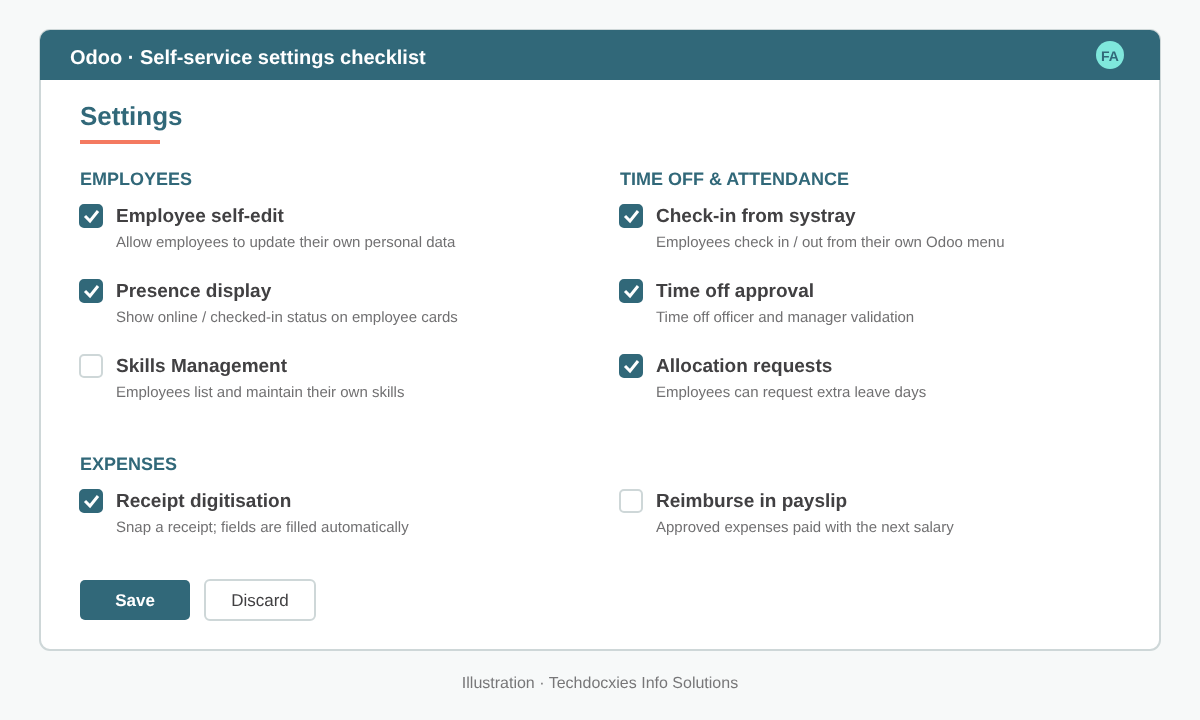
The settings that make self-service work across Employees, Time Off, Attendances and Expenses.
Watch out: self-edit is convenient, but bank account changes are a classic fraud route. Decide who verifies a changed IBAN before the next salary run — for example, a monthly check of modified bank accounts by Finance before the WPS file is generated.
Step 3: Configure time off types and approval rules
Go to Time Off › Configuration › Time Off Types. For each type — Annual Leave, Sick Leave, Hajj Leave, Compensatory, Unpaid — set the Approval rule (no validation, by time off officer, by employee's approver, or both), whether it needs an allocation, and whether a supporting document is required. Falcon Ridge requires a medical certificate on sick leave and two-level approval on annual leave longer than five days.
Then create allocations (or accrual plans) so balances are always correct. Employees see them in Time Off › My Time › My Time Off and can request extra days through allocation requests where you allow it.
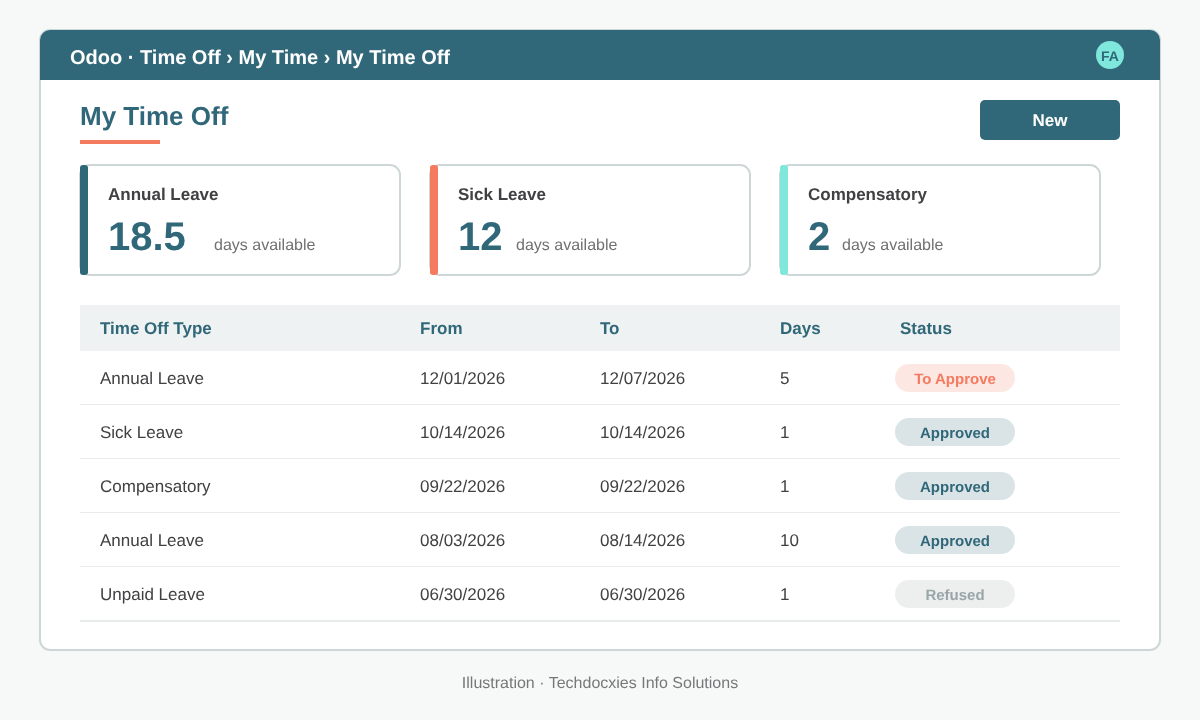
Employees see their own balances and the status of every request — no more "how many days do I have?" emails.
Step 4: Let employees submit expenses from their phone
In Expenses › Configuration › Settings, enable receipt digitisation so a photo of a fuel or hotel receipt pre-fills the amount, date and vendor. Define expense categories with default accounts and VAT. Salespeople submit claims from Expenses › My Expenses in the mobile app; the manager approves, Finance posts and reimburses — either by bank payment or through payroll if you use that option.
Pro tip: set the Manager and the time off/expense approvers on every employee record before go-live. Missing approvers are the number-one reason self-service requests "disappear" — they are waiting for someone who never gets notified.
Step 5: Cover the "other requests" with Approvals
Salary certificates, NOC letters, advance requests, asset requests and business travel do not fit Time Off or Expenses. Install the Approvals app and create a category for each request type, with the approvers, minimum number of approvals and required fields (for example, the embassy name for a salary certificate). Employees submit requests themselves and follow progress; HR and managers see a single queue instead of a full inbox.
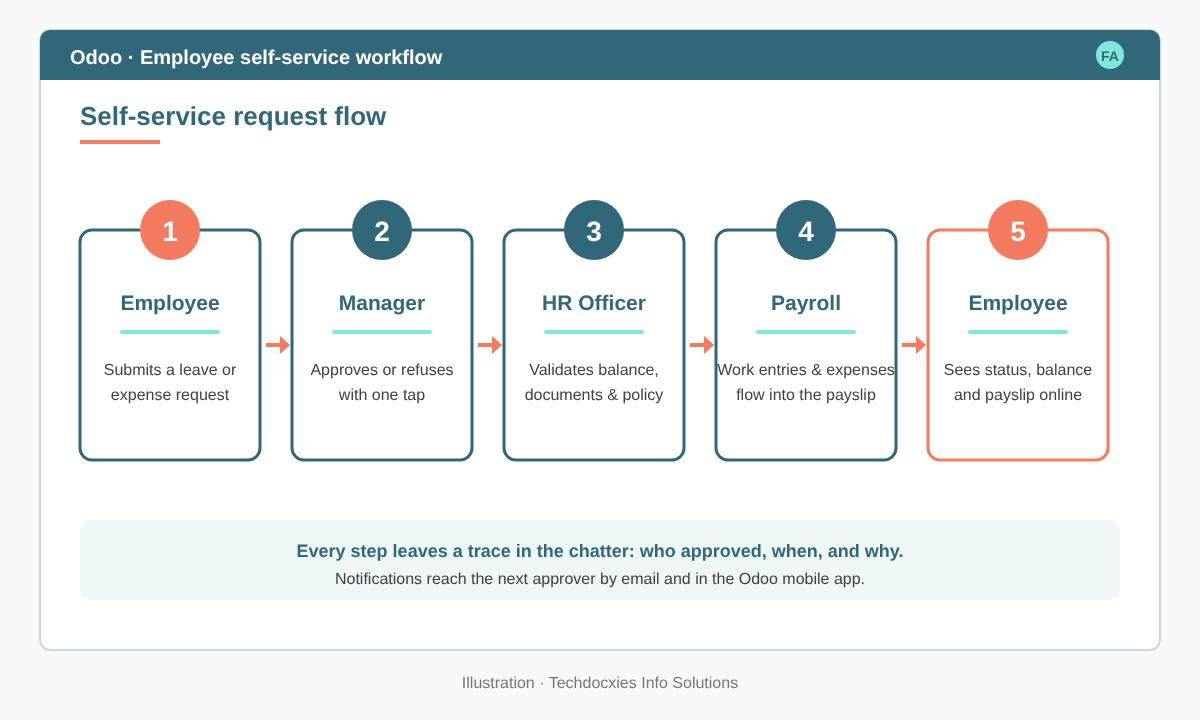
One flow for every request: employee, manager, HR, payroll — with a full audit trail.
Step 6: Connect self-service to payroll
Self-service only saves time if the data flows on. Validated time off creates work entries, attendance feeds extra hours where you track overtime, and approved expenses can be reimbursed with salary. When the payslip batch is confirmed, share payslips with employees (for example by email from Payroll) so they no longer have to ask HR for a copy. Make sure the Muscat and Dubai payroll teams agree on one cut-off date for leave and expenses each month.
Step 7: Roll out, train and measure
Launch in waves: managers first (they approve), then office staff, then the field team with the Odoo mobile app. A 30-minute session and a one-page guide per group is usually enough. After 60 days, Falcon Ridge measured a 70% drop in leave-balance and expense-status queries to HR.
Go-live checklist
- ☐ User accounts created and linked to employee records; kiosk badges/PINs issued
- ☐ Manager, time off and expense approvers set on every employee
- ☐ Time off types, approval rules and opening balances verified
- ☐ Expense categories mapped to accounts and VAT; receipt scanning tested
- ☐ Approval categories for certificates, NOCs and advances published
- ☐ Process for verifying bank-detail changes agreed with Finance
- ☐ Mobile app installed and tested by the sales team
OUR EXPERTISE
How Techdocxies Helps with Odoo Employee Self-Service
Techdocxies Info Solutions has delivered 50+ Odoo projects for trading, distribution and service businesses across the GCC and beyond. We don't just switch modules on — we map your real processes first, then configure, customise, migrate, train and back you with 24/7 support.
- Access design: who needs a user licence, who uses a kiosk, and the right access rights for each
- Time off types, accrual plans and multi-level approvals matched to Oman, UAE and KSA labour rules
- Mobile expense claims with receipt scanning, VAT mapping and payroll reimbursement
- Approval workflows for salary certificates, NOCs, advances and travel requests
- Employee and manager training, quick-reference guides and adoption reporting