
Running out of a fast-moving SKU costs a trading company the sale, and often the customer too. Over-buying ties up cash in stock that sits on the shelf for months. Odoo 19 sits between those two problems with reordering rules, lead times and a replenishment screen that turns demand data into purchase suggestions. This guide shows how a GCC distributor can set up demand-driven replenishment step by step, using an invented company, Gulf Fasteners Trading LLC, as the example.
Step 1: Prepare Inventory and Purchase Settings
Replenishment is only as good as the data behind it. Start in Inventory › Configuration › Settings and switch on the features your warehouse needs: Storage Locations and Multi-Step Routes if you run more than one warehouse or stock area, Units of Measure if you buy in cartons and sell in pieces, and Lots & Serial Numbers if you need traceability. Check the purchase security lead time too. It adds a few safety days to every vendor lead time so Odoo raises orders earlier.
Then open each product you stock and confirm three things on the product form: the product type is goods with inventory tracking, the Buy route is ticked on the Inventory tab, and the Purchase tab lists at least one vendor with a price and a delivery lead time in days.
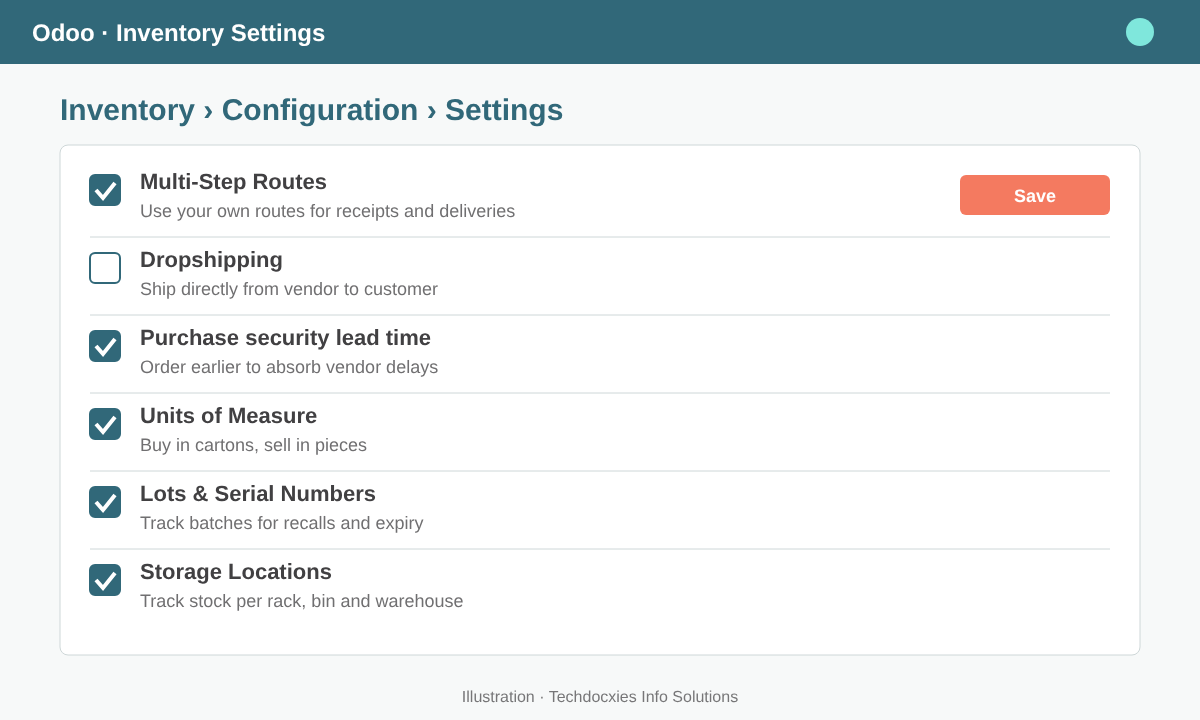
Figure 1: Inventory settings that support replenishment, including routes, units of measure and storage locations.
Step 2: Measure Real Demand from Sales History
Odoo does not need a separate forecasting tool to give you a solid starting point. Go to Inventory › Reporting › Moves Analysis (or Sales › Reporting › Sales) and group outgoing quantities by product and month. Look at the last 6 to 12 months and work out an average daily demand for each SKU. For seasonal lines, such as cooling products before summer or gift lines before Ramadan and Eid, use the same period from last year instead of a plain average.
Next, classify your products. A simple ABC split works well: the 20% of SKUs that drive most of your revenue get tight, frequently reviewed rules; slow movers get looser rules or are ordered only against confirmed sales.
Step 3: Calculate Minimum and Maximum Quantities
With demand and lead time in hand, the reorder point is simple arithmetic:
| Value | Formula | Example (Steel Fasteners M8, box) |
|---|---|---|
| Average daily demand | Units sold ÷ selling days | 10 boxes/day |
| Lead time | Vendor lead time + security days | 14 + 3 = 17 days |
| Safety stock | Daily demand × buffer days | 10 × 3 = 30 boxes |
| Minimum (reorder point) | Demand × lead time + safety stock | 170 + 30 = 200 boxes |
| Maximum | Minimum + economic order quantity | 200 + 400 = 600 boxes |
Step 4: Create Reordering Rules
Open Inventory › Configuration › Reordering Rules, or use the reordering rules smart button on the product form, and create a rule per product and warehouse. Enter the Min and Max quantities you calculated, choose the route (Buy) and, if needed, a preferred vendor. Use a Multiple Quantity when the vendor only sells in full cartons or pallets, so Odoo rounds suggestions up correctly.
Each rule has a Trigger. Auto lets the scheduler create or update requests for quotation (RFQs) on its own when forecasted stock drops below the minimum. Manual leaves the rule in the replenishment list for a buyer to approve. Most trading companies start with Manual for every product and switch their stable A-class items to Auto once the numbers have proved reliable.
Step 5: Work the Replenishment Screen Daily
Go to Inventory › Operations › Replenishment. Odoo lists every product whose forecast is below its minimum, together with the suggested To Order quantity. Buyers can adjust the quantity, click Order Once to raise an RFQ straight away, switch the rule to automatic, or snooze a line when a product is being phased out. RFQs for the same vendor are grouped together, which keeps the number of purchase orders down.
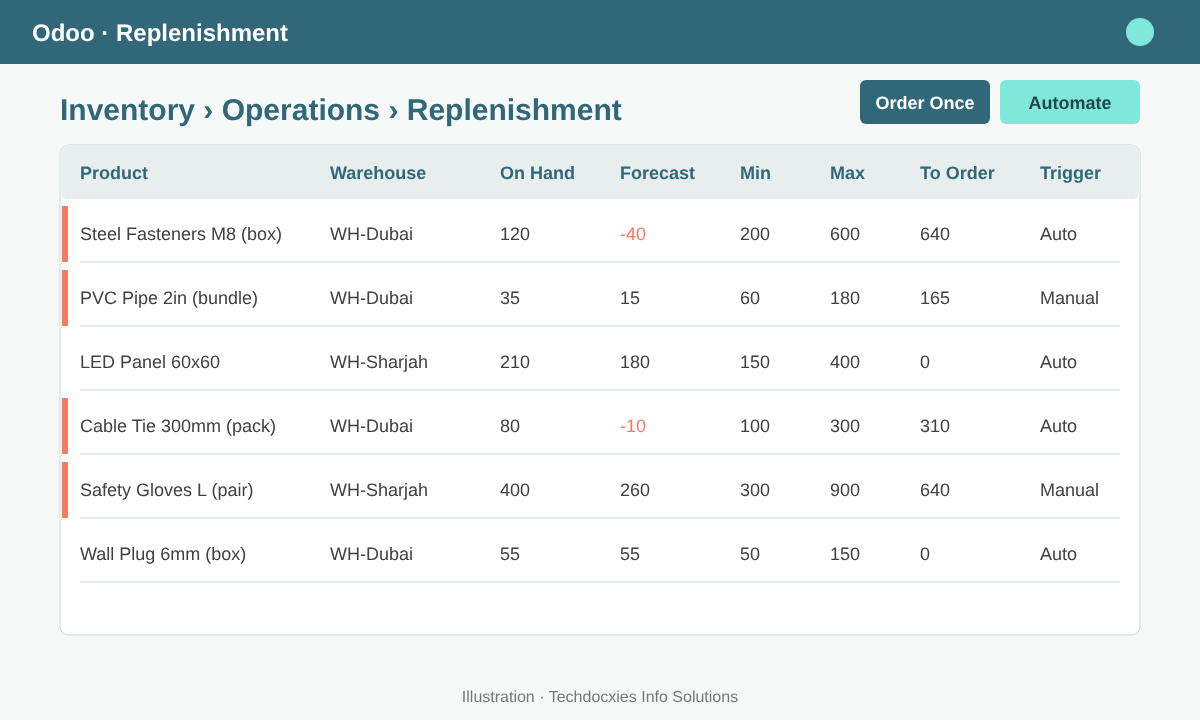
Figure 2: The replenishment list shows forecast, min/max and the quantity to order for each product and warehouse.
Step 6: Review, Tune and Repeat
Demand changes, and your rules should too. Review the rules for A-class products monthly and the rest quarterly. Compare the minimums against the last period's sales, check vendor on-time performance in purchase reporting, and update lead times on the vendor price list when a supplier slows down. If you have more than one warehouse, set up resupply routes so branches are replenished from the main warehouse rather than buying separately.
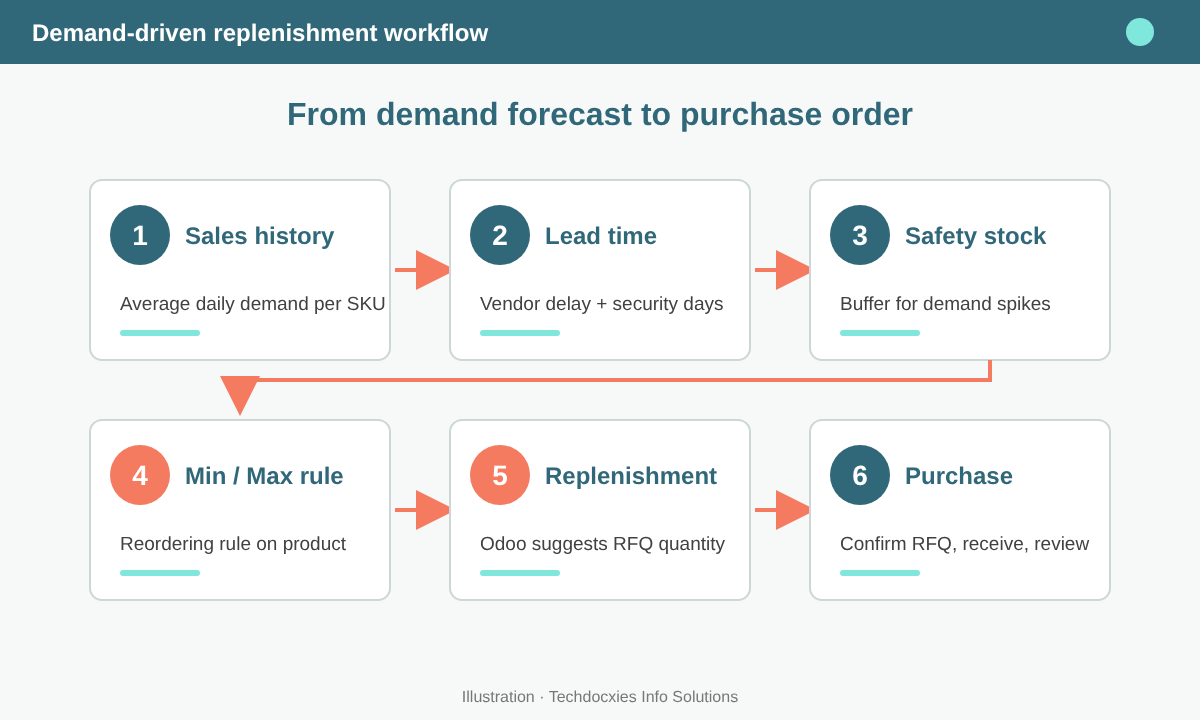
Figure 3: The replenishment cycle, from sales history and lead times to reordering rules and purchase orders.
Go-live checklist
- Every stocked product has a vendor, purchase price and delivery lead time.
- Average daily demand calculated from at least 6 months of sales.
- Min/max quantities documented and loaded as reordering rules per warehouse.
- Vendor carton or pallet sizes set as multiple quantities.
- Buyers know who reviews the replenishment screen, and how often.
- Stale draft RFQs cleaned up before go-live.
- A monthly review of rules and lead times is in the calendar.
OUR EXPERTISE
How Techdocxies Helps with Demand Forecasting & Replenishment
Techdocxies Info Solutions has delivered 50+ Odoo projects for trading, distribution and service businesses across the GCC and beyond. We don't just switch modules on — we map your real processes first, then configure, customise, migrate, train and back you with 24/7 support.
- Analysing your sales history to calculate demand, safety stock and min/max levels per SKU.
- Bulk-loading reordering rules, vendor lead times and carton multiples for thousands of products.
- Designing multi-warehouse resupply routes between your main store and branches.
- Building replenishment dashboards and stock-out alerts for buyers and management.
- Training purchasing teams to run the replenishment screen and review rules with confidence.