
Returns are part of every trading business. A contractor sends back 12 damaged valves, a retailer receives the wrong LED panel model, a distributor over-ships and the customer refuses the extra cartons. If returns are handled with emails, spreadsheets and manual stock adjustments, inventory drifts, margins look better than they are and customer balances stop matching. This guide shows how to run a clean customer return (RMA) process in Odoo 19, from the first request to the credit note, using our invented example company, Gulfline Building Supplies LLC in Dubai.
Step 1: Write down your return policy first
Before touching configuration, agree on the rules: how many days customers have to return goods, which product categories are non-returnable (cut-to-length cable, custom-mixed paint, perishables), whether a restocking fee applies, and who can approve exceptions. Odoo will enforce your process, but it cannot decide it for you. Gulfline settled on a 14-day window, a 10% restocking fee for non-defective returns, and approval by the sales manager for anything above AED 5,000.
Step 2: Create a dedicated returns location
Go to Inventory › Configuration › Settings and enable Storage Locations (and Multi-Step Routes if you use them). Then open Inventory › Configuration › Locations and create an internal location such as Stock/Returns-QC. Returned goods land here first, so they are tracked but kept apart from sellable stock until someone has checked them.
Next, review the operation types under Inventory › Configuration › Operation Types. On your delivery operation type, set the operation type to use for returns and point its default destination to the returns location. That way every return created from a delivery follows the same path automatically.
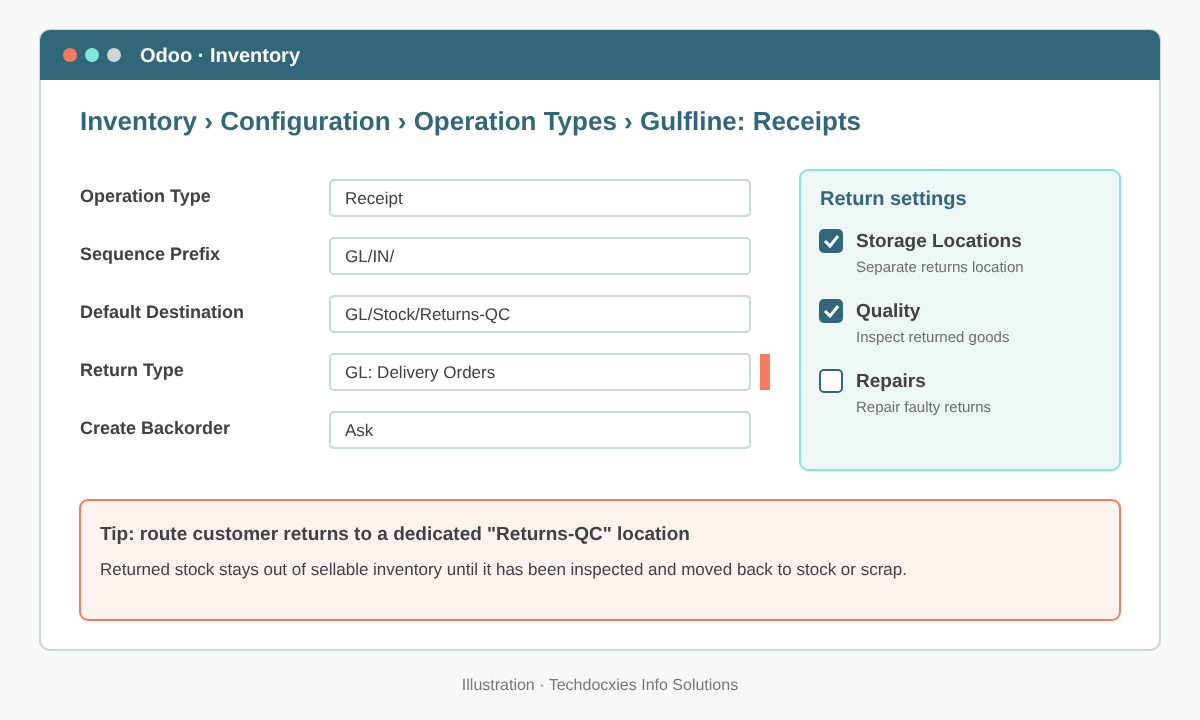
Operation type set up so customer returns go to a dedicated Returns-QC location.
Step 3: Capture the return request
Requests arrive by phone, email or WhatsApp. Give them one home. If you use the Helpdesk app, open Helpdesk › Configuration › Helpdesk Teams and enable the after-sales options for Returns and Refunds on your customer-service team. Agents can then start a return or a credit note directly from the ticket, and the ticket keeps the full conversation, photos of the damage and the link to the original order. Without Helpdesk, log the request in the chatter of the sales order so the history stays with the transaction.
Step 4: Receive the goods with a reverse transfer
Open the original delivery from the sales order (the Delivery smart button) or from Inventory › Operations › Transfers. On a validated delivery, click Return. Odoo proposes the delivered lines; set the quantity actually coming back for each product and confirm. A return receipt is created, linked to the same sales order, and the returned quantity is deducted from the delivered quantity on the order. If products are tracked by lot or serial number, the warehouse team scans the exact lots coming back, which matters for warranty claims and supplier recalls.
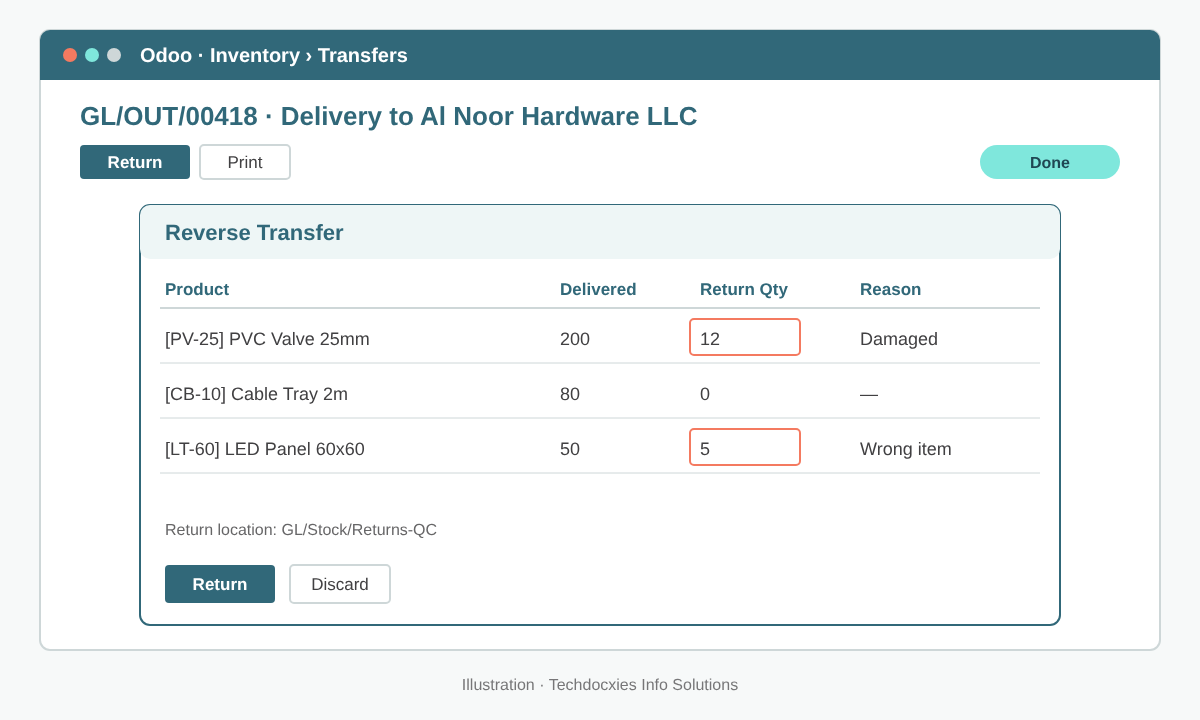
Creating a partial return from a validated delivery: only the damaged and wrong items come back.
Pro tip: Ask the customer for the delivery or invoice number before the driver collects anything. Starting the return from the original delivery keeps the cost, lot numbers and sales order link intact. Returns entered as fresh, unlinked receipts are the number one reason we see inventory valuation and gross margin reports go wrong after go-live.
Step 5: Inspect before restocking
With the Quality app, create a control point under Quality › Quality Control › Control Points for the return receipt operation type, for example a pass/fail check with photo upload. When the goods are checked:
- Pass – move them from Returns-QC back to Stock with an internal transfer.
- Fail, repairable – create a repair order in the Repairs app, track parts and labour, then return the unit to stock or to the customer.
- Fail, unusable – use the Scrap button so the loss is valued and posted correctly.
- Supplier defect – return it onward to the vendor from the original receipt, using the same Return button on the purchase side.
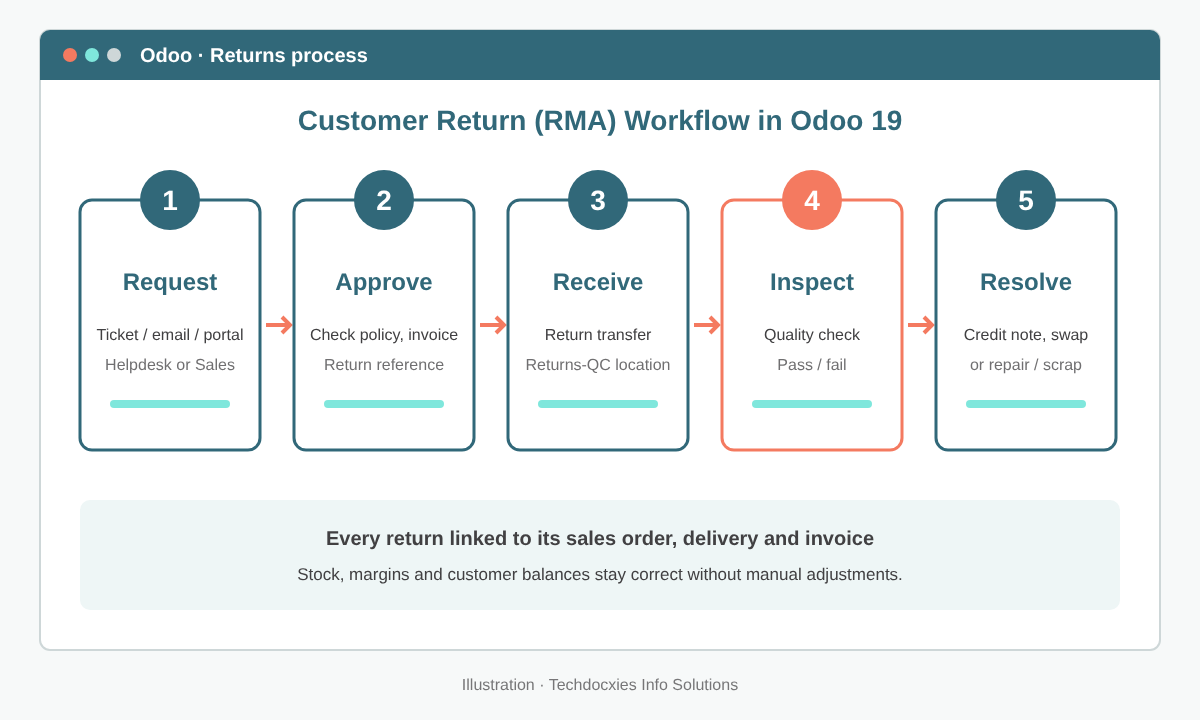
The five stages of a controlled customer return, from request to resolution.
Step 6: Settle the money: credit note, replacement or refund
For products invoiced on delivered quantities, the return lowers the delivered quantity on the sales order, so the order shows a negative amount to invoice; creating the invoice from the order produces a credit note for exactly what came back. Alternatively, open the customer invoice in Accounting › Customers › Invoices and click Credit Note to reverse it in full or in part. Charge any restocking fee as a separate service line. If the customer wants a replacement instead, create a new delivery for the replacement goods rather than editing the original order.
Watch out: In the UAE, Saudi Arabia and other VAT jurisdictions, the credit note must reference the original tax invoice and reverse the VAT correctly. Never "fix" a return by deleting or editing a posted invoice, and never refund cash without a credit note. Both break your audit trail and can cause problems in a VAT audit.
Step 7: Measure returns and act on the causes
Returns data is valuable. Use Inventory › Reporting › Moves Analysis filtered on the returns location, and the sales and invoicing reports grouped by product, customer and salesperson, to spot patterns. Gulfline found that 40% of its returns came from one LED panel SKU with a confusing description; fixing the product name cut returns on that line in half within a month.
Customer returns checklist
| Area | What to set up | Owner |
|---|---|---|
| Policy | Return window, non-returnable categories, restocking fee, approval limits | Sales manager |
| Inventory | Returns-QC location, return operation type, lot/serial tracking | Warehouse lead |
| Requests | Helpdesk team with Returns/Refunds enabled, or chatter logging | Customer service |
| Quality | Control point on return receipts, pass/fail rules, photos | QC inspector |
| Finance | Credit note process, VAT treatment, restocking fee product | Accountant |
| Reporting | Monthly review of return reasons by product and customer | Operations manager |
OUR EXPERTISE
How Techdocxies Helps with Customer Returns (RMA)
Techdocxies Info Solutions has delivered 50+ Odoo projects for trading, distribution and service businesses across the GCC and beyond. We don't just switch modules on — we map your real processes first, then configure, customise, migrate, train and back you with 24/7 support.
- Design a returns policy and approval flow that fits your customers and margins
- Configure returns locations, routes and lot/serial tracking in Odoo Inventory
- Set up Helpdesk, Quality and Repairs so every return is logged, inspected and resolved
- Get credit notes, restocking fees and VAT right for UAE and KSA compliance
- Build return-reason dashboards and train your sales, warehouse and finance teams