
Most GCC trading and service companies can tell you their total profit, but far fewer can say which branch, department or project produced it, or whether this quarter's spend is on plan. Odoo 19 answers both questions with analytic accounting and budgets. Every bill, invoice and payslip line is tagged to a branch or job, and those tags feed a live budget-versus-actual view. This guide walks through a practical setup for an invented distributor, Gulf Star Trading LLC, which runs branches in Dubai, Muscat and Riyadh.
Step 1: Design your analytic structure on paper
Analytic accounting sits beside your chart of accounts. It does not replace it. Your general ledger accounts say what the money was spent on (rent, salaries, freight). Analytic accounts say where or for whom (Dubai branch, warehouse, Tender 2027-014). Before you configure anything, agree with management on the questions the reports must answer, then choose the dimensions that answer them. Two or three dimensions are usually enough. Each extra one adds tagging work for every user.
| Analytic plan | Example accounts | Answers the question | Applicability |
|---|---|---|---|
| Branch | Dubai, Muscat, Riyadh | Is each branch profitable? | Mandatory on bills and invoices |
| Department | Sales, Warehouse, Admin & IT | Which cost centre is over budget? | Optional |
| Project | One account per tender or contract | Did this job make money? | Optional |
Step 2: Enable analytic accounting and budgets
Go to Accounting › Configuration › Settings. In the Analytics section, tick Analytic Accounting and Budget Management, then save. New menus for analytic plans, analytic accounts and distribution models appear under Accounting › Configuration. A Budgets menu also becomes available in the Accounting app. Users who need to see analytic columns on journal items must belong to the analytic accounting access group, so check this in Settings › Users & Companies › Users.
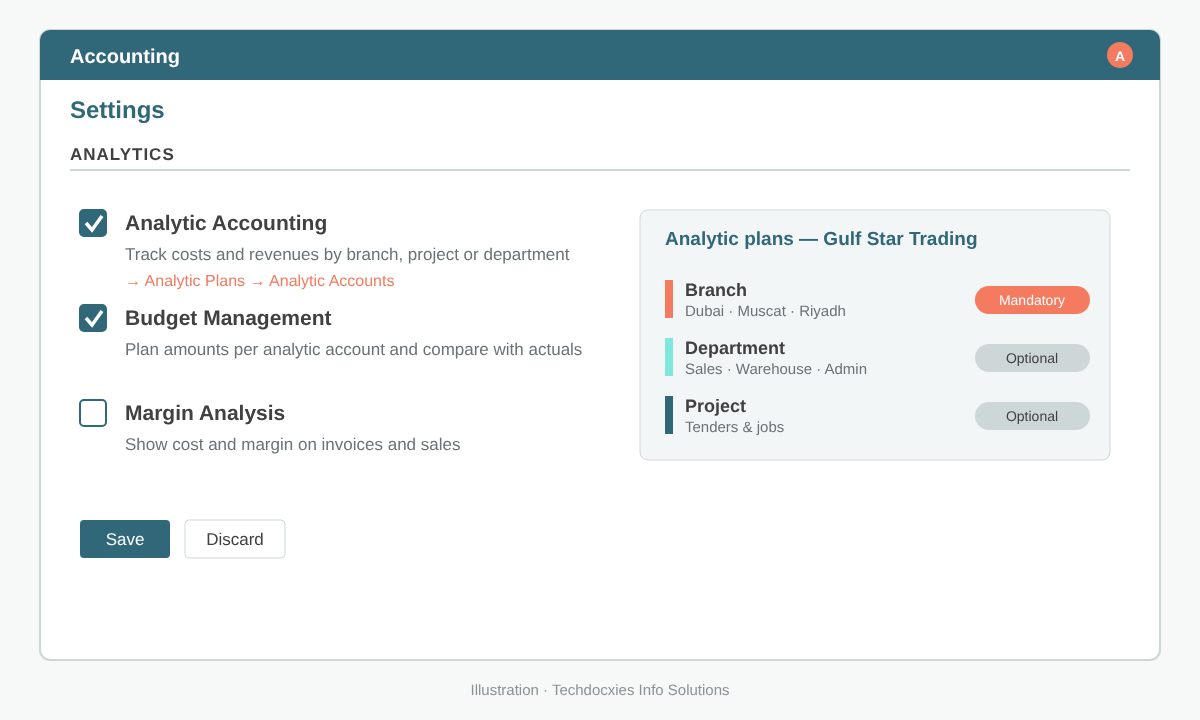
Two checkboxes switch on analytics and budgets. The plans you design decide how useful they are.
Step 3: Create analytic plans and accounts
Open Accounting › Configuration › Analytic Plans and create one plan per dimension: Branch, Department and Project. On each plan, the applicability rules let you make the plan Mandatory, Optional or Unavailable for a given domain, such as vendor bills or customer invoices. Gulf Star makes Branch mandatory on both, so no bill can be posted without a branch. That rule alone fixes most messy cost-centre reports.
Next, add the accounts under Accounting › Configuration › Analytic Accounts, each linked to its plan and company. Use sub-plans if you need a hierarchy, for example Riyadh › Showroom and Riyadh › Warehouse. Keep the names short and consistent, because users will pick them from a dropdown many times a day.
Step 4: Automate tagging with distribution models
Manual tagging breaks down at month end. Under Accounting › Configuration › Analytic Distribution Models, you can define rules that pre-fill the analytic distribution automatically based on criteria such as the account, partner, product or company. Some examples from Gulf Star:
- All lines on the warehouse rent account go 100% to Department › Warehouse.
- Bills from the Muscat freight forwarder go to Branch › Muscat.
- Shared head-office costs are split 50% Dubai, 30% Riyadh and 20% Muscat.
Distributions can be split by percentage across several accounts in the same plan. That is how Odoo handles shared costs without manual allocation journals. Sales orders, purchase orders, expenses and employee records can also carry analytic distributions, so the tags flow through to the resulting invoices and bills.
Step 5: Build the annual budget
Open the Budgets menu in the Accounting app and create a new budget, for example FY2027 Operating Budget, covering 1 January to 31 December 2027. Choose whether it covers revenue, expenses or both, then add one line per analytic account with the budgeted amount. If you want quarterly or monthly control, create separate budgets per period or split the lines by date range. Confirm the budget once management approves it. You can then copy it into a revised version mid-year instead of overwriting the original.
Odoo can also show committed amounts: confirmed purchase orders that are not yet billed. This lets a branch manager see the money already promised to suppliers, not just what has been invoiced.
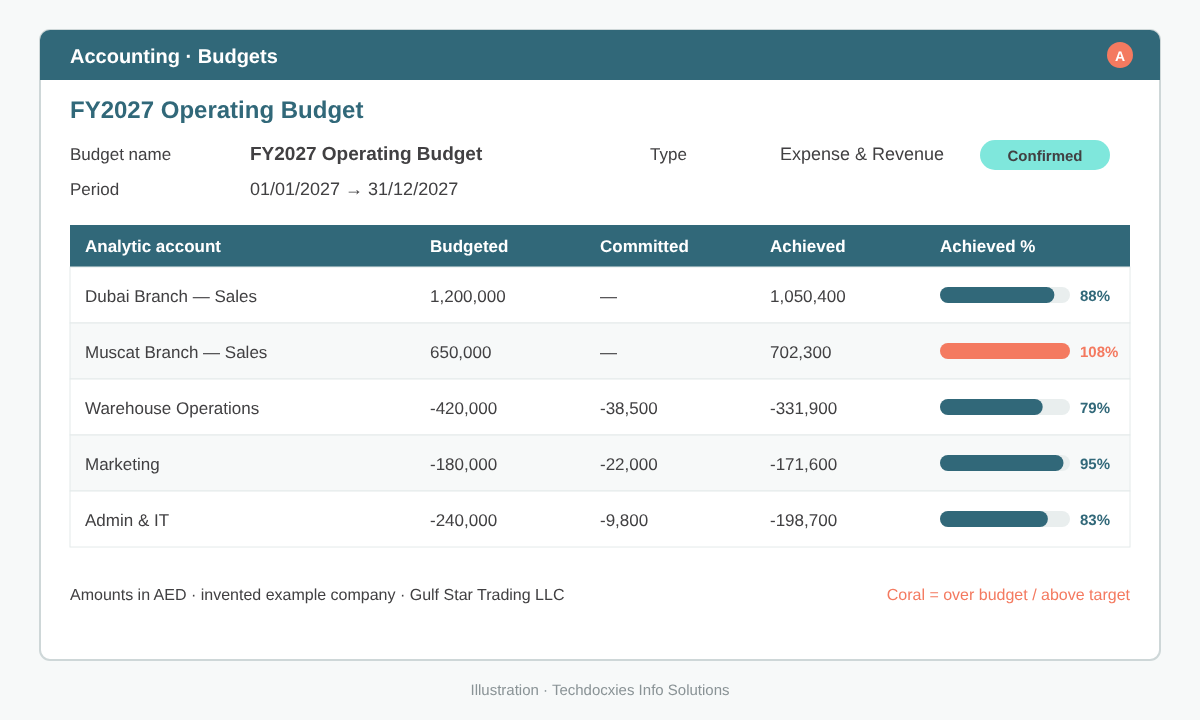
Budgeted, committed and achieved amounts side by side, per analytic account.
Step 6: Review budget vs actual every month
Use the budget report under Accounting › Reporting to compare budgeted and achieved amounts with drill-down to individual journal items. The Analytic Report, also under Reporting, gives a profit-and-loss style view filtered or grouped by any analytic plan, which is ideal for branch P&Ls. Pivot views on analytic items let controllers slice by plan, account and month and export to Excel when needed. Agree a simple routine: tag review by the 3rd working day, variance commentary by branch managers by the 5th, and a management review by the 7th.
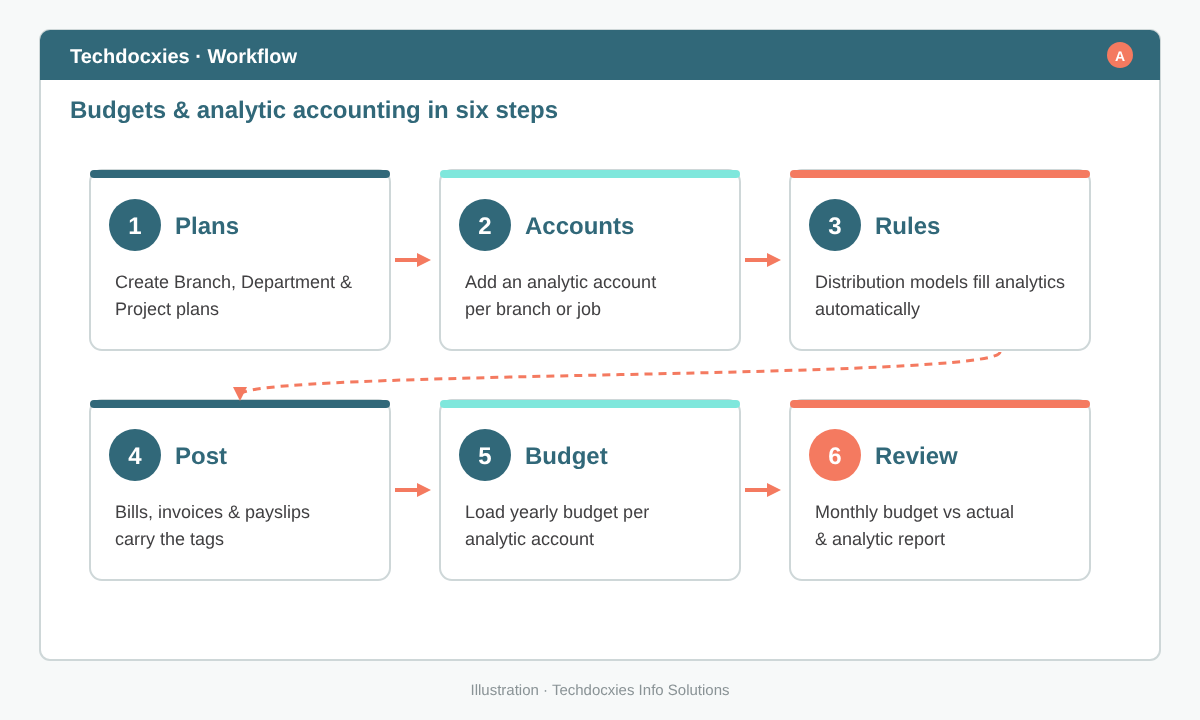
From plan design to monthly review: the full budgeting loop in Odoo 19.
Go-live checklist
- ☐ Reporting questions and analytic dimensions agreed with management
- ☐ Analytic Accounting and Budget Management enabled
- ☐ Analytic plans created with applicability rules (key plan mandatory)
- ☐ Analytic accounts loaded per branch, department and project
- ☐ Distribution models set for recurring vendors, accounts and shared costs
- ☐ FY budget entered, approved and confirmed
- ☐ Monthly untagged-lines check and variance review scheduled
OUR EXPERTISE
How Techdocxies Helps with Budgets & Analytic Accounting
Techdocxies Info Solutions has delivered 50+ Odoo projects for trading, distribution and service businesses across the GCC and beyond. We don't just switch modules on — we map your real processes first, then configure, customise, migrate, train and back you with 24/7 support.
- Design analytic plans that match how your management actually reviews the business
- Configure distribution models so most lines are tagged automatically
- Load and version annual budgets per branch, department and project
- Build branch P&Ls and budget-variance dashboards your managers will use
- Re-tag historical data during migration so year-on-year comparisons stay meaningful