
Every trading company in the GCC has the same pile: supplier invoices arriving by email, WhatsApp photos from the warehouse, and paper bills stapled to delivery notes. Keying each one in by hand is slow, error-prone and impossible to audit later. Odoo 19 can read those bills for you with built-in OCR (bill digitization), file the originals in the Documents app, match them to purchase orders and leave your team to review and approve them. This guide follows the setup we use for clients such as the fictional Al Noor Trading LLC in Muscat, which handles around 600 vendor bills a month.
Step 1: Switch on bill digitization
Go to Accounting › Configuration › Settings and find the digitization section. For vendor bills you can choose to digitize automatically, digitize only on demand, or not digitize at all. For most trading companies, digitize automatically is the right choice: every PDF or image that reaches a vendor bill is sent for extraction, and the draft comes back with vendor, bill reference, dates, currency, totals and, where possible, individual lines filled in.
Save, then check your IAP credit balance from the same section so digitization doesn't stop halfway through a busy week.
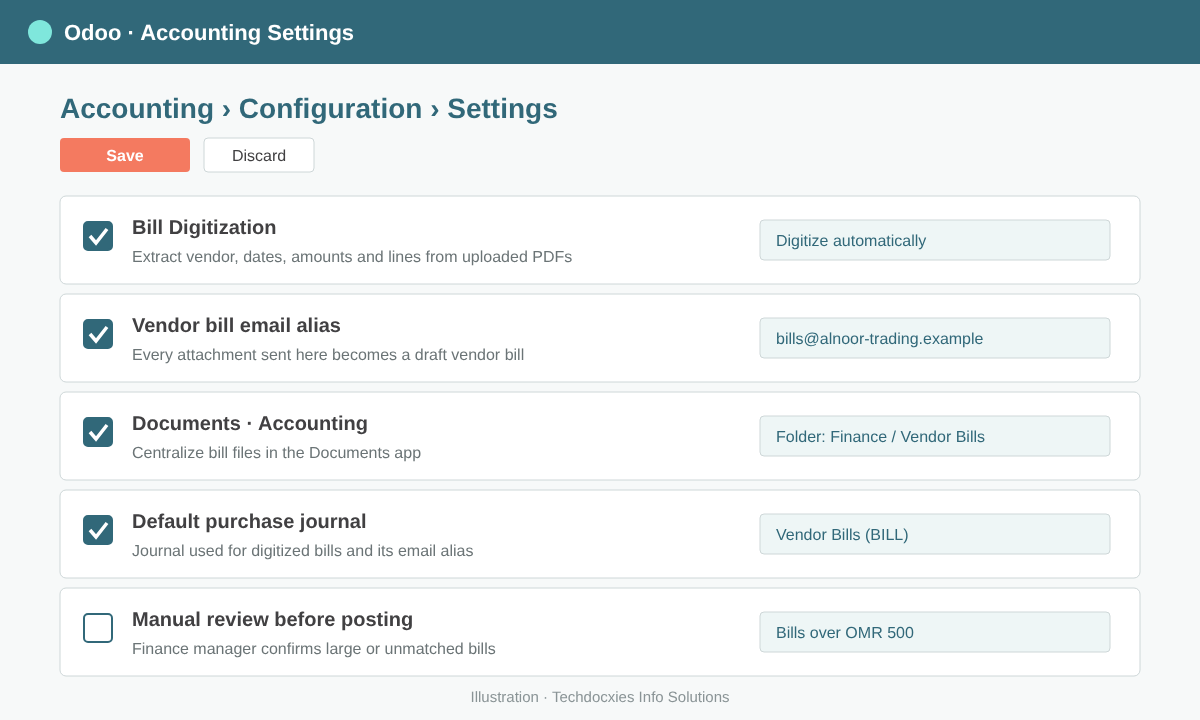
Accounting settings: automatic digitization, a bills email alias and a Documents folder for finance files
Step 2: Create one front door for supplier invoices
Open Accounting › Configuration › Journals, select your Vendor Bills journal and set its email alias (on the journal's advanced settings), for example bills@alnoor-trading.example. Every attachment emailed to that address becomes a draft bill in that journal, already sent for digitization.
The other entry points work too:
- Upload from Accounting › Vendors › Bills, or drag several PDFs onto the list at once.
- Documents: scan or upload files into a finance folder and turn them into bills from there (Step 3).
- Mobile app: photograph a paper bill and upload it on site.
If you run more than one company, give each company its own alias so a bill never lands in the wrong set of books.
Step 3: Organise originals in the Documents app
With the Documents app installed, connect Accounting to it and choose a folder such as Finance / Vendor Bills. Attachments on bills are then centralised there, searchable by vendor, tag and date. Your auditors get one place to look, and staff stop keeping private folders of PDFs.
For paper-heavy teams, a useful habit is "scan first, decide later": the receptionist scans every incoming document into an Inbox folder, and the accounts team turns invoices into bills from the document's actions while sending contracts, delivery notes or customs papers to other folders. Add tags such as To review, Bill created and Query with vendor so the status of every file is visible at a glance.
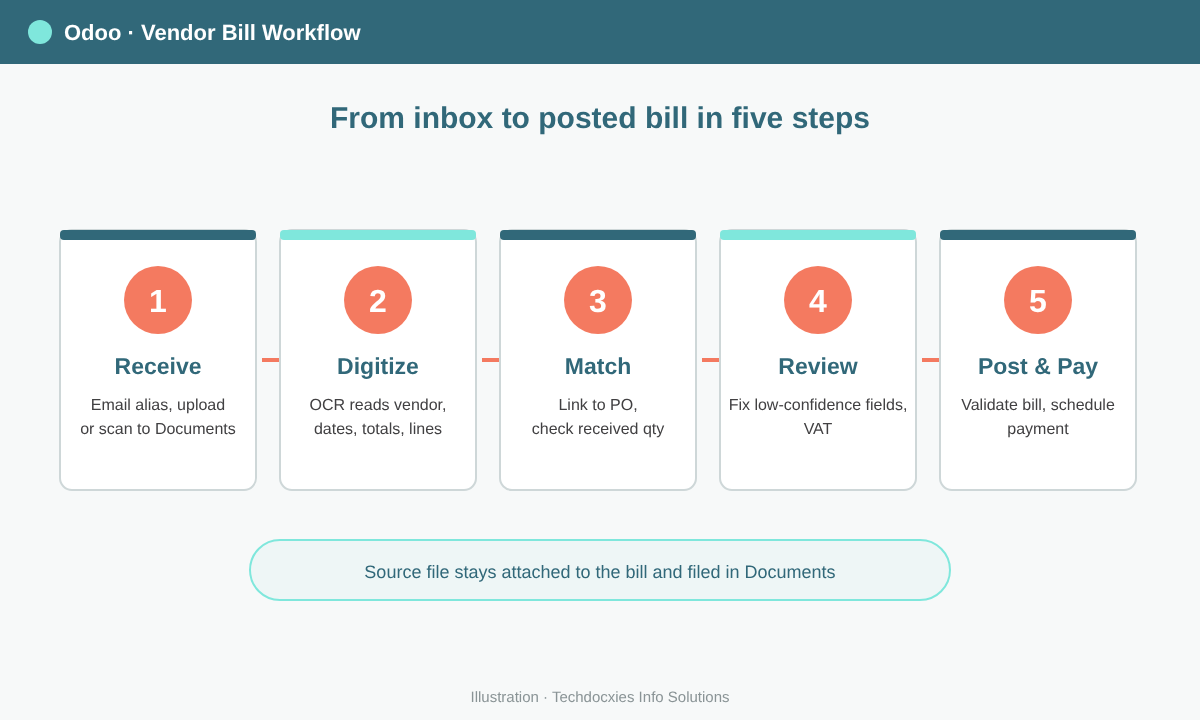
The five-step journey of a supplier invoice from inbox to posted, paid bill
Step 4: Match bills to purchase orders
For goods suppliers, digitization is only half the job; the bill must also agree with what you ordered and received. In Purchase › Configuration › Settings, set the default bill control policy to received quantities so you only pay for goods that actually reached the warehouse.
On a draft bill, use the purchase order auto-complete field to pull in the PO lines. Odoo then compares quantities and prices, and the PO shows whether it is fully billed. Differences, such as a price increase the buyer never approved or 2,000 cartons billed when 1,800 arrived, stand out before posting rather than after payment.
Step 5: Review, correct and confirm
Open each draft from Accounting › Vendors › Bills. Odoo highlights fields it is less confident about, so reviewers can focus there rather than re-reading the whole invoice. A practical review checklist:
| Check | What to look for | Who |
|---|---|---|
| Vendor & reference | Correct supplier; bill reference not already used (Odoo warns about likely duplicates) | AP clerk |
| Dates & terms | Bill date in the right period; due date matches agreed payment terms | AP clerk |
| Amounts | Totals match the PDF; three-decimal currencies read correctly | AP clerk |
| VAT | Correct tax per line (standard, zero-rated, reverse charge for imports) | Accountant |
| PO match | Quantities received, prices as ordered, analytic distribution set | Accountant |
| Approval | Large or unmatched bills confirmed by the finance manager | Finance manager |
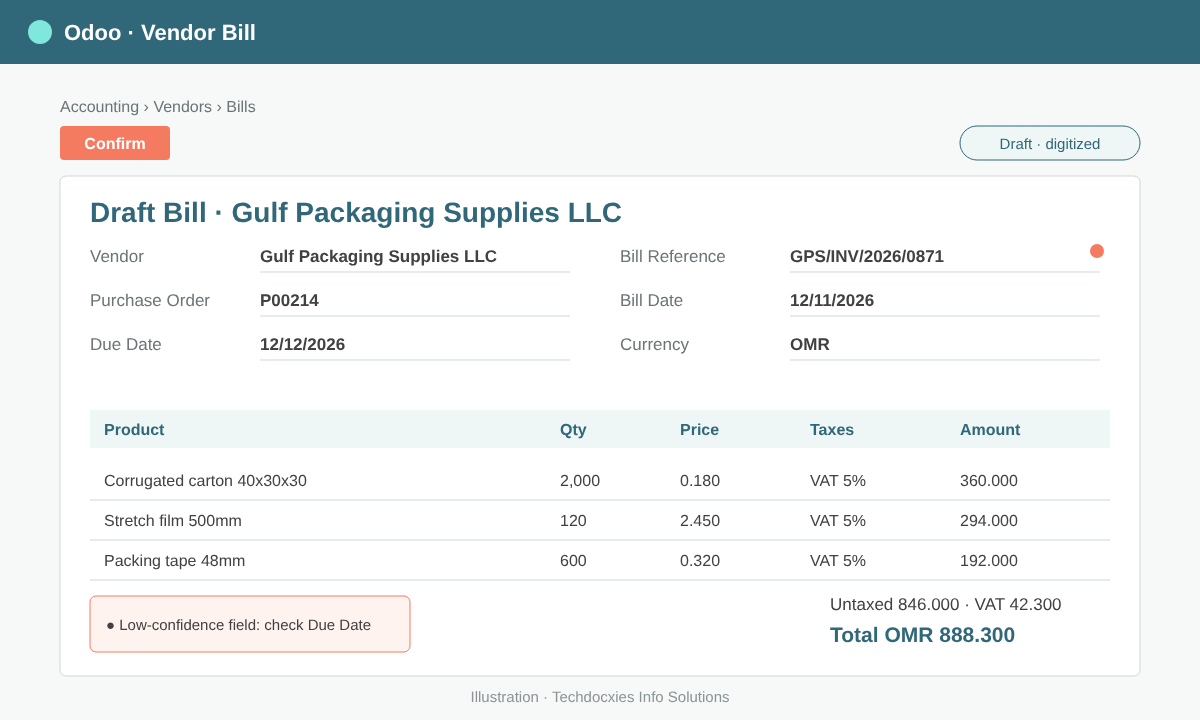
A digitized draft bill linked to its purchase order, with a low-confidence field flagged for review
Pro tip: Ask your top 20 suppliers to send invoices as PDFs straight to the bills alias rather than to a person. Machine-generated PDFs digitize far more accurately than phone photos of paper. After the first few bills from a vendor, Odoo learns their usual product and account choices, so later bills arrive almost ready to confirm.
Step 6: Pay and close the loop
Once confirmed, bills flow into your normal payment run: register payments individually or in batches, then reconcile them against the bank feed. Because the original PDF sits on the bill and in Documents, anyone reviewing a payment can open the source invoice in one click. At month end, lock the period so posted bills can't be edited after the books are closed.
Watch out: OCR suggests values. It doesn't approve them. Never set up a habit of confirming digitized bills in bulk without opening them. A misread decimal on a three-decimal currency such as OMR, KWD or BHD turns 1.250 into 1,250, and a wrong tax on a line flows straight into your VAT return. Bill digitization also uses In-App Purchase (IAP) credits, so keep an eye on your balance before month-end peaks.
Step 7: Measure and improve
After the first month, filter the bills list by creator and by state to see how many bills arrived by alias versus manual entry, how many needed corrections and how long drafts waited for review. Al Noor Trading cut average bill processing from about eight minutes to under two, mainly by moving its biggest suppliers to the alias and fixing vendor defaults (payment terms, default accounts and taxes) on the contact records.
OUR EXPERTISE
How Techdocxies Helps with Bill OCR & Documents
Techdocxies Info Solutions has delivered 50+ Odoo projects for trading, distribution and service businesses across the GCC and beyond. We don't just switch modules on — we map your real processes first, then configure, customise, migrate, train and back you with 24/7 support.
- Design your accounts-payable intake: email aliases per company, scanning routines and Documents folder structure.
- Configure digitization, vendor defaults and GCC VAT taxes so drafts arrive close to ready.
- Set up purchase-order matching and bill control on received quantities for trading stock.
- Build approval rules and review dashboards for large, unmatched or foreign-currency bills.
- Train your AP team and migrate historical bills and attachments into Odoo Documents.