
When a distribution warehouse ships 150 small orders a day, the biggest hidden cost is walking. A picker who collects one order at a time crosses the same aisles again and again. Odoo 19's Batch Transfers and Wave Transfers fix this by letting one person collect many orders in a single trip, then sort them at the pack desk. This guide walks through the setup step by step, using an example hardware distributor, Desert Line Trading in Dubai.
Batch vs. wave: which one do you need?
Both features group work, but at different levels:
- Batch picking groups whole transfers. Twelve pick orders become one batch, and one picker handles all of them.
- Wave picking groups individual product lines across many transfers. You might send one picker to collect every line in Zone A, and another every line in Zone B, regardless of which order the lines belong to.
Most trading companies start with batches, then add waves once order volume and warehouse size justify zone-based picking.
| Situation | Recommended method |
|---|---|
| Many small orders, compact warehouse | Batch transfers |
| Orders going on the same van route or with the same carrier | Batch transfers, grouped by carrier or destination |
| Large warehouse split into zones or floors | Wave transfers by zone/location |
| Fast-moving SKUs that appear in most orders | Wave transfers by product |
| A few large B2B orders a day | Standard one-order picking is usually enough |
Step 1: Enable the features
Go to Inventory › Configuration › Settings and, under the Operations section, tick Batch Transfers and, if needed, Wave Transfers. Wave picking works line by line, so it is most useful when Storage Locations is also enabled under Warehouse and your shelves are set up as bin locations. If you want a separate pick step before packing and shipping, enable Multi-Step Routes and set the warehouse to two- or three-step delivery under Inventory › Configuration › Warehouses.
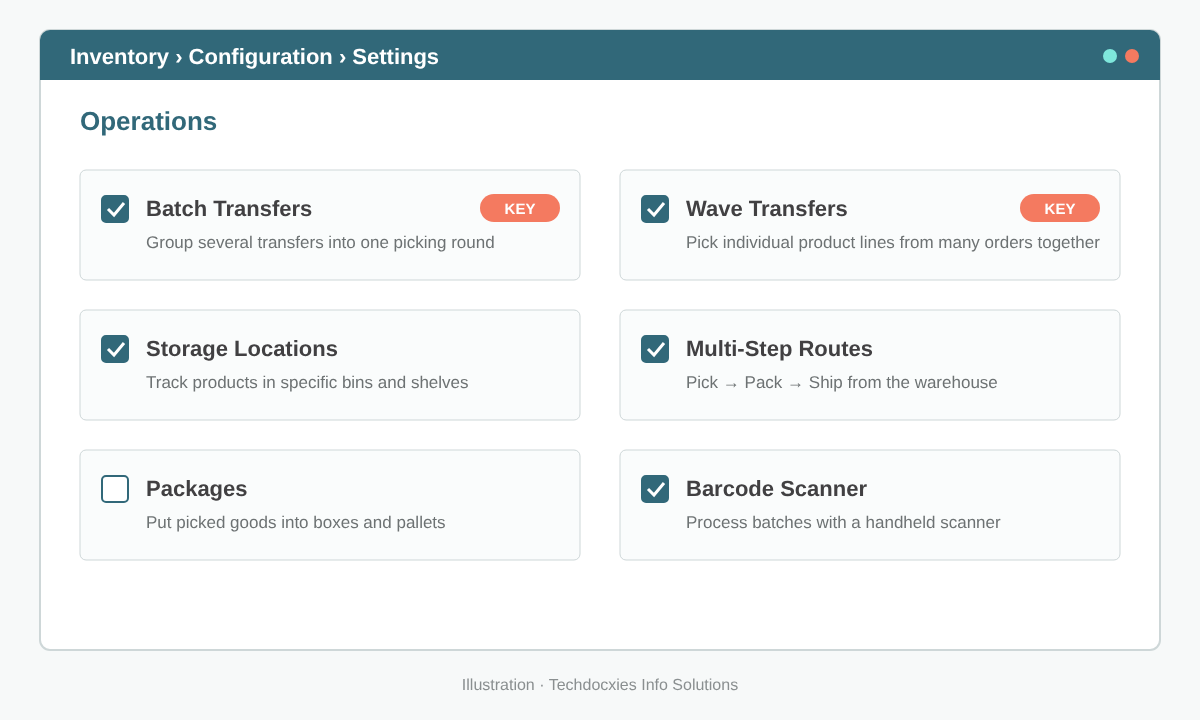
Enable Batch Transfers, Wave Transfers and Storage Locations in Inventory settings.
Step 2: Prepare your locations and operation types
Batching only saves time if the system knows where products sit. Create a logical location structure (for example WH/Stock/A-01, A-02, B-01) under Inventory › Configuration › Locations, and use putaway rules so received goods land in predictable bins.
Next, open your pick operation under Inventory › Configuration › Operation Types. Recent Odoo versions let you configure batch behaviour on the operation type itself, including automatically grouping transfers by criteria such as contact, carrier, destination country or source location, with optional limits on the number of transfers or lines per batch. Check the batch options on your operation type and decide whether you want automatic grouping or manual control.
Step 3: Create batch transfers
To build a batch manually, go to Inventory › Operations › Transfers, filter on ready pick operations, select the transfers you want, and use Actions › Add to batch. Choose an existing batch or create a new one, assign a Responsible user, and confirm. You can also start from Inventory › Operations › Batch Transfers, click New, and add transfers directly.
At Desert Line Trading, the morning supervisor filters the day's ready picks by delivery route, creates one batch per van, and assigns each batch to a named picker before 9 am.
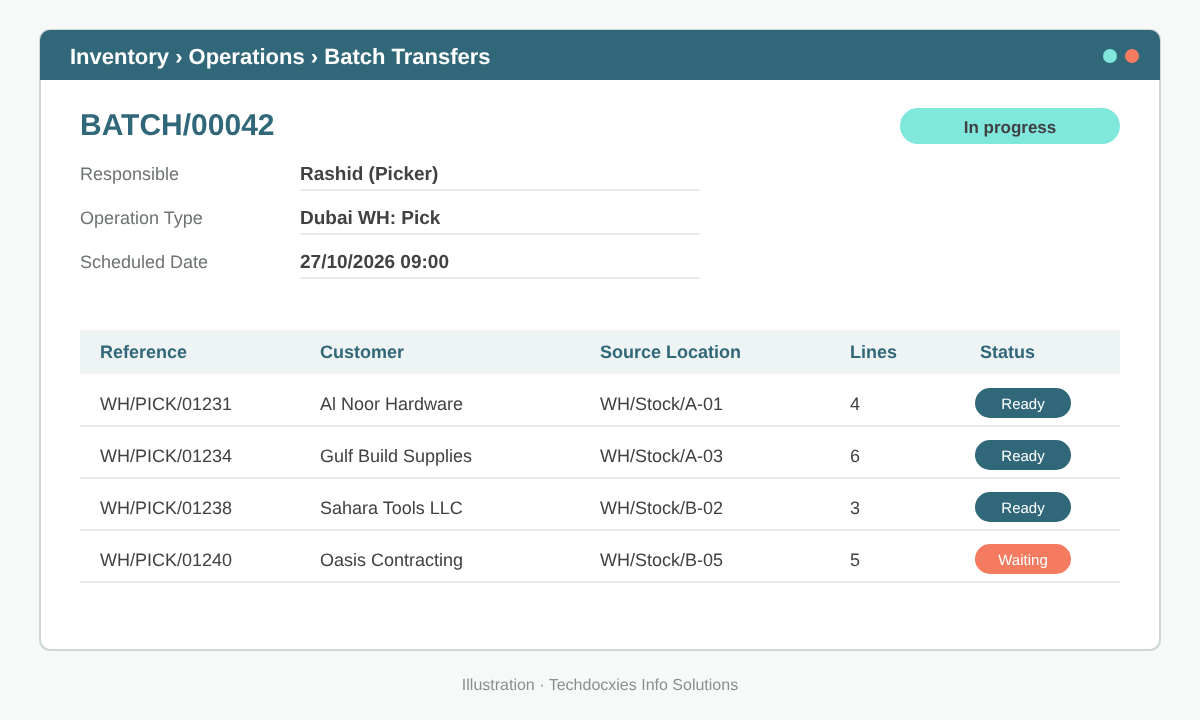
A batch transfer groups several pick orders under one responsible picker.
Pro tip: Group batches by the way goods leave your warehouse. If deliveries go out by van route, batch by route or customer area; if courier pickups happen at fixed times, batch by carrier. Pickers then finish each batch just as its vehicle is ready to load.
Step 4: Create wave transfers
Waves are built from move lines, not whole transfers. From a transfer's detailed operations, or from the list of moves, select the lines to group and use the Add to wave action. Depending on your version and configuration, Odoo can also help you prepare waves by grouping lines by product, product category or location. The resulting waves are listed under Inventory › Operations › Wave Transfers.
A practical pattern is one wave per zone per time slot: a 10:00 wave for Zone A, another for Zone B. Each picker stays in their zone and the lines are reunited per order at the packing area.
Step 5: Pick with the Barcode app
Batch and wave picking pays off most when pickers use handheld scanners. In the Barcode app, pickers open their assigned batch, follow the lines location by location, and scan the location, product and quantity for each line. Scanning prevents the classic batch-picking error of putting the right item in the wrong customer's tote.
Give each order its own tote or package so goods remain separated during the walk. With the Packages setting enabled, totes can be tracked as packages and moved together to the pack step.
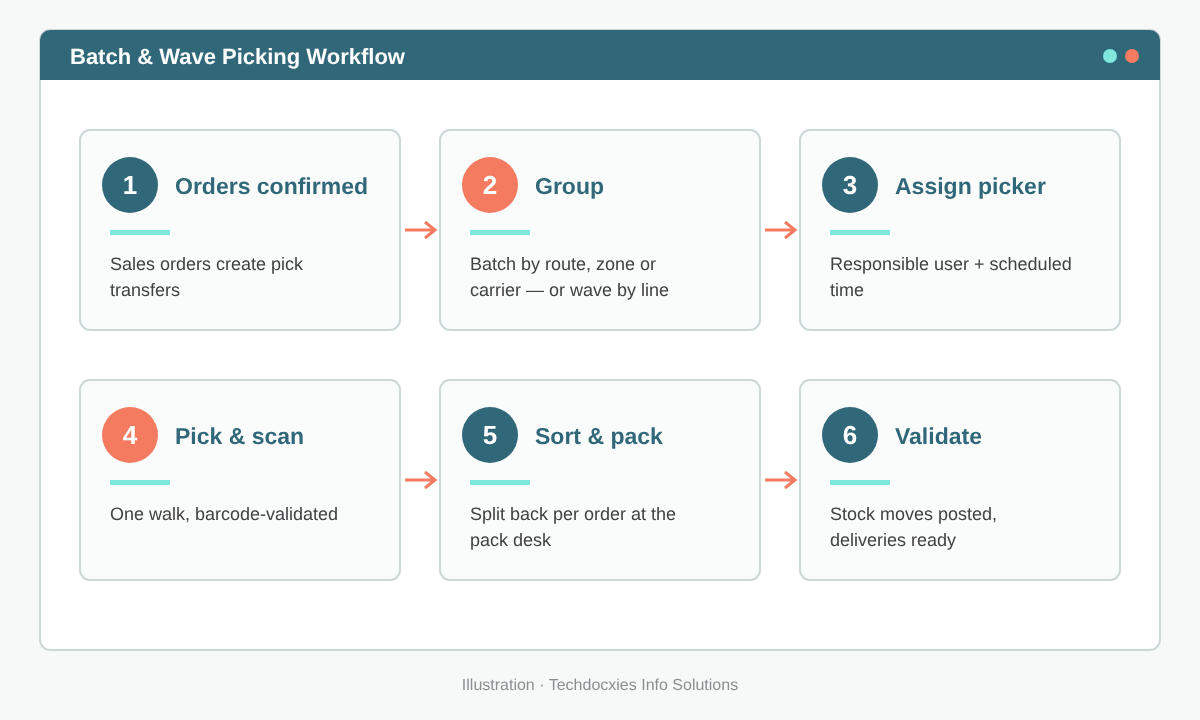
From confirmed order to validated delivery: the six-step batch and wave picking flow.
Step 6: Validate, pack and ship
When every line is picked, validate the batch. Odoo validates each transfer inside it, posts the stock moves, and moves the goods to the next step (pack or output). If a product is short, Odoo asks whether to create a backorder, exactly as it does for single transfers. Delivery orders then flow on to shipping and invoicing as usual.
Watch out: Do not throw transfers that are still Waiting into a batch. If one order is missing stock, the picker either skips it or the whole batch stalls at validation. Filter on Ready transfers before batching, and remove blocked ones from the batch rather than forcing partial validation.
Go-live checklist
- ☐ Batch Transfers (and Wave Transfers if needed) enabled
- ☐ Bin locations created and labelled with barcodes
- ☐ Putaway rules in place so stock lands in predictable bins
- ☐ Pick operation type reviewed for batch grouping options
- ☐ Pickers set up as users with access to Inventory and Barcode
- ☐ Totes or packages ready to keep orders separated
- ☐ A pilot day run on one route or zone before full rollout
- ☐ Supervisor report on picks per hour before and after go-live
OUR EXPERTISE
How Techdocxies Helps with Batch & Wave Picking
Techdocxies Info Solutions has delivered 50+ Odoo projects for trading, distribution and service businesses across the GCC and beyond. We don't just switch modules on — we map your real processes first, then configure, customise, migrate, train and back you with 24/7 support.
- Warehouse walk-through and picking-method assessment (batch, wave or zone)
- Bin location design, barcode labelling and putaway rule setup
- Operation type and route configuration for pick–pack–ship flows
- Barcode scanner rollout and hands-on training for pickers and supervisors
- Productivity reporting to measure picks per hour and order accuracy