
Most GCC trading companies still take repeat B2B orders by WhatsApp, phone and emailed spreadsheets. Each order is typed again into the ERP, prices are checked by hand and mistakes reach the customer. Odoo 19 lets you open a private, login-only shop where trade customers see their own prices, payment terms and order history, and every order goes straight into Sales, Inventory and Accounting. This guide shows how to set up a B2B eCommerce portal step by step.
Step 1: Install the right apps and decide your portal model
Install Website and eCommerce from Apps, alongside Sales, Inventory and Invoicing/Accounting. Before you configure anything, decide which kind of shop you are building:
- Closed B2B shop: only approved trade accounts can log in and order. This suits distributors and wholesalers.
- Hybrid shop: the public sees a catalogue (with or without prices), and logged-in trade customers get their contract prices.
Our example company, Al Waha Building Materials Trading LLC in Sharjah, chose a closed shop for about 400 contractor and retailer accounts.
Step 2: Configure checkout and customer accounts
Go to Website › Configuration › Settings and, in the shop and checkout sections:
- Set customer accounts to sign-up on invitation, so only customers you approve can log in.
- Make sign-in mandatory at checkout, so no anonymous guest orders get through.
- Show product prices tax excluded. B2B buyers think in net prices, and Odoo adds VAT at checkout.
- Turn on the option to re-order from the portal (where your version offers it), so regular buyers can repeat a past order in one click.
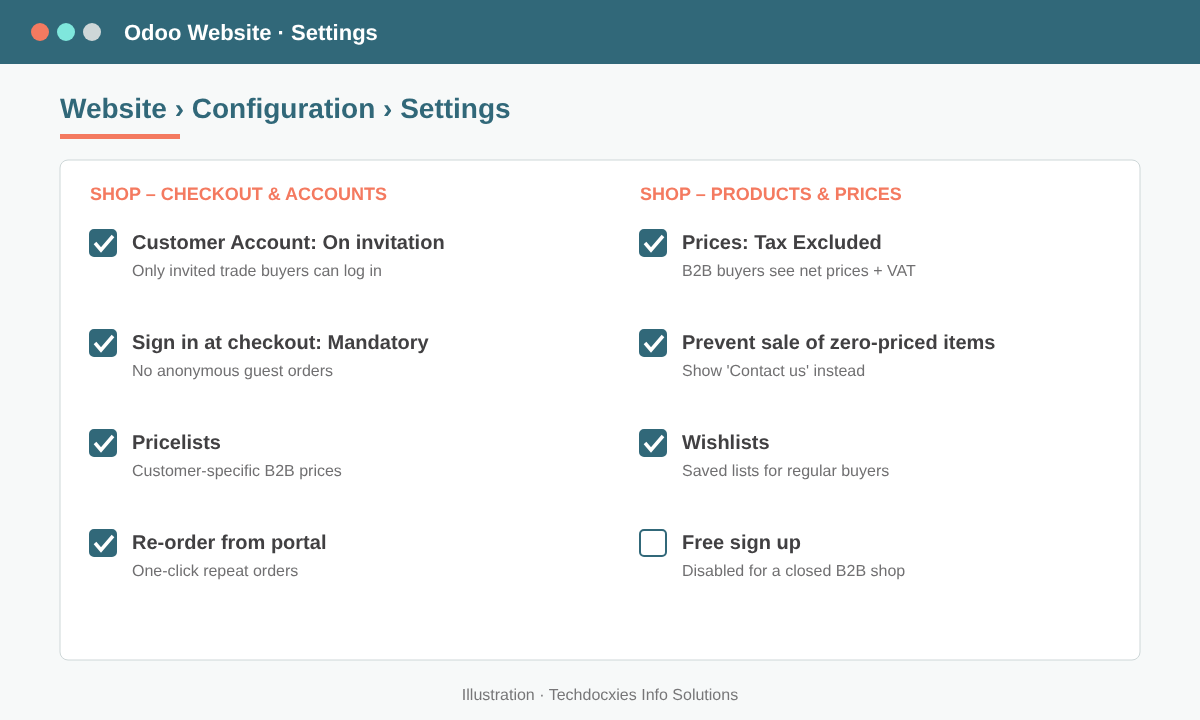
Website settings for a closed B2B shop: invitation-only accounts, mandatory sign-in and tax-excluded prices.
Step 3: Build customer-specific pricelists
Enable Pricelists under Sales › Configuration › Settings, then create them in Sales › Products › Pricelists (also reachable from the Website app's eCommerce menu). Typical B2B tiers:
| Pricelist | Rule | Who gets it |
|---|---|---|
| Trade – Tier A | 18% off list price, minimum quantity per product | Large contractors, annual contracts |
| Trade – Tier B | 10% off list price | Regular retailers |
| Project Pricing | Fixed prices for selected products | Customers with a signed project quotation |
| Export (USD) | Separate currency pricelist | Buyers in other GCC and African markets |
Quantity breaks work well online. Set a minimum quantity on a pricelist rule (for example, 50 bags of cement), and the buyer sees the lower unit price as soon as the cart reaches that quantity.
Pro tip: Keep the number of pricelists small and use rules inside them for exceptions. Five well-built pricelists are far easier to maintain than one pricelist per customer. When a customer really needs unique prices, put fixed-price rules for those products at the top of their tier pricelist.
Step 4: Set up trade customers and grant portal access
Open each company in Contacts or Sales › Orders › Customers. On the Sales & Purchase tab, set the Pricelist, Payment Terms and salesperson. If you use credit limits (enabled in Accounting › Configuration › Settings), set the limit on the customer too. Add the buyer and finance contacts, invoice address and delivery sites as child contacts.
Next, select the individual buyers and use Action › Grant portal access. Odoo emails each one an invitation to set a password. Child contacts inherit the company's pricelist, so every buyer at a customer sees the same prices.
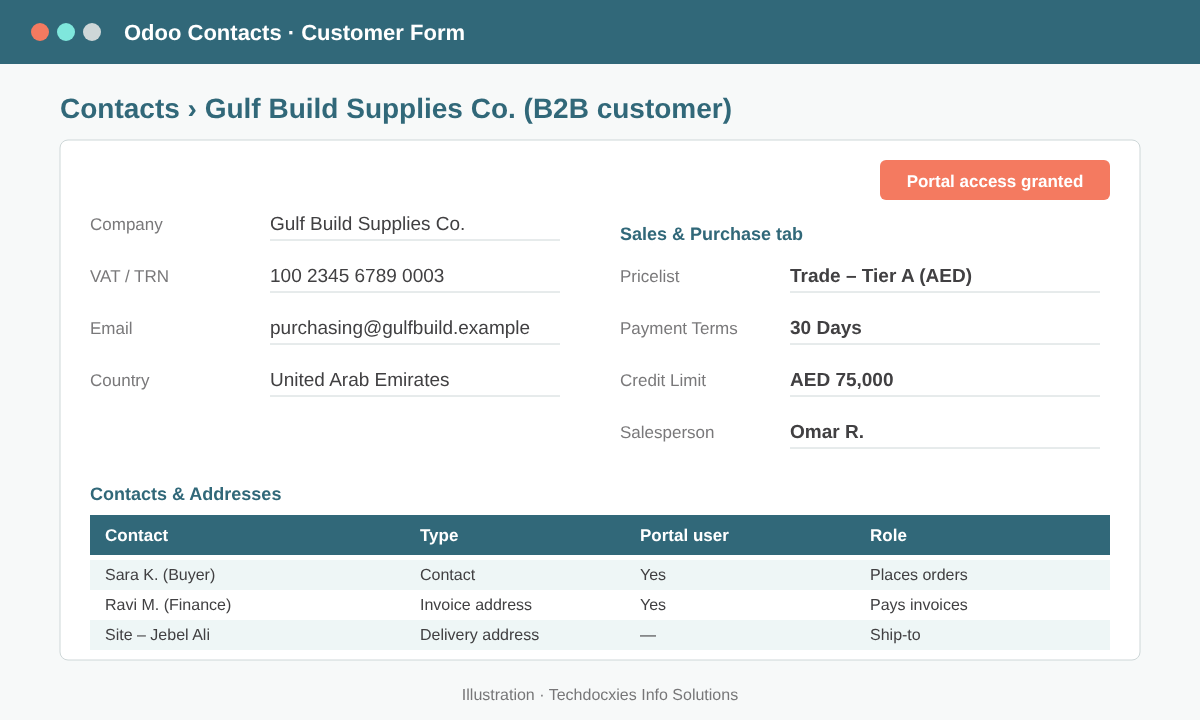
A B2B customer record: tier pricelist, 30-day terms, credit limit and separate buyer, finance and delivery contacts.
Step 5: Prepare the catalogue for professional buyers
From Website › eCommerce › Products, publish only the products you sell to trade accounts. For each one, add:
- Clear names with internal references (SKU), plus barcodes where buyers order by code.
- eCommerce categories that match how buyers search (for example, Cement › OPC, Tiles › Porcelain).
- Selling units and packaging that match how you ship: carton, pallet or bag.
- Stock display options, so buyers know whether an item is available or must be back-ordered.
- Datasheets and certificates as downloadable documents where relevant.
Watch out: Products with a sale price of zero, or items you only quote on request, can end up in the cart at AED 0. Use the website setting that prevents zero-priced sales, or unpublish those items, and test every pricelist while logged in as a sample portal user before you go live.
Step 6: Payments, credit terms and order confirmation
Under Website › Configuration › Payment Providers (or Accounting › Configuration › Payment Providers), activate the methods your buyers use. Trade customers on credit terms usually pay later against an invoice, so enable a Wire Transfer style method for them, and keep an online card gateway for cash customers and small top-up orders.
When a buyer checks out, Odoo creates a sales order with their pricelist, payment terms and chosen delivery address. Your sales team can review it in Sales › Orders, where credit-limit warnings appear if the customer is over their limit. From there it flows into a delivery order in Inventory and an invoice in Accounting.
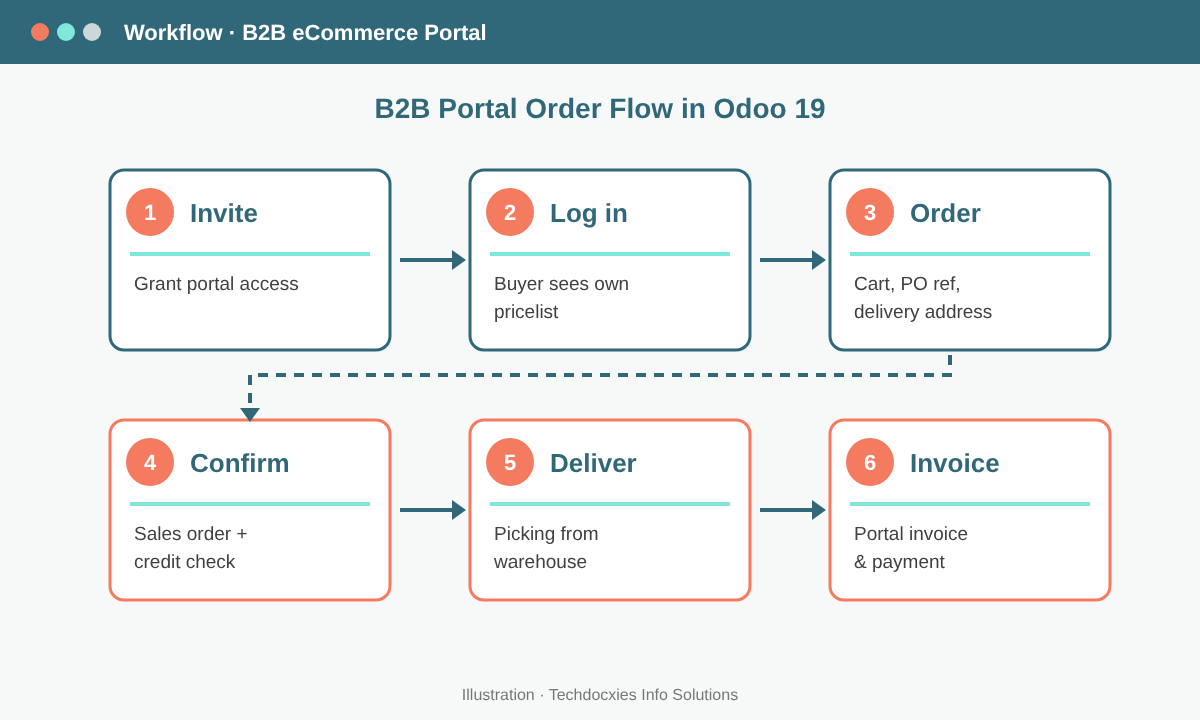
The end-to-end flow: invite, log in, order, confirm, deliver and invoice, all in one database.
Step 7: Let customers serve themselves through the portal
Once logged in, buyers open My Account on your website to see their quotations, sales orders, delivery status, invoices and outstanding amounts. They can download PDFs, pay open invoices online and reorder past purchases. This cuts out many of the "Where is my order?" and "Please resend the invoice" calls your team handles every day.
Go-live checklist
- ☐ Invitation-only sign-up and mandatory checkout login tested
- ☐ Each pricelist checked with a sample portal user
- ☐ Payment terms, credit limits and VAT (5% UAE / 15% KSA) verified on test orders
- ☐ Catalogue, units, images and stock display reviewed
- ☐ Order confirmation and invoice email templates branded
- ☐ Portal invitations sent in batches, starting with your top 20 customers
OUR EXPERTISE
How Techdocxies Helps with B2B eCommerce Portals
Techdocxies Info Solutions has delivered 50+ Odoo projects for trading, distribution and service businesses across the GCC and beyond. We don't just switch modules on — we map your real processes first, then configure, customise, migrate, train and back you with 24/7 support.
- Design a pricelist structure for tiers, projects, quantity breaks and multi-currency
- Set up an invitation-only B2B shop with your branding and catalogue structure
- Import customers, contacts, delivery sites and credit terms from your legacy system
- Connect GCC payment gateways and configure VAT-compliant checkout and invoicing
- Run portal onboarding for your trade customers and train your sales team