
Your auditors ask two questions every year: who changed this entry, and how do we know last quarter's figures haven't moved since you filed the VAT return? If the honest answer is "we'd have to check," you have a control gap. Odoo 19 closes it with two features that work together: an audit trail that logs changes to accounting records, and lock dates that freeze periods once they are reconciled, filed or audited. This guide walks through the setup we use for clients such as the fictional Sahil Trading LLC in Sohar, a distributor with four accountants, two companies and quarterly VAT filings.
Step 1: Switch on the audit trail
Go to Accounting › Configuration › Settings and find the audit trail option in the reporting section. Once enabled, Odoo logs the creation, modification and deletion of journal entries and their key fields (accounts, amounts, partners, taxes, dates), along with the user and the time. The log sits in the chatter of each record and can be reviewed centrally, so nothing depends on someone remembering what they edited.
In GCC jurisdictions with record-keeping obligations under VAT law, a reliable change history is part of keeping books that will hold up under a tax audit. Enable it at go-live, not after the first audit query, because the trail only covers changes made after it is switched on.
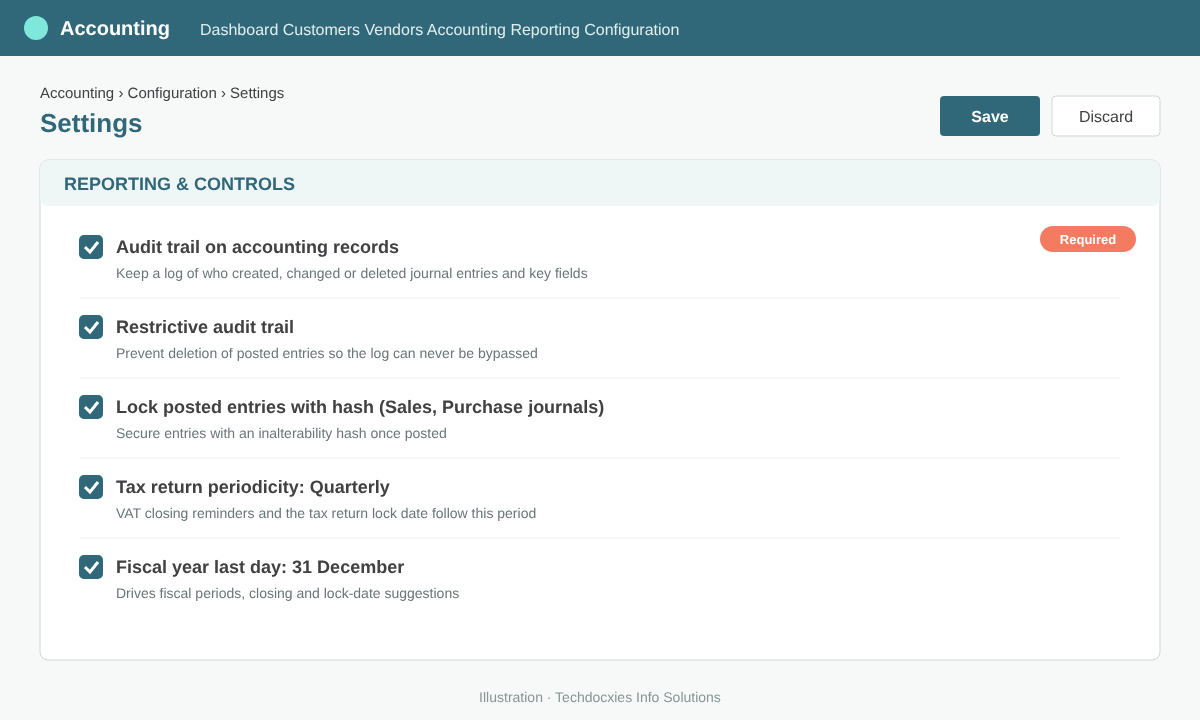
Turn on the audit trail and related controls in Accounting settings before the first entries are posted.
Step 2: Secure posted entries in sensitive journals
For an extra layer of protection, open each sales and purchase journal from Accounting › Configuration › Journals and, in its advanced settings, enable locking posted entries with a hash. Odoo then chains each posted entry to the previous one with an inalterability hash, so any tampering at database level breaks the chain and shows up when you run the integrity check.
Because hashed entries cannot be reset to draft, corrections must go through credit notes or reversal entries. That is good accounting practice anyway, but brief the team before you switch it on.
Step 3: Decide who may edit what
An audit trail tells you who made a change; access rights decide who can make one at all. In Settings › Users & Companies › Users, review each finance user's accounting role. At Sahil Trading, only the finance manager and the chief accountant hold full accounting administration rights, which is what allows them to manage lock dates. Billing clerks can create and post invoices but cannot touch configuration or closed periods.
Step 4: Set your lock dates
Open the lock dates screen from the Accounting › Accounting menu. Odoo 19 offers several lock dates, each with a different reach:
| Lock date | What it blocks | When Sahil Trading sets it |
|---|---|---|
| Sales lock date | Customer invoices and credit notes on or before the date | 3 working days after month-end |
| Purchase lock date | Vendor bills and refunds on or before the date | 5 working days after month-end, once late bills are in |
| Tax return lock date | Entries affecting taxes in a filed period | Set by the VAT closing entry each quarter |
| Global lock date | All entries in all journals | After month-end review is signed off |
| Hard lock date | Everything, permanently; it cannot be moved back | Only after the external audit of the year |
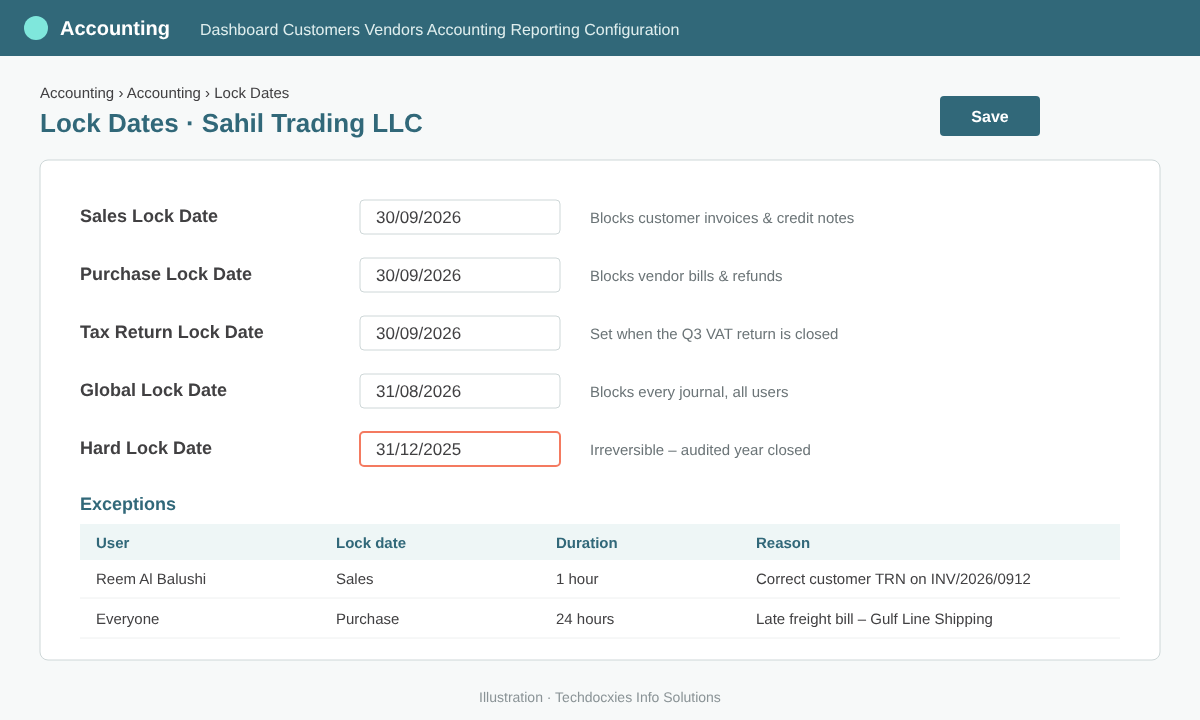
Separate lock dates for sales, purchases, tax and the whole ledger, plus time-limited exceptions.
Pro tip: Stagger your locks. Locking sales first gives the billing team a firm deadline while still leaving the purchase side open for the bills that always arrive late in GCC trading, such as freight, customs and clearing charges. Then apply the global lock once both sides are reviewed. Staggered locks give you a clean close without blocking anyone longer than necessary.
Step 5: Handle corrections with exceptions, not by moving dates
Sooner or later someone needs to fix a closed period, for example a wrong customer TRN on a September invoice. Instead of pushing the lock date back for everyone, Odoo 19 lets an authorised user grant an exception: for one user or for everyone, for a specific lock date and for a limited time, with a reason recorded. When the exception expires, the lock is back in force automatically, and the exception itself remains on record for the auditors.
Watch out: The hard lock date is final. Once set, it cannot be moved earlier and no exception can override it. Set it only after your year-end figures are audited and the financial statements are approved, and double-check the date before saving. A typo of one year here can freeze a period that still needs adjusting entries.
Step 6: Build the controls into your month-end close
Lock dates only work if they are part of a routine. Sahil Trading follows the same sequence every month, and the tax return closing step sets the tax lock date for them each quarter.
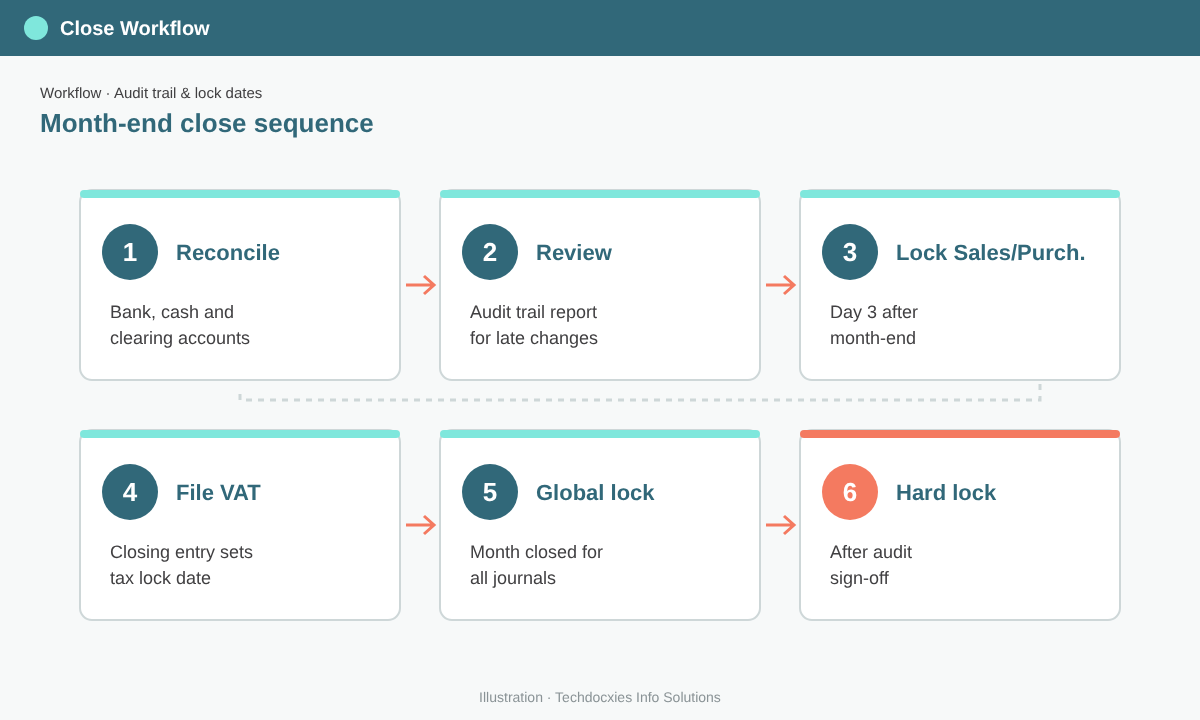
A six-step month-end sequence: reconcile, review, lock, file, close and, after audit, hard lock.
Use this checklist each month:
- ☐ Bank, cash and clearing accounts reconciled to zero differences
- ☐ Audit trail reviewed for changes to entries dated in the closing month
- ☐ Sales lock date set; billing team notified
- ☐ Late vendor bills captured; purchase lock date set
- ☐ VAT return checked and closed (quarter-end months)
- ☐ Global lock date moved to the last day of the month
- ☐ Open lock-date exceptions reviewed and none left active
Step 7: Review the audit trail like an auditor would
Open the audit trail report under Accounting › Reporting and filter it by date, user or journal. Three checks catch most problems: changes to entries in already-reported months, edits to bank and cash journals, and changes to partner bank accounts on vendors, which is a classic sign of payment fraud. Group by user to spot anyone working outside their normal area. Spending 20 minutes on this each month gives you answers to auditors' questions before they ask them.
OUR EXPERTISE
How Techdocxies Helps with Audit Trail & Lock Dates
Techdocxies Info Solutions has delivered 50+ Odoo projects for trading, distribution and service businesses across the GCC and beyond. We don't just switch modules on — we map your real processes first, then configure, customise, migrate, train and back you with 24/7 support.
- Configure the audit trail, journal hashing and finance access rights from day one of go-live.
- Design a lock-date policy and month-end close calendar that fits your VAT filing periods.
- Set up exception approvals so closed-period corrections are controlled and documented.
- Build audit trail review reports for changes in closed months, bank journals and vendor bank details.
- Prepare your finance team for external and tax audits with training and a clean, locked ledger.