
Every Odoo version brings faster screens, smarter automation and better reporting, but the real value only arrives once your company is actually running on it. Whether you are on Odoo 15, 16, 17 or 18, or still on a legacy accounting package, moving to Odoo 19 is a project, not a button click. This guide walks GCC trading, distribution and service businesses through a practical, low-risk migration: what to audit, how to test, and how to cut over without losing a day of invoicing.
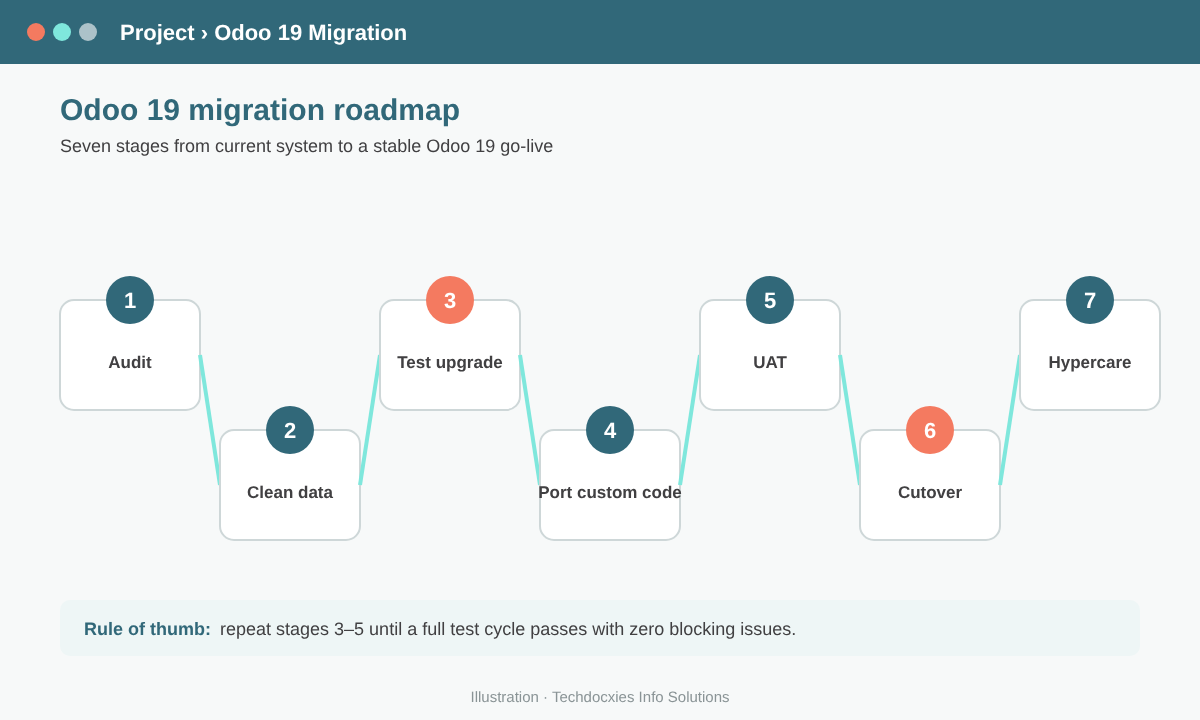
The seven stages of a controlled Odoo 19 migration, from audit to hypercare.
Step 1: Audit What You Have Today
Start by listing everything installed and everything changed. Open Apps and filter on installed modules, then activate developer mode and review Settings › Technical › Database Structure › Models for custom fields (those prefixed x_ usually come from Studio). Add custom modules, third-party apps from the Odoo Apps Store, custom report layouts, automated actions and integrations (payment gateways, WhatsApp, biometric devices, eCommerce connectors).
For each item, record one decision: Keep (standard, upgraded by Odoo), Review (Studio change that may now be standard), Port (custom code that must be rewritten for 19), or Replace/Retire. Many customisations written years ago now exist as standard features, and dropping them makes every future upgrade cheaper.
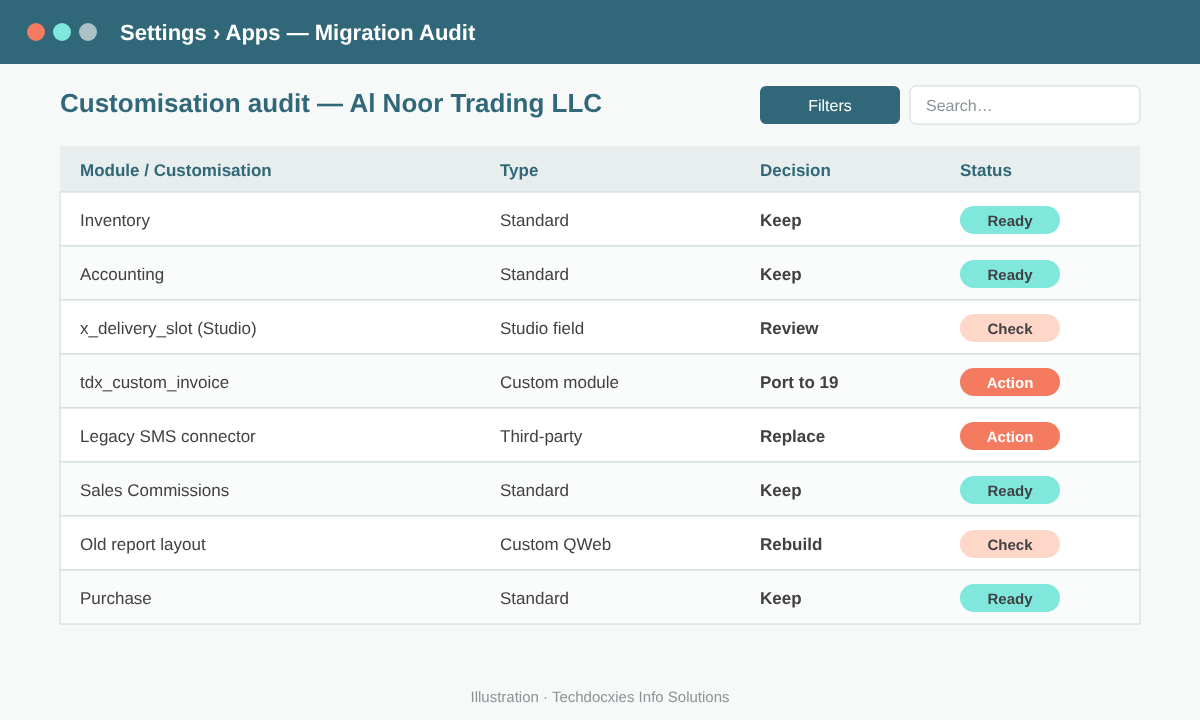
A simple audit list: every module or customisation gets a type, a decision and a status.
Step 2: Clean Your Data Before It Moves
An upgrade carries every record forward, including the mistakes. Before the first test run, ask each department to tidy up:
- Archive duplicate customers, vendors and products, and merge obvious duplicates.
- Validate or cancel old draft quotations, purchase orders, transfers and invoices.
- Reconcile bank journals and clear suspense or outstanding payment accounts.
- Correct negative stock and run a cycle count on high-value items.
- Close and lock the last finished accounting period so historic figures cannot drift.
Step 3: Request a Test Upgrade
Odoo's upgrade service converts standard modules for you. How you request it depends on hosting: on Odoo Online you request a test upgrade from your database manager; on Odoo.sh you upgrade a staging branch; on-premise databases are submitted to Odoo's upgrade platform. Each route returns a separate test copy of your database on Odoo 19, while production keeps running untouched.
Odoo neutralises upgraded test databases (outgoing email and scheduled actions are disabled), so your team can experiment safely without customers receiving duplicate invoices.
Step 4: Port Custom Modules and Re-check Studio Changes
Odoo's upgrade service covers standard apps, while custom modules remain your (or your partner's) responsibility. Each one must be updated for the Odoo 19 framework, including Python APIs, views, reports and front-end assets, and then installed on the test database. For Studio customisations, open each affected form and list view in the test copy and confirm the fields, views and automations still behave as expected. Where a standard Odoo 19 feature now covers the requirement, migrate the data into the standard field and retire the custom one.
Step 5: Run User Acceptance Testing (UAT)
Testing is where migrations succeed or fail. Give each department lead a written script covering their end-to-end flows, and reconcile figures between the old and new databases rather than just clicking through screens.
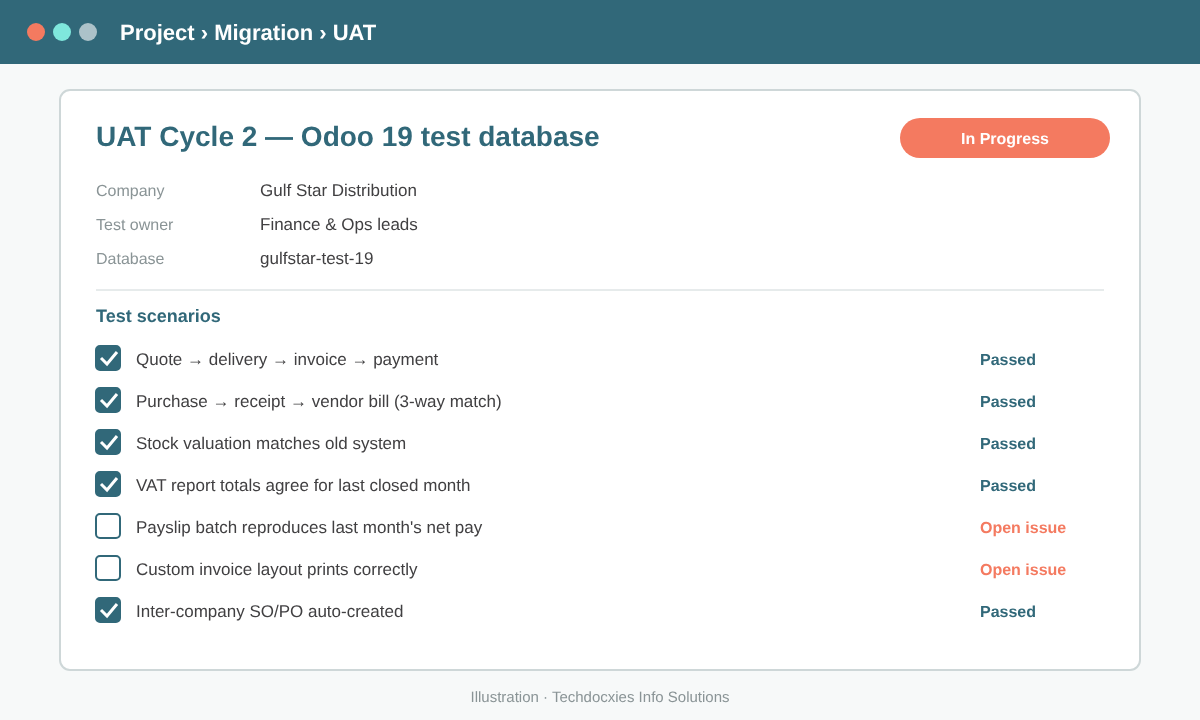
A UAT cycle tracks each business scenario until it passes on the Odoo 19 test database.
| Area | What to test | How to prove it |
|---|---|---|
| Sales | Quotation → delivery → invoice → payment | Same totals, taxes and pricelist prices as old system |
| Purchase | PO → receipt → vendor bill | Bill matching and approvals behave as before |
| Inventory | Stock on hand and valuation | Compare Inventory › Reporting › Stock with the old database |
| Accounting | Trial balance, ageing, VAT | Accounting › Reporting › Trial Balance and Aged Receivable agree to the fils |
| HR & Payroll | Last month's payslip batch | Net pay and gratuity provisions reproduce exactly |
| Integrations | Payment gateway, WhatsApp, biometrics | Live test transaction on each connector |
Log every issue, fix it, and request a fresh test upgrade. Most projects need two or three cycles before a run passes with no blocking issues.
Step 6: Migrating From a Non-Odoo System
If you are coming from Tally, QuickBooks, Excel or an older ERP, there is no upgrade script; the approach is a structured data import. Use the Import records option in each list view (customers, vendors, products, chart of accounts), and load opening balances for receivables, payables, stock and the general ledger as at a clean cut-off date, normally a month or year end. Bring in open documents (unpaid invoices, pending purchase orders) as individual records so they can be paid and received in Odoo, and keep closed history in the old system as a read-only archive.
Step 7: Plan the Cutover Weekend
Pick a quiet window, ideally right after a month-end close. Freeze transactions in the old system, take a final backup, run the production upgrade (or final import), install ported modules, re-enable email and scheduled actions, and complete a short smoke test before users log in on Monday. Agree a go/no-go checkpoint and a rollback plan in advance.
Step 8: Hypercare After Go-Live
For the first two to four weeks, keep consultants on call, hold a daily 15-minute issue review, and watch the first month-end close closely. Retrain users on screens that changed, and record any new improvement requests for a phase-two backlog rather than customising in a hurry.
OUR EXPERTISE
How Techdocxies Helps with Migrating to Odoo 19
Techdocxies Info Solutions has delivered 50+ Odoo projects for trading, distribution and service businesses across the GCC and beyond. We don't just switch modules on — we map your real processes first, then configure, customise, migrate, train and back you with 24/7 support.
- Full customisation and third-party app audit with a clear keep/port/retire plan
- Porting of custom modules, reports and integrations to the Odoo 19 framework
- Data cleansing and imports from Tally, QuickBooks, SAP B1 and spreadsheets
- Scripted UAT cycles with reconciled stock, VAT and trial balance figures
- Planned cutover weekends and post-go-live hypercare